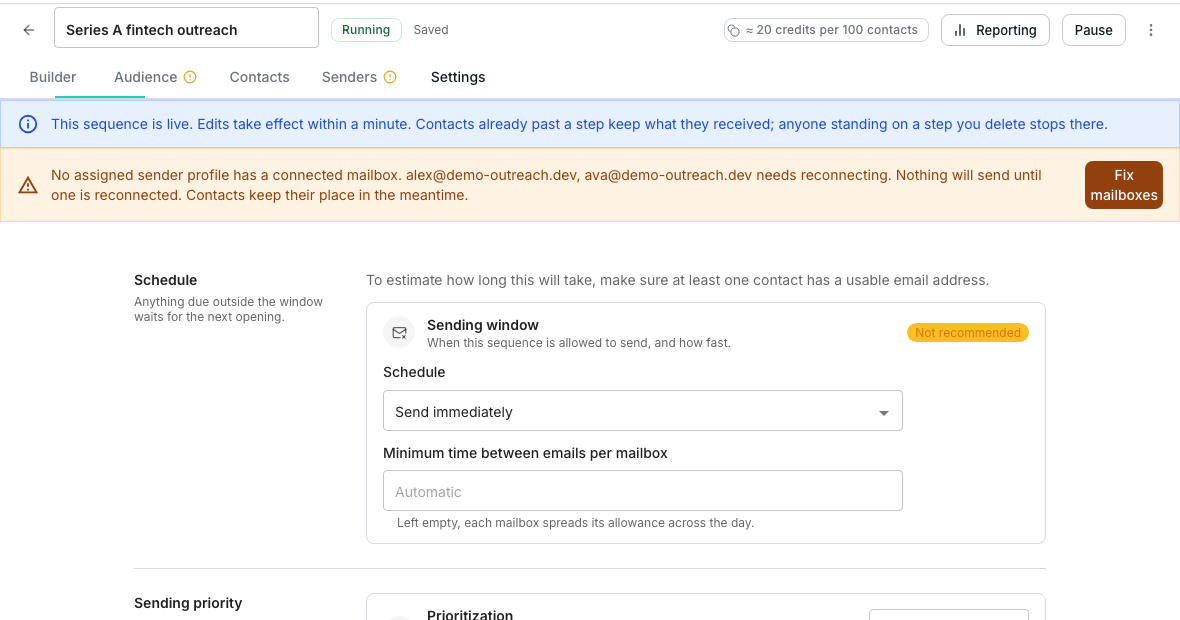
The Multithreading section of a sequence's settings.
Set the rules
1
Open Multithreading
In the sequence editor, open Settings and find the Multithreading section.
2
Set a company limit
Type a number into Set a company limit, or leave it as No limit.
3
Turn on Sequential sending within a company
One colleague is contacted at a time; the sequence waits for an outcome before moving to the next.
4
Turn on Stop on reply from company
When anyone at the company replies, their colleagues’ scheduled sends stop as well.
Good to know
What happens to the rest once the company limit is reached?
What happens to the rest once the company limit is reached?
They do not get contacted through this sequence. The limit is a ceiling on the whole company, not on each colleague.
Does Sequential sending wait a fixed amount of time?
Does Sequential sending wait a fixed amount of time?
No. It waits for an outcome at the current step, not a timer, before moving on to the next colleague.
Why are both settings marked Recommended?
Why are both settings marked Recommended?
Emailing a whole company at once, or ignoring one colleague’s reply while others keep hearing from you, reads as spam rather than outreach.
Next steps
Choose the audience
Map the Company column this setting depends on.
Set the schedule and sending window
Decide when this sequence is allowed to send.