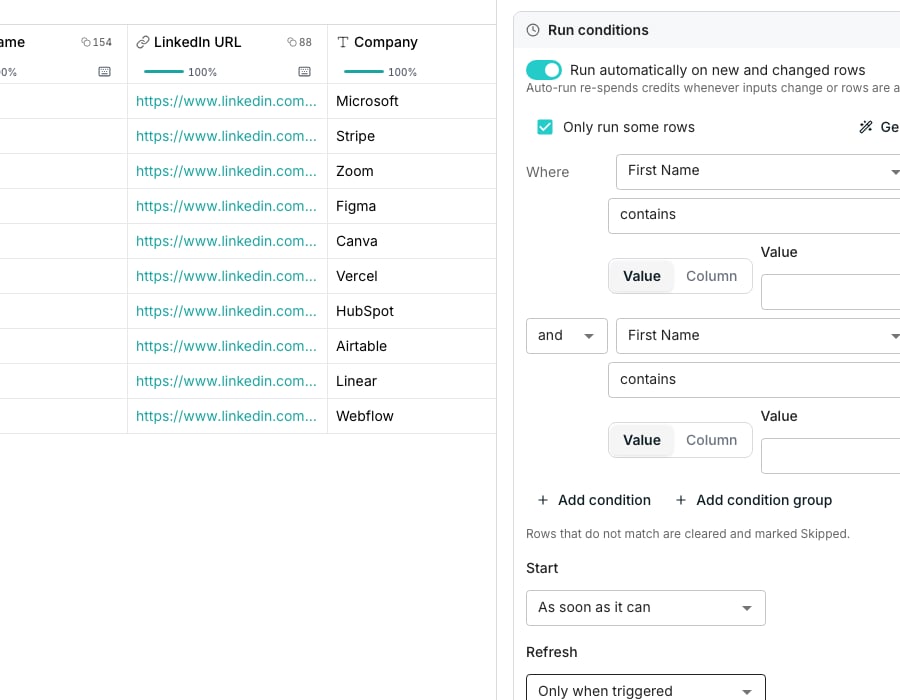
A column's run condition, built from two clauses.
Follow a saved view
Create a column while a saved view is applied. Run conditions opens with Only run rows in that view checked. The column follows that view. Editing the view’s filter then changes which rows the column runs on.Save a filter as a run condition
A filter you have not saved as a view never becomes a run condition on its own. To keep it, open the filter panel and click Save as a run condition…. Pick the columns under Apply it to and click Save. This replaces any run condition those columns already have.Turn on a run condition
Open the column’s editor and expand Run conditions. Check Only run some rows to start building a condition, and one empty clause appears.Build the condition
Click Add condition for each rule, for example where Employees is over 50. Click Add condition group for a set of clauses with its own connector. Both grey out at eight clauses, groups included. Choose and or or once, on the second clause. Every top-level clause after the first follows that same connector.Generate a condition from a description
Click Generate and describe the condition in words, like “the company is in the US and has more than 50 employees”. Oneprofile writes the condition for you, and a description it cannot turn into a condition says so instead of guessing.Good to know
What happens to rows that don't match?
What happens to rows that don't match?
They are cleared and marked Skipped, rather than left holding an answer from an earlier run. A run never spends on a skipped row.
Can I mix and and or in one condition?
Can I mix and and or in one condition?
Yes, one level deep. The top-level connector is chosen once, and each condition group has its own, so you can build A and (B or C).
Can I edit a condition after generating it?
Can I edit a condition after generating it?
Only if it matches the clause builder’s shape. Otherwise it stays exactly as written, with a Remove button in place of the usual clause rows.
Which columns can have a run condition?
Which columns can have a run condition?
Any column that runs: enrichment, function or export. A plain typed in column has nothing to run, so it has no Run conditions section.
What happens when I delete a view a column follows?
What happens when I delete a view a column follows?
The view’s filter is copied onto the column as a normal run condition before the view is deleted, so the column keeps running on the same rows.
What if I uncheck Only run rows in this view?
What if I uncheck Only run rows in this view?
The column runs on every row. Check Only run some rows later if you want a condition again.
Can I add my own clauses while following a view?
Can I add my own clauses while following a view?
No. The clauses are hidden while Only run rows in is checked. Uncheck it, then check Only run some rows and build your own, and later edits to the view no longer apply.
Why can't I follow a view?
Why can't I follow a view?
Its filter includes something a run condition cannot express, like “has an error”. The checkbox is greyed out with the reason under it. If a followed view later gains such a filter, its columns keep the rules they had and stop following it.
Next steps
Run columns
See every way to start, watch and stop a run.
Schedule a re-run
Keep a gated column fresh on its own.