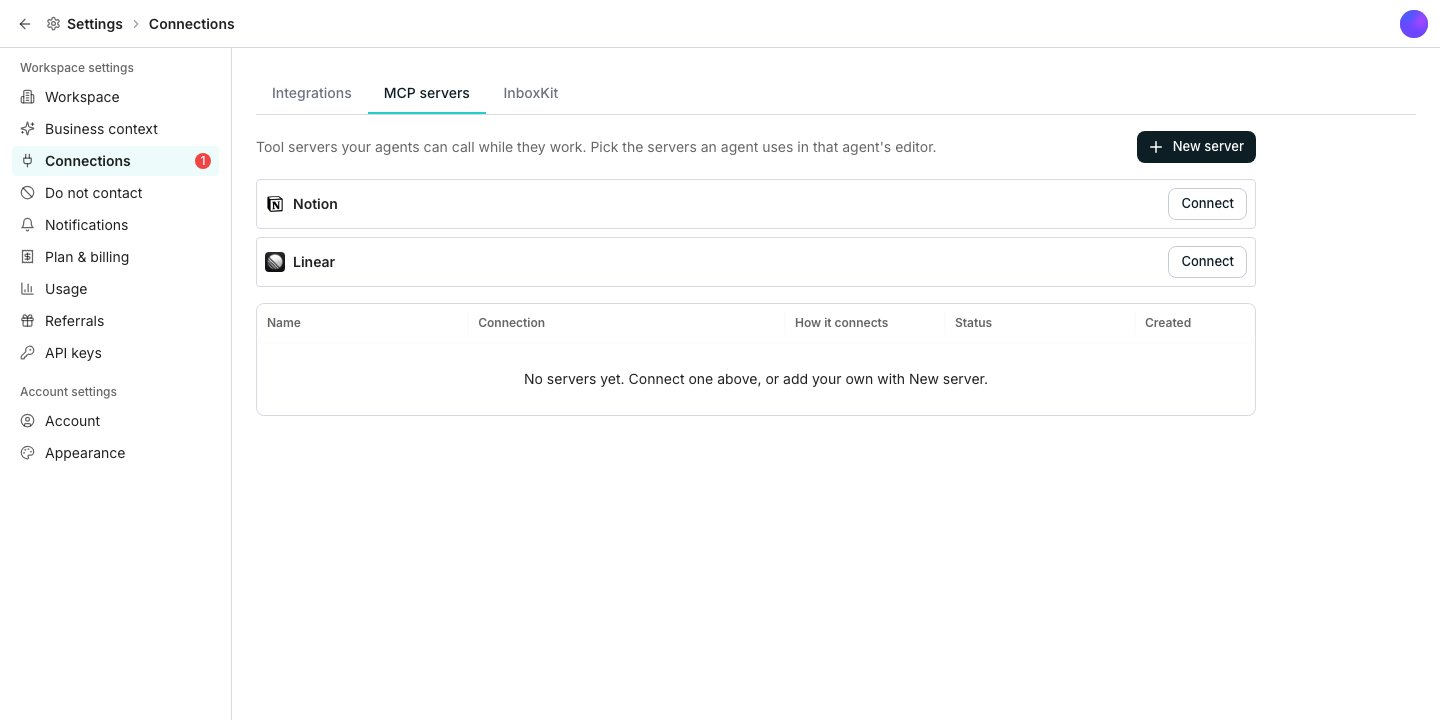
The MCP servers tab in Settings.
Add a server
1
Open MCP servers in Settings
Find it under Connections.
2
Connect a catalog server, or add your own
Click Connect on a listed tile to sign in, or click Add server to add one by URL and an API key instead.
3
Choose which agents can use it
Open an agent’s editor and click Add existing server, or Add to agent straight from the catalog tile.
Two ways to connect
A catalog server signs in with Sign-in, the same way you would sign into that tool directly. A custom server connects with an API key instead, pasted in along with the headers it needs.Remove a server
Remove from this agent stops one agent from using a server without touching anyone else’s access. Delete removes the server from the whole workspace and every agent that used it.Good to know
What can I see about a server before adding it?
What can I see about a server before adding it?
Its name and a short line describing what it can do. Once connected, Test connection lists the tools it actually exposes.
What does it mean when a server needs reconnecting?
What does it mean when a server needs reconnecting?
The sign-in behind that server expired or was revoked, and its Status reads Needs reconnect. Click Reconnect at the end of its row, or reconnect it from an agent’s list.
Does adding a server to the workspace give every agent access?
Does adding a server to the workspace give every agent access?
No. Adding it to the workspace makes it available, but each agent only gets to use the servers you add to that specific agent.
Can I use Oneprofile from Claude or ChatGPT?
Can I use Oneprofile from Claude or ChatGPT?
Yes, but that is the other direction: the AI app uses Oneprofile, rather than your agents using a server. See AI apps.
Next steps
The integration directory
Browse the tools Oneprofile connects to directly.
Build an agent
Give an agent the servers it needs while you build it.