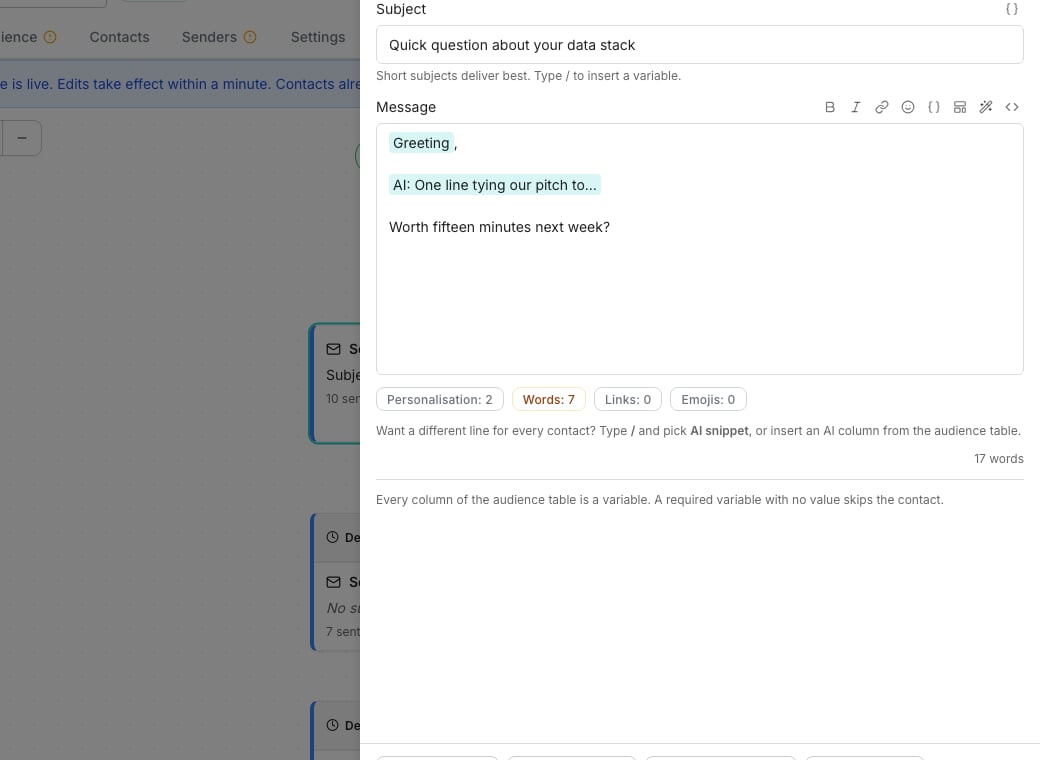
The email composer, writing a step's message.
Write the message
Click a step on the canvas to open its composer. Formatting pasted in from elsewhere is stripped, so use the toolbar for bold, italic and links. Spam check on the Editor tab names each problem and highlights the words behind it. Edits clear the result.Pick the thread it sends in
An email step with an email before it has a Thread control under More options. Pick an earlier email and this step goes out in its thread, as a reply. Starts a new thread gives the step its own subject, so a sequence can open a second conversation.Let the agent write it
Switch a step to Written by the agent at the top of the composer. On its Prompt tab, say what this email is for, what to open on and how long it should be. The sequence’s agent writes a fresh email for every contact as they reach the step. It reads that prompt, their row, the thread so far and your business context.- On a step that opens a thread, Subject has two choices. Written by the agent writes one per contact and shows the one for the contact in Writing for. Written by you is a field every contact gets
- One it is unsure about, or one that trips a check, waits in Tasks for a person
- To hand the step back, click Written by you at the top of its Prompt tab
Hold an email for approval
Unfold More options at the bottom of the composer and switch on Needs approval before it sends. Each contact then waits in Tasks until a person approves, edits or rejects their exact email.Preview and send a test
Preview shows each message as that contact would receive it.- Writing for picks the contact
- Edit for Satya only changes the message for that one contact, named by first name. An Edited for Satya only chip marks it afterward.
- Send test, beside the step’s name, mails you a copy. It costs no credits and appears in no analytics.
- Contact details, under the message, opens that contact’s own row.
- With changes waiting in Review changes, a step they alter opens on Your changes. Live shows what sends today.
- It opens on Preview. Write the email writes a contact’s email, using one of the day’s free previews
- Edit for everyone, under Edit, opens the prompt
- Looks good, under Would you send this?, makes that one email what sends
- Needs work opens AI writing on that contact, note box ready
Good to know
Does Preview show the whole email?
Does Preview show the whole email?
Yes. It shows every line, blank line and space as the contact gets them, then the sender’s signature and the opt-out footer the send adds. In a preview the footer’s unsubscribe link unsubscribes nobody.Once the step has gone to a contact, Preview shows the email they got, marked Sent. Send test carries the same signature, footer and unsubscribe header as the real email, with the link made for your own address.
What does Preview show while my changes wait?
What does Preview show while my changes wait?
A step your changes alter opens on Your changes, the step as it will send. Live shows what sends today. A step they leave alone has no switch.On a step the agent writes, the email is written as the Preview opens, using one of the day’s free previews. Send test mails the version with your changes. See Build a sequence for more.
Can the switch turn approval off for one step?
Can the switch turn approval off for one step?
No. It adds approval and never removes it, so it is not drawn at all when a rule above it already holds every email. A sender on Always ask does that, and so does Require approval under Email approval on the sequence’s Settings tab. More options names whichever rule applies, with Review rules beside it. Each decision waits on Tasks.
Why did an email I added go out as a reply?
Why did an email I added go out as a reply?
An email you add after another starts as a reply to the nearest email before it, the thread its prompt is written for. Set Thread to Starts a new thread to give it a subject of its own.
Why does a reply have no subject field?
Why does a reply have no subject field?
Its subject is the thread’s, so there is nothing to type. Set Thread, under More options, to Starts a new thread and the subject field comes back.An email that opens a thread needs a subject. Leave it blank and the launch checklist says “Write a subject for this email”. See Launch checks.
What does Spam check actually look at?
What does Spam check actually look at?
Phrases known to trigger filters, more than two links, words in capitals, repeated exclamation marks, and a subject or message that runs long or short. The counts under the message, for variables, words, links and emojis, are always on and need no click.
Why is there no bold or italic on a LinkedIn step?
Why is there no bold or italic on a LinkedIn step?
LinkedIn messages send as plain text, so the formatting toolbar only appears on email steps.
Does Looks good on a step's Preview cover the contact's other emails?
Does Looks good on a step's Preview cover the contact's other emails?
No. It marks that one email for that contact, and their other emails stay as they were. On the AI writing tab the email carries a Looks good mark, and the verdict there covers the whole thread.A sent email, one waiting in Tasks and words you pinned yourself show no verdict: there is nothing for the agent to learn from them there.
Why can't I edit one contact's email on a running sequence?
Why can't I edit one contact's email on a running sequence?
Before the agent has written a contact’s real email, Edit for Satya only pins words over its draft, which needs the sequence paused. Once their email is written, you can edit it while the sequence runs.
Is the preview of an agent-written step what will send?
Is the preview of an agent-written step what will send?
A sample is one draft, written for that contact together with the rest of their sequence and charged to nobody. The message that sends is written when the contact reaches the step, so it is written fresh unless you pin words: Edit for Satya only does that, and Let the agent write it again hands the contact back. Looks good on the step’s Preview pins that one email as written.A thread you rated Looks good on the AI writing tab is not written fresh either. It is what sends, until the contact’s row or the writing settings change. A lesson you keep there from a note does not count as a change. See The outbound agent.Once a contact’s message has been written, the step’s Preview shows those exact words rather than a new draft. With Needs approval before it sends on, that is also what waits in Tasks.
Why did the preview say I reached a limit?
Why did the preview say I reached a limit?
Free previews of agent-written steps are capped per day for the whole workspace. Each step a preview writes counts, since one preview writes the contact’s whole sequence. Contacts you already previewed still open, and real sends are never capped.
Why does the prompt show words struck through and marked?
Why does the prompt show words struck through and marked?
The AI Assistant just rewrote it, and the marks show what changed. Edit prompt clears them so you can edit it. See Build a sequence.
Where is the rest of a long prompt?
Where is the rest of a long prompt?
Under Show all. A long prompt shows its first lines on the Prompt tab, and clicking into it opens the rest.
Can I see the exact HTML an email sends?
Can I see the exact HTML an email sends?
Yes. The message field’s toolbar has a button that opens the generated HTML source, which you can copy but not edit directly.
Next steps
Variables and spintax
Drop in a column’s value or vary the wording between sends.
Message templates
Save this message to reuse it, or start from one already written.
Tasks
Approve, edit or reject the emails held at this step.