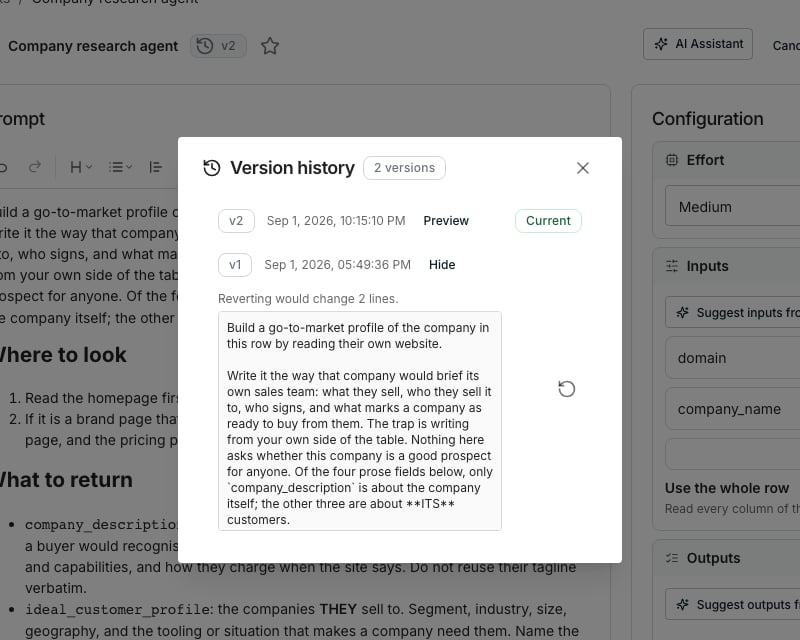
The version history dialog, with one version's prompt open for preview.
Open the history
Click the version chip beside the agent’s name, or open the actions menu and choose Show version history. Preview on any version reads its prompt and shows how many lines reverting would change.Revert to an earlier version
Reverting does not delete anything. The old configuration is saved as a brand new version, so the history stays linear and nothing is lost. Click the revert icon beside the version you want back. Every table column deployed from this agent picks up the reverted configuration the next time it runs.Good to know
Does every save create a new version?
Does every save create a new version?
Only when the configuration actually changes. Saving with nothing changed, or only toggling a favourite, does not add one.
Does reverting change columns already deployed from this agent?
Does reverting change columns already deployed from this agent?
Yes, on their next run. A deployed column always reads whichever version is current, so a revert reaches every table using this agent.
Can I undo a revert?
Can I undo a revert?
Yes. A revert is just another version, so its own entry in the history can be reverted the same way.
Does approving a training round create a version too?
Does approving a training round create a version too?
Yes, the same as any other edit. The version chip beside the agent’s name moves forward as soon as you accept a revision.
Next steps
Train an agent
See where approved revisions come from.
Build an agent
Write the prompt this history is tracking.