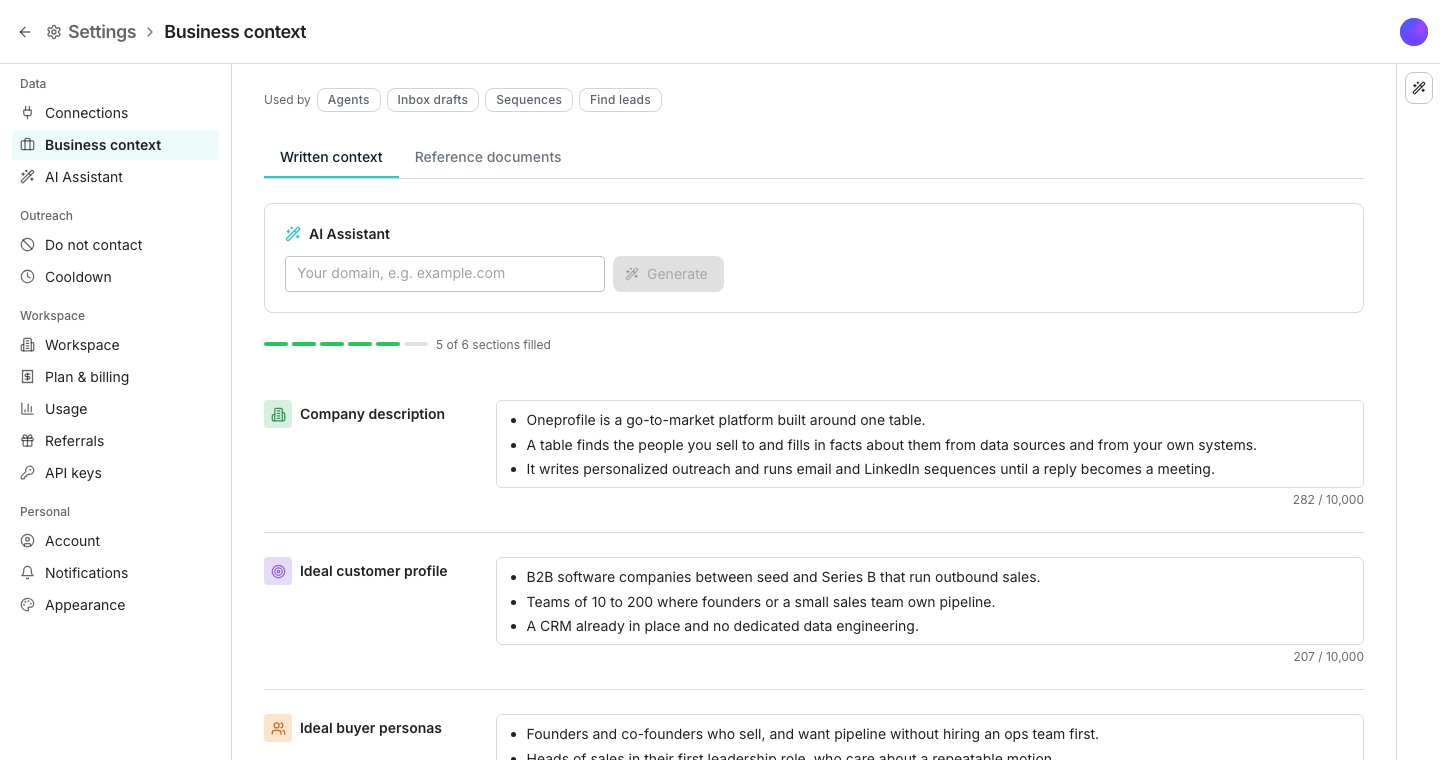
The Business context settings page.
Fill it in
Write six sections yourself: Company description, Ideal customer profile, Ideal buyer personas, Interest signals, Social proof and Voice. Or type your domain into the AI Assistant card and click Generate to have Oneprofile research it and draft them all for you. Each section is a bullet list. One fact per bullet reads faster on this page, and it is what the AI features quote from. On Business context, enter your domain and click Generate. Research and drafting takes about a minute. Then review what changed. Choose Keep current or Use new, section by section, and click Apply.Add reference documents
Open the Reference documents tab and drop in your team’s decks and docs, or add them from Google Drive. Oneprofile reads each file and writes the summary every AI feature uses. Open a document to check it, and click Edit summary to change it. The In context switch keeps a document without using it.Where it improves the product
An agent can fold this into every run, and a prompt can reference it directly with an @ mention. Enrichment columns can turn on Use business context to add it to a run. Sequence steps and AI replies write from it. On Find leads, it shapes the suggested searches and what the AI Assistant searches for.Good to know
Is it filled in for me when I sign up?
Is it filled in for me when I sign up?
Yes, when you sign up with a company email address. Oneprofile drafts every section from that company’s website, and keeps anything you type while it works. With a personal address such as Gmail, the AI Assistant asks for your website the first time it needs one.
Does generating overwrite what I already wrote?
Does generating overwrite what I already wrote?
Not immediately. It shows what changed section by section, and you choose to keep the new version or your current text before anything saves.
Can the AI Assistant edit my business context?
Can the AI Assistant edit my business context?
Yes. It changes only the sections you name, and empties one only when you say so. Rewriting the whole context from your website, or rewriting a reference document’s summary, always waits for your Approve.
Can I write it by hand instead of generating it?
Can I write it by hand instead of generating it?
Yes. Each section is a box you can type into directly, with or without ever using Generate. Start a line with a dash to make a bullet.
What belongs in Voice?
What belongs in Voice?
How your company words things: British or American spelling, how formal it is, what it calls its product and its customers, and jargon it avoids. Every email the outbound agent writes matches it, and so does every reply it drafts. How bold or warm the emails sound is the agent’s Personality instead. Generating reads it off your website and your company’s LinkedIn page, and leaves it empty when there is too little to go on.
What happens if someone else edits this while I am typing?
What happens if someone else edits this while I am typing?
Oneprofile warns you and lets you save your own edits or load the newer version, rather than silently overwriting either one.
Which file types can I add as reference documents?
Which file types can I add as reference documents?
PDF, Word, PowerPoint, text, markdown and CSV files, plus Google Docs, Slides and Sheets through Google Drive.
Does Generate read my reference documents?
Does Generate read my reference documents?
Yes. Generating reads your website and your reference documents together, and the documents win where the two disagree.
What happens to a file I upload?
What happens to a file I upload?
It stays in your workspace, and Download in the document’s menu hands it back. Only the summary reaches an AI feature; the file itself is never pasted into a prompt.
Can I rewrite a summary after editing it?
Can I rewrite a summary after editing it?
Yes. Choose Rewrite summary from the document’s menu. Oneprofile asks before it replaces text you edited by hand.
Why could a document not be read?
Why could a document not be read?
Open it to see why. A scanned PDF with no text layer and a file saved in an older format are the usual causes, and Try again reads it again once you have fixed the file.
How do I add a file from Google Drive?
How do I add a file from Google Drive?
Click Connect Google Drive under the drop area and sign in once. After that the button reads Add from Google Drive and opens a picker for your files.
Does a linked Google Drive file update on its own?
Does a linked Google Drive file update on its own?
No. Choose Refresh from Google Drive from its menu after you edit the file, and Oneprofile reads it again. Disconnecting Google Drive keeps every document you already added, with its summary.
Which part of a Google Sheet is read?
Which part of a Google Sheet is read?
The first tab only, the way Google Drive exports a sheet as CSV. Put the rows you want read on the first tab, or export the sheet as a PDF and upload that.
Why is a document marked as past the prompt limit?
Why is a document marked as past the prompt limit?
Each prompt reads the included summaries from the oldest document down and stops at a fixed length. Turn off a document you no longer need, or shorten a summary, and the rest fit again.
Next steps
Build an agent
Reference your business context directly in an agent’s prompt.
Build a sequence
Write steps that draw on the same company context.
AI Assistant
Describe who you want on Find leads, and get a search built with your business context.