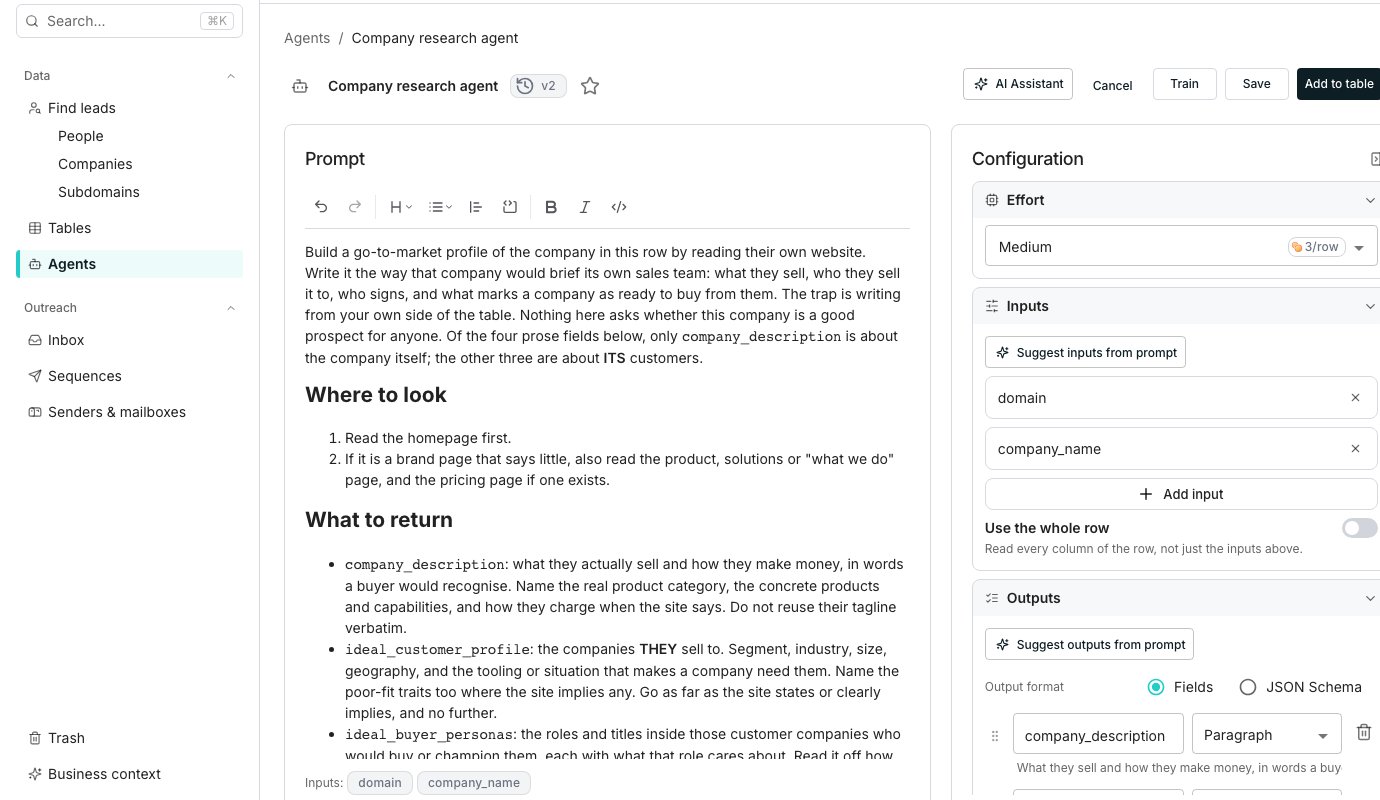
The agent editor, with the prompt on the left and Configuration on the right.
Start an agent
On Agents, pick a card under Start with a template, or open See all templates to browse everything Oneprofile ships. Applying one copies the whole setup into the editor. New agent opens a blank prompt instead, to build the agent by hand.Write a prompt that survives a messy row
A row can arrive missing the field your prompt expects, or with a value that fits none of the cases you wrote for. Say what counts as a right answer. Say what to do when a row has nothing to give it, rather than leaving the agent to guess. Two things help while you write:- Type a slash where a value belongs to reference an input, or click one of the chips listed under Inputs below the prompt.
- Type an @ to fold in a section of your business context, such as your ideal customer profile.
Keep the prompt current
Ask the AI Assistant for a change in plain language, on an agent you wrote months ago as readily as a new one. If it is hidden, the button on the strip at the page’s edge opens it. It drafts a revised prompt and puts it on a card. Open What changes to lay the prompt it has now against the one proposed, so you read the whole thing before anything is saved. Stop ends a revision still working, and your prompt is untouched.Configure the agent
The Configuration panel holds seven sections: Effort, Inputs, Outputs, Tools, MCP servers, Workspace actions and Feedback. See Agent inputs and outputs and Choose an effort level for the detail behind each one.Good to know
What does each Configuration section do?
What does each Configuration section do?
Effort sets how hard the agent works and what it costs. Inputs and Outputs shape what goes in and comes out, and Tools turns on web research, the lookups the agent may take, or your business context.MCP servers extend what the agent can reach, Workspace actions decides what it may change on your workspace, and Feedback collects what people thought once ratings start coming in.
What happens to the prompt the agent had before?
What happens to the prompt the agent had before?
Every save keeps a version, and the one before it stays. That is true whether the AI Assistant wrote the change or you did. See Agent versions.
Can I turn a built-in agent into one I can edit?
Can I turn a built-in agent into one I can edit?
Yes. Open See all templates, apply one, then click Save. It becomes a new agent under Browse agents that you own and can rewrite freely.
What happens if I delete an input the prompt still uses?
What happens if I delete an input the prompt still uses?
The reference stays in the prompt, painted as broken, until you restore the input or remove the reference by hand. Saving is blocked until then, and nothing is rewritten for you.
Why is Save greyed out?
Why is Save greyed out?
Save needs a name and a prompt, plus at least one input or Use the whole row turned on. A broken input reference or an invalid output schema blocks it too.
What do the Workspace actions switches do?
What do the Workspace actions switches do?
Each switch names a change this agent may make on your workspace while it runs, such as adding a column or running one. A change that is on applies without asking. Anything at or above your approval threshold, or that sends, still waits for Approve.A change waiting on you appears as a card above the grid of the table the agent ran on. Every change it made is listed afterwards on Table activity, and in a sequence’s History. Use workspace defaults hands the list back to Settings under AI Assistant.The AI Assistant can change these switches when you ask. Letting an agent act without asking always waits for your Approve.
What happens to a deployed column when I delete the agent?
What happens to a deployed column when I delete the agent?
Columns built from it keep the values they already hold, but stop returning new answers. Nothing already in the table is removed.
Next steps
Agent inputs and outputs
What each row hands the agent, and how its answer becomes columns.
Choose an effort level
Weigh cost against depth before you pick one.
Web research and context
Let it read the web, and sound like your company.