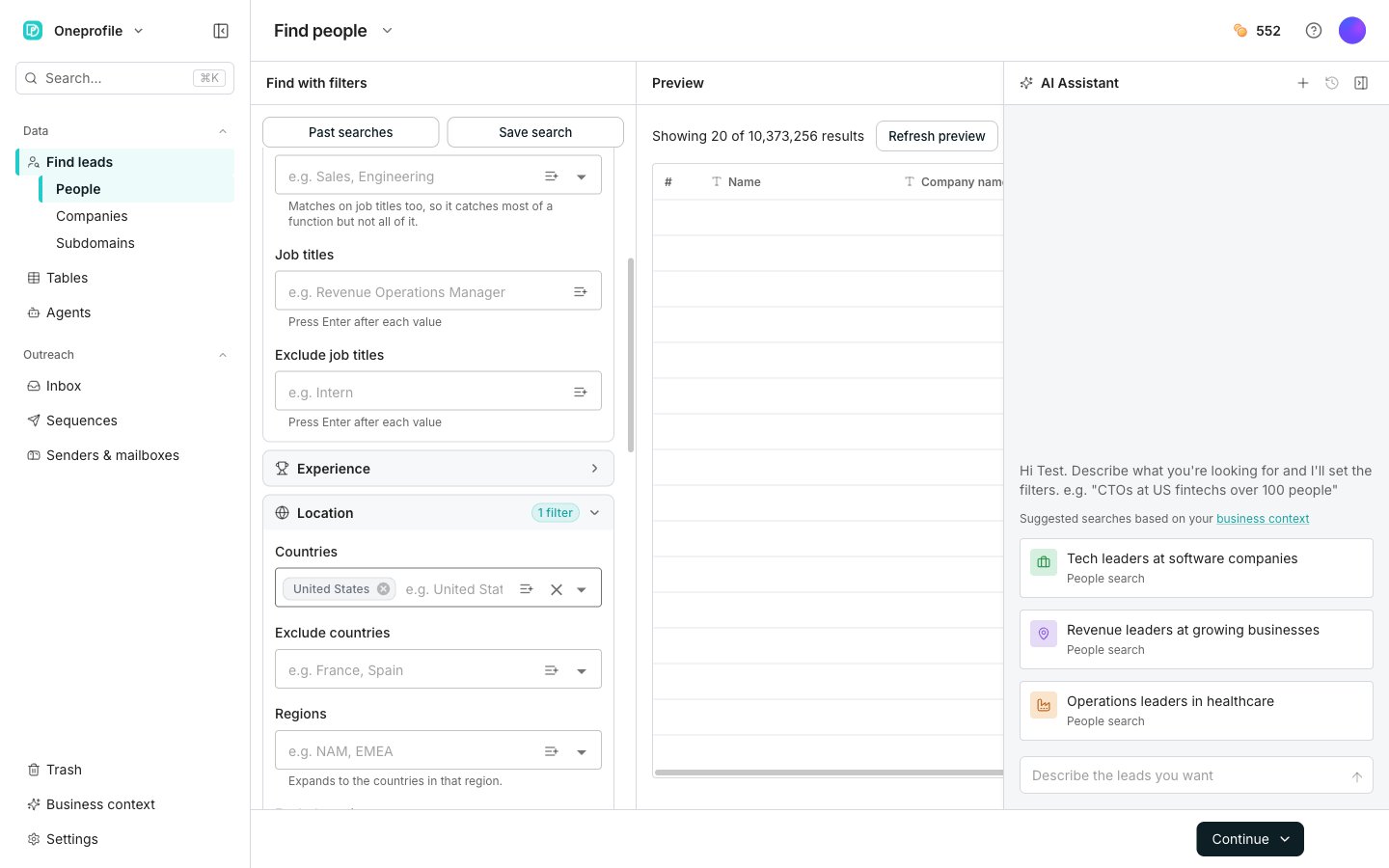
Find with filters, next to the preview.
Search for people or companies
1
Pick what you are searching for
The page opens on Find people. Click the arrow next to the page title to switch to Find companies.
2
Set your filters
Add filters in the Find with filters pane. The match count updates as you go, and counting costs nothing.
3
Check a sample
Click Refresh preview to pull a small sample of the real rows. The sample is paid, so it waits until you stop editing.
4
Continue
Click Continue, then choose Save to a new table or Save to an existing table.
Pick enrichments and see the cost
The Enrich these rows panel lists what Oneprofile can fill in, such as an email address or a phone number. Each option carries a cost per row. One is ticked already, because a new table needs at least one. The panel totals the cost as you tick options and shows your balance beside it. You only pay for rows Oneprofile actually fills in, so the total is the most it can cost.If your balance is too low, the panel says so. You still get every row, and filling in the extra columns stops once your credits run out.
Good to know
Switching what you search for
Switching what you search for
The arrow next to the page title also lists Find subdomains. That one searches a company domain instead of filters.Filters you already set carry over when you switch between Find people and Find companies.
Which filters you can search on
Which filters you can search on
Find people groups its filters into Company attributes, Growth, Job title, Experience, Location, Professional bio, Languages, Education, Companies, and Past experiences. Each section is one question about the people you want.Company attributes holds Industries and Job title holds Seniority. Growth holds Headcount growth window with options such as Past 12 months. Experience holds Years of experience.Location holds Countries such as United States or Canada. Professional bio holds Keyword. That field searches the whole profile rather than only the bio.Find companies uses the same section names where they apply: Company attributes, Growth, Location, Professional bio, and Companies. Most sections also carry an exclude field, so you can leave people or companies out of a search.
Describe the search instead of building it
Describe the search instead of building it
The AI Assistant panel sits to the right of the preview. Type into the Describe the leads you want box and it sets the filters for you, for example “CTOs at German fintechs over 100 people”.
Nothing matches your filters
Nothing matches your filters
The preview says “No results found. Try removing or loosening a filter. The search matches nothing as configured.” Nothing is charged for a search that matches nothing, because the free count runs before the paid sample.
Buying more credits
Buying more credits
Click the credit balance in the top bar. View usage always shows.A paid workspace also gets Manage plan and Buy credits. A free workspace gets Upgrade instead.
Next steps
Find subdomains
Get the web addresses underneath a company’s domain.
Enrichment columns
Add columns that fill themselves in.
Credits and billing
See what a run costs and buy more credits.