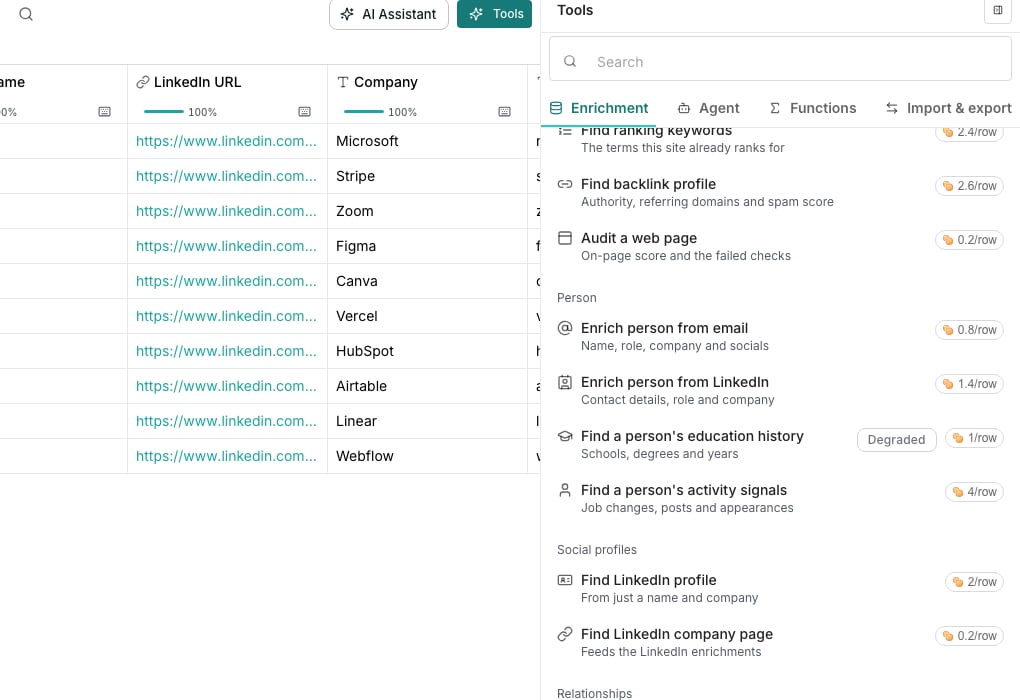
The Your data section of the Tools panel.
Add a lookup column
1
Open the Tools panel and find Your data
In a table, click Tools, then switch to the Import & export tab. Every connected integration that can fetch a single record appears under Your data.
2
Pick what to fetch
Click a row. Each reads Get, followed by the record type, for example a contact or a user. The column settings open with Connection and Record type filled in.
3
Choose the column to match on
Under Value, pick the column holding the ID, email or other key for each row. Rows with nothing in it are skipped and not charged.
4
Choose how to match the row
Under Look up by, pick the field that identifies the record, such as an ID or an email address.
5
Create the column
Click Create & run 10 rows to add the column and look up a first batch.
What comes back
A lookup returns the whole record as one cell. Open it and give any field its own column once you know which ones you need.Good to know
Whose account does this use?
Whose account does this use?
Your own. The lookup runs on the connection you set up, not a Oneprofile-held account, so it only sees what that connection can see.
Does looking up a record cost credits?
Does looking up a record cost credits?
Yes, a small flat amount per row it successfully finds. A row where nothing is found, or a repeat of a lookup already run, is not charged.
What if I do not see the integration I want to look up?
What if I do not see the integration I want to look up?
Connect it first. See all integrations at the foot of the Import & export tab opens the page where you add one.
Can I change what a lookup matches on later?
Can I change what a lookup matches on later?
Yes. Reopen the column and change Connection, Record type or Look up by in its settings.
Next steps
The integration directory
Browse every tool Oneprofile can connect to.
Field columns
See the other kinds of columns a table can hold.