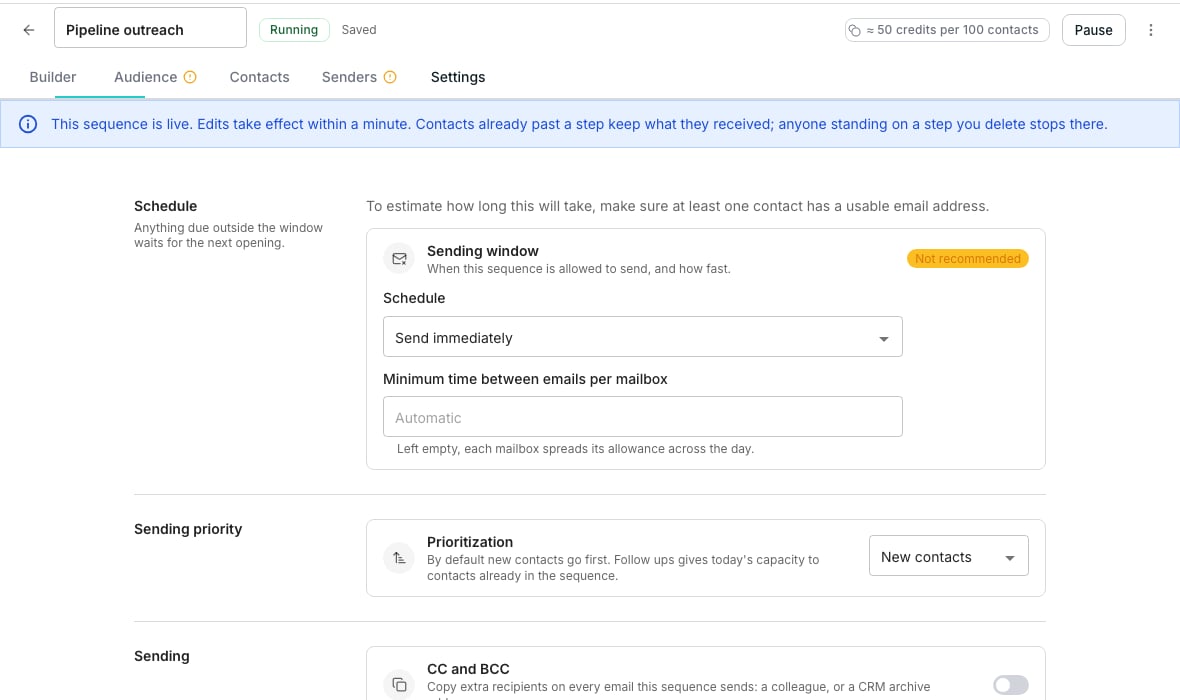
The Schedule section of a sequence's settings.
Pick a sending window
1
Open Schedule
In the sequence editor, open Settings and find the Schedule section.
2
Choose a preset
Pick Optimized for deliverability, Send any time, or Custom schedule from the Schedule dropdown.
3
Set the timezone and days
Leave Timezone on Each sender’s timezone, or pick one zone for every sender. Then tick each day’s hours, or use Weekdays 9-5 or Every day 9-5 to set them all at once.
Send in each sender’s hours
With Each sender’s timezone, the hours run on each sender’s own clock. A 9-5 sequence sends 9-5 New York time from a New York sender, and 9-5 London time from a London sender. Each contact gets one sender at their first step and keeps them, so all their steps go out in that sender’s hours. Pick a specific zone instead to hold every sender to that zone’s hours. LinkedIn steps keep to the same hours, in the sender’s timezone. Outside them a step waits in the sender’s line, and Detail in Tasks reads “Window opens in 3 hours”.Set the pace
Minimum minutes between emails per mailbox spaces out sends from one mailbox. Leave it blank and each mailbox spreads its allowance across the day; set a number and no mailbox sends twice inside that many minutes.Decide who gets today’s capacity first
The Sending priority section’s Prioritization control chooses between two contact groups. New contacts, the default, sends to fresh entrants first; Follow-ups gives today’s capacity to people already partway through the sequence instead.Good to know
What happens to a message due outside the sending window?
What happens to a message due outside the sending window?
It waits. The sequence sends it at the next hour the window allows in its sender’s timezone, rather than dropping it.
What happens to waiting contacts when I change the window?
What happens to waiting contacts when I change the window?
They are due when the new window says, as a contact reaching that point now would be. A wider window brings them forward, and a narrower one moves them later.
Where does a sender's timezone come from?
Where does a sender's timezone come from?
From the browser of whoever added the sender. A sender added without one takes the timezone of the browser that connects its LinkedIn. After that it changes only when someone changes it under Timezone on the sender’s Settings tab. See Senders.
When is a contact who has not started yet due?
When is a contact who has not started yet due?
As soon as any of the sequence’s senders is inside their hours. The sender chosen at that first step then keeps them, and so do that sender’s hours.
What if a sender has no timezone?
What if a sender has no timezone?
They send in the sequence’s own timezone: the zone it was last fixed to, or its creator’s timezone when none was ever fixed.
How do I send in my prospects' hours instead?
How do I send in my prospects' hours instead?
Pick their zone under Timezone, and every sender sends in that zone’s hours.Sequences made before senders had a timezone switched to Each sender’s timezone. Pick the zone again on any sequence that relied on it.
Which LinkedIn work runs outside the window?
Which LinkedIn work runs outside the window?
Checks of your own inbox, sent requests and new connections run at any hour, and so does a step queued from Try a step. Everything a sequence sends keeps to its hours.
Why is Send any time not recommended?
Why is Send any time not recommended?
It sends any day, any hour, as fast as each mailbox allows, which suits inbound replies and transactional mail more than cold outreach.
Does changing the timezone change the schedule itself?
Does changing the timezone change the schedule itself?
No. The days and hours stay the same; only the clock they run on changes.
What if I pick Custom schedule but change nothing?
What if I pick Custom schedule but change nothing?
It opens with a normal weekday, 9 to 5 window already set, so there is always something sensible to start from.
Next steps
Choose the audience
Pick the table and the rows this schedule sends to.
Build a sequence
Add steps and launch the sequence itself.
Senders
Set the timezone each sender sends in.