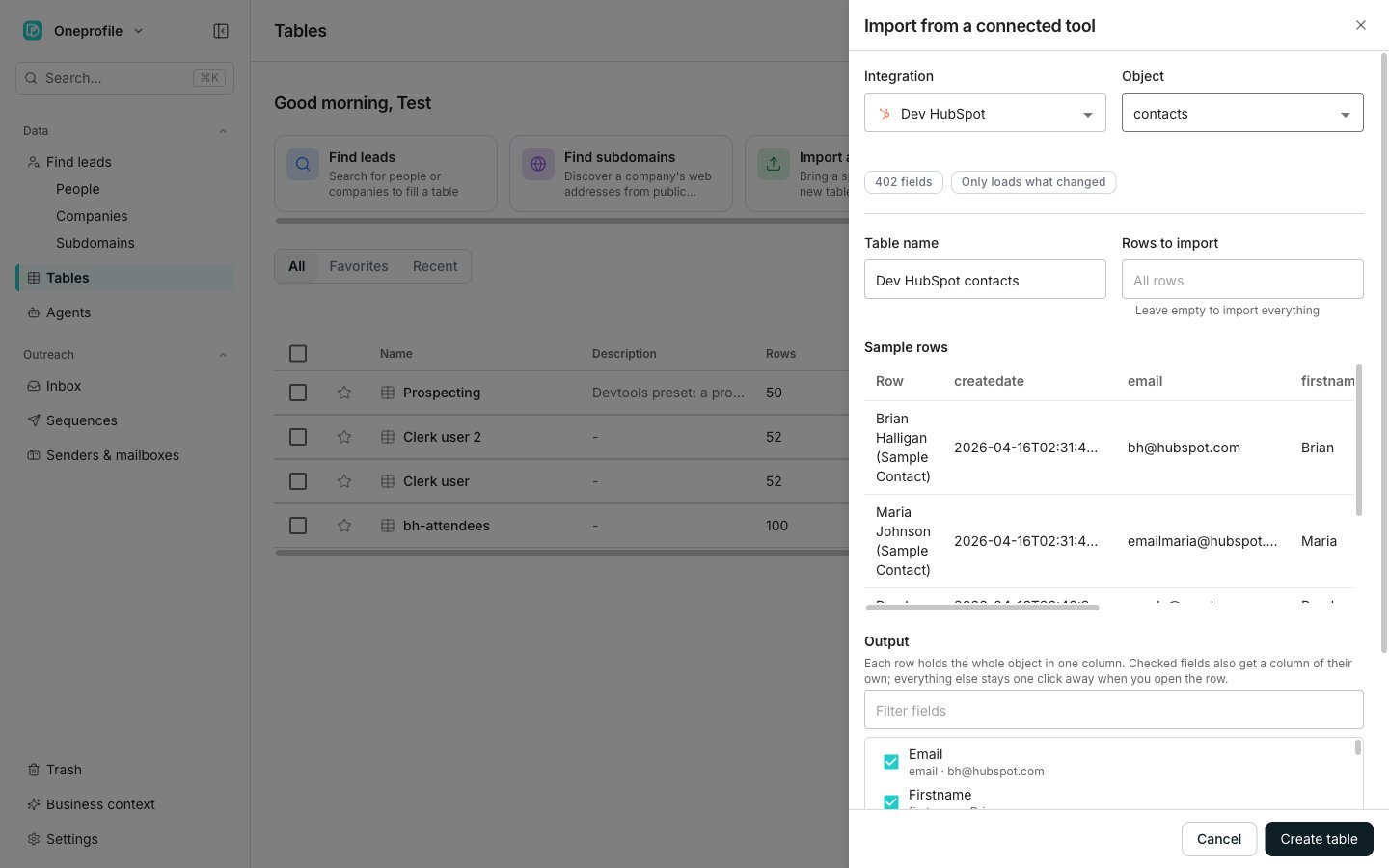
The import drawer, with an integration and object picked.
Add rows from a connected tool
1
Open the drawer
On Tables, choose the Import from a connected tool card. You can also click New and pick the same item.
2
Pick a connection and an object
Choose an Integration, then an Object to bring in, such as contacts or companies.
3
Check the sample rows
Oneprofile pulls a few real rows from that object and lists them under Sample rows. Every tool means something different by “contact”, so this is worth a look.
4
Name the table
Table name is filled in from the integration and the object. Leave Rows to import empty to bring in everything.
5
Choose which fields become columns
Under Output, check any field you want as its own column. A line underneath counts how many of them will become columns.
6
Create the table
Click Create table.
If nothing is connected yet, the drawer shows Connect a source instead. Search the directory and connect from there, without leaving the drawer.
Good to know
What the Output section decides
What the Output section decides
Each row holds the whole object in one column. Checked fields also get a column of their own, and everything else stays one click away when you open the row.Oneprofile suggests a few fields and lists them first, already checked. Change them freely. A long field list gets a Filter fields box above it, and the line under the list reads how many of the fields become columns.
How the table refreshes later
How the table refreshes later
Once the sample rows arrive, a chip says how this object reloads. Only loads what changed means later runs bring in just the differences. Reloads everything each time means they bring in the whole object again.A second chip counts the fields the object carries.
The object cannot be imported
The object cannot be imported
Some objects carry no stable identifier. The drawer says so and blocks the import, because a refresh could not tell which row to update. Pick a different object.
A tool you just connected is not listed
A tool you just connected is not listed
The drawer only lists tools it can pull rows from, so a connection of another kind never appears. It tells you when that has happened: “Your new connection can’t be imported from yet, so it isn’t listed here.”
Next steps
Connect integrations
Browse the directory and connect a tool.
Enrichment columns
Add columns that fill themselves in.