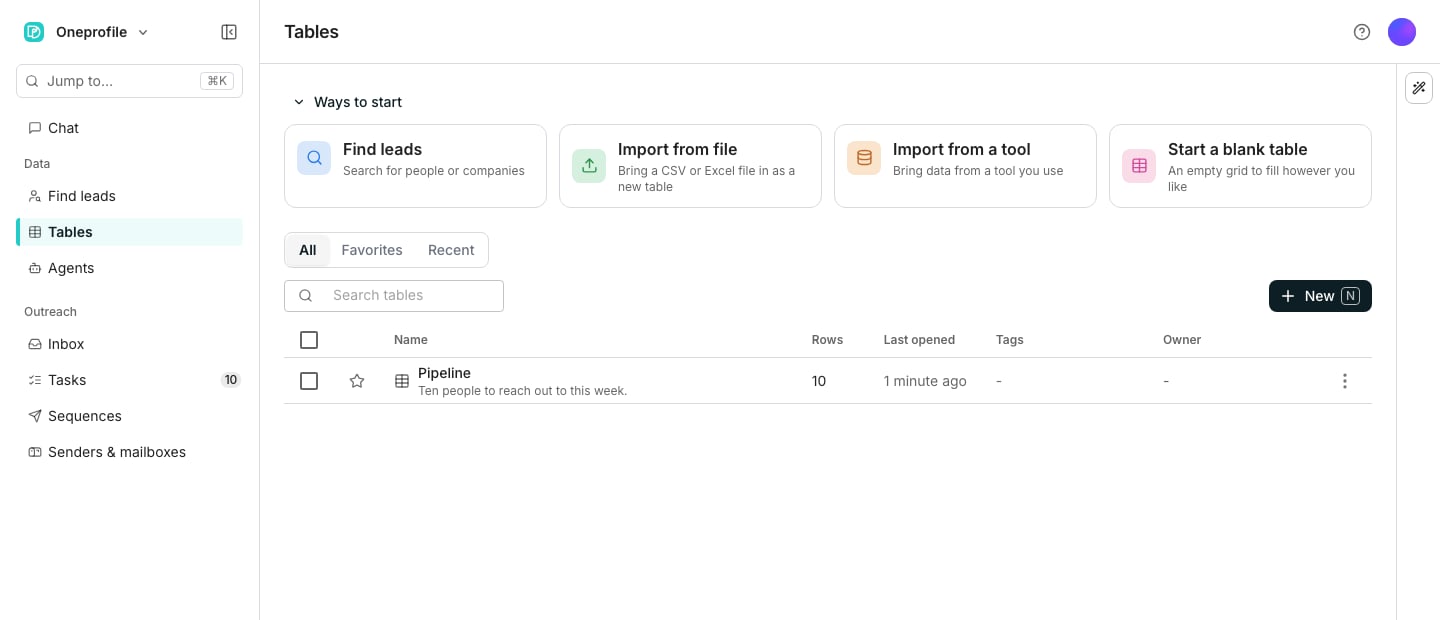
The Tables page, with its launcher cards above the list.
Choose how to start it
Four cards sit above your table list: Find leads, Import from file, Import from a tool and Start a blank table. Each card hands off to its own flow. Most tables start with Find leads, which is the filtered search covered in People and companies. New in the toolbar offers the same four paths, after New folder.Name it and find it again
A blank table opens straight into the grid, already named. Click its name, choose Table settings, and change its Name or add a description under General, then click Save changes. Every table you open counts toward Recent, and Add to favorites on a row keeps it under Favorites, both beside All. Search tables finds one by name in every folder.Organize tables in folders
Choose New > New folder to make a folder. To file a table, choose Move to folder in its row menu, or tick several and choose Move.See who owns a table
The Owner column shows who to ask about each table. Click it to pick anyone in the workspace, or tick several and choose Owner.Archive tables you no longer use
Choose Archive in a table’s row menu, or tick several and choose Archive. Archived at the foot of the list, outside any folder, shows them, each with Restore.Duplicate a table
Open the table’s row menu and choose Duplicate. Duplicate table copies its columns and rows, and Duplicate structure only copies just the columns. The toast that follows offers Open.Good to know
Why is a card greyed out?
Why is a card greyed out?
Every path to a new table turns off once you reach your plan’s table limit, Find leads included. Upgrade your plan, or delete a table you no longer need, to make room.
Does Find leads always create a new table?
Does Find leads always create a new table?
No. The search screen offers Save to a new table and Save to an existing table, and only the first counts toward your table limit.
What happens when I collapse the cards?
What happens when I collapse the cards?
Click Ways to start to fold them, so your table list starts higher on the page. Click it again to bring them back. Once your workspace has a few tables the cards start folded, and your own choice, once made, is remembered for you, not for the whole workspace.
Why do the cards sit differently on my screen?
Why do the cards sit differently on my screen?
They sit four across, two by two, or one per row, depending on the room the page has.
How do I open a folder and go back up?
How do I open a folder and go back up?
Folders sit at the top of All, as they do in Google Drive, and a folder can hold other folders. Click one to open it, and use the path above the list to go back up.
Does search show which folder a table is in?
Does search show which folder a table is in?
Yes. Search tables looks in every folder, archived tables included, and says which folder each match is in. It finds folders by name too.
Can I drag a table into a folder?
Can I drag a table into a folder?
Yes. Drag its row onto a folder, or onto a step of the path above the list. Ticked rows move together, and archived rows don’t drag.
Where does a new table go when a folder is open?
Where does a new table go when a folder is open?
Into that folder. A table you make while a folder is open lands there, whether it comes from a search, a file, a tool or a blank grid.
What happens when I move a folder to Trash?
What happens when I move a folder to Trash?
Open a folder’s menu and choose Move to Trash. Every folder and table in it goes to Trash with it, archived tables included, and restoring the folder brings all of them back.
Does the owner decide who can edit a table?
Does the owner decide who can edit a table?
No. Owner is a label, not a permission: everyone in the workspace can still open and edit every table. A new table belongs to whoever made it, and Table settings has the same choice under General.
How do I see one person's tables?
How do I see one person's tables?
Once two or more people own tables, an Owner button appears beside the search box. Pick a person to list their tables from every folder.
Where are Owner and Archive when I tick several tables?
Where are Owner and Archive when I tick several tables?
When the bar above the list is short of room, Owner and Archive fold into the More actions button at its end.
What changes when I archive a table?
What changes when I archive a table?
It leaves the list, its folder, Favorites and Recent, but keeps every row. It still opens from a link and still turns up in a search. Restore puts it back in its folder.
Does Oneprofile archive old tables by itself?
Does Oneprofile archive old tables by itself?
No. When nobody in your workspace has opened or changed some tables for 60 days, a line at the foot of the list offers to Review them. Nothing is archived unless you choose to.
Can I duplicate a table from its settings?
Can I duplicate a table from its settings?
Yes. Table settings offers Duplicate table and Duplicate structure only too. Either way the copy sits in the same folder as the original, and it belongs to whoever made it.
Why is Last opened Never when a teammate uses the table?
Why is Last opened Never when a teammate uses the table?
Last opened is yours alone: Never means you have not opened it yet, whoever else has.
Next steps
People and companies
Search with filters and add the matches to a table.
Rows and cells
Edit cells, add rows, and work the grid.
Import a file
Build a table from a spreadsheet file.
Import from a tool
Add rows from a tool you already use.