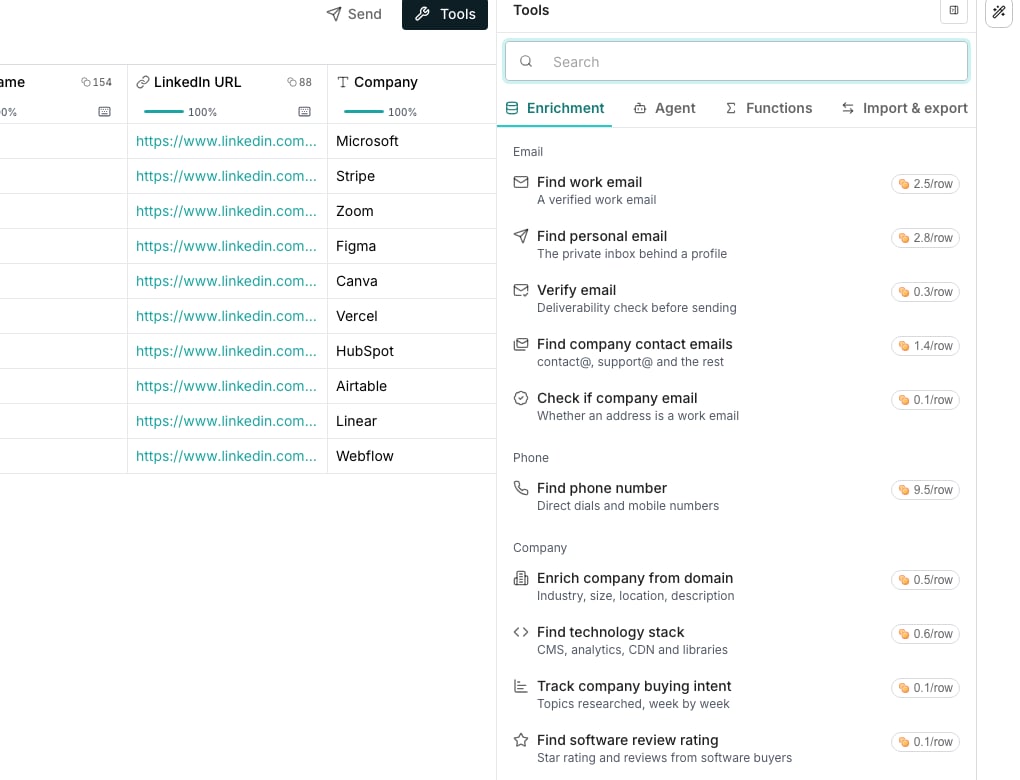
The Enrichment tab of the add-column catalog.
Open the catalog
Open a table from Tables and click Tools in the toolbar. The catalog opens beside the grid on its Enrichment tab.Browse the shelves
- Email finds or verifies a work or personal address, from a name and company, a LinkedIn URL, an address to check, or a domain.
- Phone finds a number, from a name and company or a LinkedIn URL.
- Company fills in industry, headcount, location and a description, from a domain. It also covers technology, software review ratings and local listings.
- Person fills in job title, seniority and contact details, from an email. It also reads a profile live from a LinkedIn URL.
- Social profiles finds a LinkedIn URL, from a name and company or a domain.
- Marketing sizes up a website, from a domain: traffic, search visibility, ranking keywords and backlinks.
Search the whole catalog
Typing in the search box looks across every shelf, not just the one you’re on. If nothing matches, a pinned option offers to build the column with AI.Good to know
Why don't the rows name who actually answers?
Why don't the rows name who actually answers?
Enrichment sources are never named. A row is fulfilled by whichever of several sources answers first, so naming just one would misrepresent how it actually works.
What does the Cost efficient tag mean?
What does the Cost efficient tag mean?
It marks the one of two rows doing the same job that can cost less per row, and only when it is genuinely less expensive. A tie, or a job only one row covers, gets no tag.
Which company enrichments run from just a domain?
Which company enrichments run from just a domain?
Almost all of the Company shelf does, and all of Marketing. The company profile, technology, software review ratings, traffic, search visibility, ranking keywords and backlinks all read a website domain and need nothing else. One asks for something different: a business name for a local listing.
Why is a shelf missing from the catalog?
Why is a shelf missing from the catalog?
It appears only once your workspace has something enabled for it. Anything the shelves can’t yet place is filed under a trailing More heading instead of disappearing.
Next steps
Email and phone
How an address is found, and what each status means.
Where the data comes from
Why coverage beats any single source.