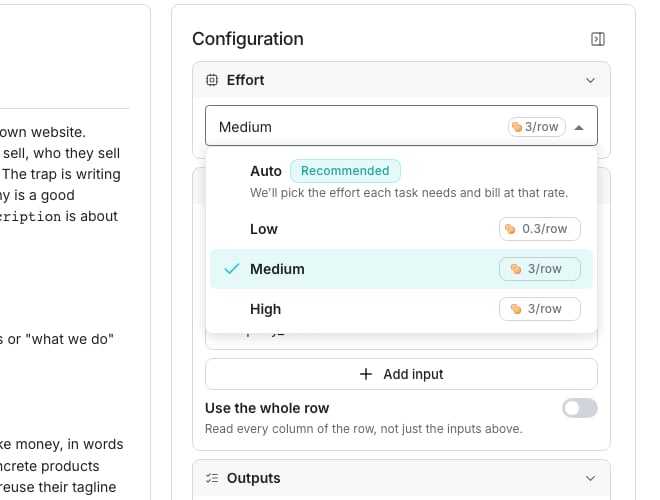
The Effort section of the agent editor.
Pick an effort level
Open the picker in the Configuration panel’s Effort section. Every level shows the most a row can cost on it, and a row is charged what it used. Auto picks whichever level a task needs, and charges by that level’s own prices. Choosing a level yourself pins every row to it.Weigh cost against depth
A cheaper level answers faster and costs less, but a harder question may need one that reads more before it answers. Web research and each lookup add their own amount to the maximum, shown as a chip beside each switch.Good to know
Can I change the effort level after saving the agent?
Can I change the effort level after saving the agent?
Yes, anytime, from the same Effort section. A saved agent keeps running at whichever level is current the next time it runs.
What does Auto actually pick?
What does Auto actually pick?
A level chosen per task rather than a fixed one, charged by whatever that pick costs. It is the recommended choice for an agent doing more than one kind of job.
Can I change effort in the middle of training a round?
Can I change effort in the middle of training a round?
Yes. Open Change effort from the training screen’s menu, which opens the same Effort picker in a drawer. The next round uses the level you save.
Does a harder effort level always take longer?
Does a harder effort level always take longer?
Not always, but it tends to. A level that reads more before answering generally costs more too, which the comparison table shows side by side.
Next steps
What agents cost
See everything else that moves an agent’s price per row.
Web research and context
Turn on research and see what it adds to the cost.
Build an agent
Write the prompt this effort level runs.