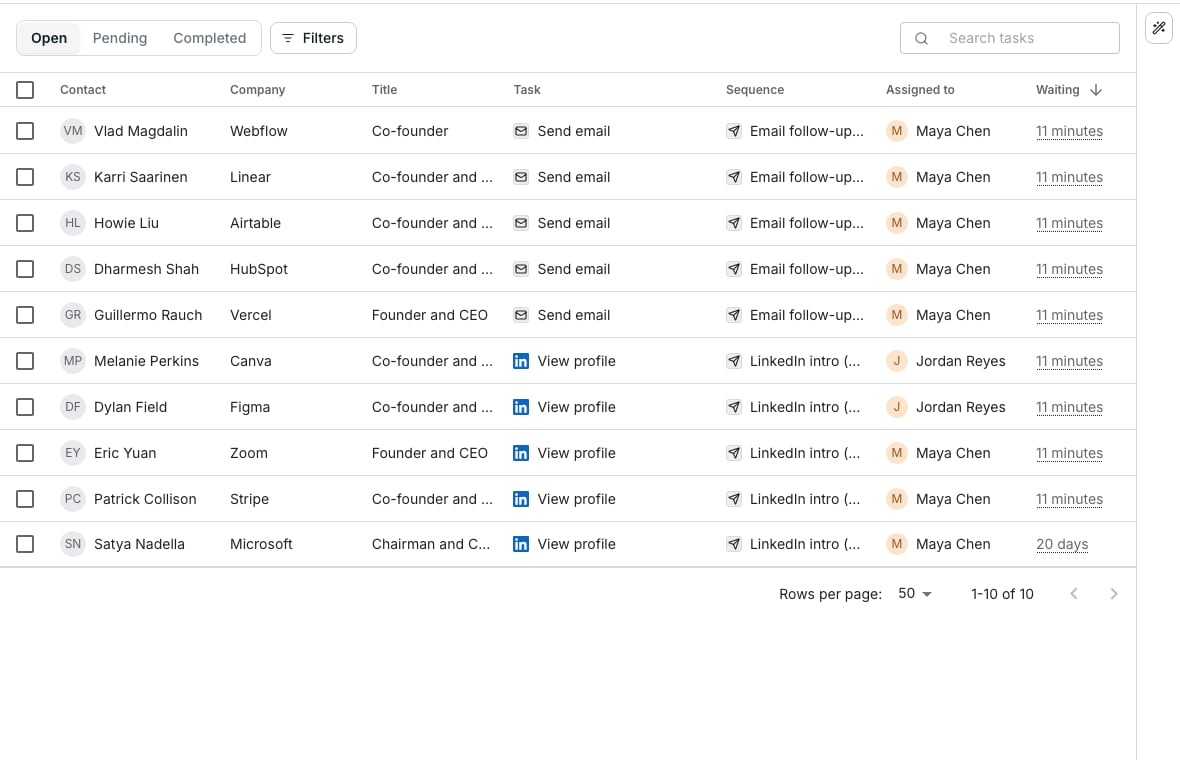
The Tasks table on Open, with what is waiting on you.
Know what lands in Tasks
- An email step with Needs approval before it sends switched on, and every email while its sender is on Always ask.
- A message the agent did not rate high, or wrote with too little data, while its sender is on Send when confident. See send mode.
- Every LinkedIn step while its sequence or its sender asks for one. A step from Try a step never waits here, because that click is the approval.
Work the list
In Tasks, each row names the Contact, the Task, its Sequence, who it is Assigned to, and how long it has been Waiting. Open opens first, with every task that needs your approval. Filters narrows it by waiting time, channel, task type, sender, sequence, or Why it needs approval. Click a row to open it beside the table, with the exact text that will go out. Tick rows instead to decide on them together: Approve sends them all, and Reject stops them all after one confirm.- Approve sends an email as soon as its sending window and limits allow. A LinkedIn step goes in line for the sender’s browser, which runs it inside the window.
- On a paused sequence, nothing goes out on either channel. Approve keeps your decision, and the step goes out after Resume sequence.
- Rewrite the subject or message in the pane first if you need to. It saves as you type, and what you approve is what sends, word for word.
- Reject stops the contact in that sequence. Nothing later in the sequence reaches them, and the Audience tab shows them as Rejected. On a message the agent wrote, it offers a reason to note, then Stop contact. The reason teaches the agent nothing.
- Needs work, the thumbs down on a message the agent wrote that is still waiting, opens a box asking what’s wrong. Type a line and press Enter, or click Rewrite. The task stays on Open and reads Writing while the agent writes it again. Then it shows the new message, marked where it changed, under a Will learn card with the learning it proposes. Approve sends the new message and saves the learning. See Learnings.
Watch approved work go out
An approved task leaves Open for Pending until it goes out. There, Detail says where each row stands, such as queued, sending, or waiting for its sending window.Read what already went out
Completed lists every email and LinkedIn step that went out from the workspace, and every task someone rejected, newest first. Click a row to read what went out, as it went.Retry a failed step
On the Completed tab, pick Failed under Outcome to list the steps that failed. Open one to read why, then Open task and click Retry to run the same step again.- A LinkedIn step runs again with the same words and the approval it already had. Retry never restarts the sequence.
- Retry checks LinkedIn first, and a step it finds already done is marked done rather than sent twice.
- When a message or InMail may already have gone out, Retry first asks “Send it again?”. Send again retries it, and Cancel leaves it.
Decide who approves what
Each sender decides what their own channel does, on their own page. A sequence can ask for more, never less. See Senders.Good to know
Do tasks expire?
Do tasks expire?
Does an email waiting here hold up the rest of its sequence?
Does an email waiting here hold up the rest of its sequence?
When does a message I approve after hours go out?
When does a message I approve after hours go out?
Why are there follow-ups under the email?
Why are there follow-ups under the email?
Where do I set the mode for one sender or one sequence?
Where do I set the mode for one sender or one sequence?
What do the status words on a row mean?
What do the status words on a row mean?
What does the Detail column say?
What does the Detail column say?
- “Running” or “Sending” is going out now, and “Sent” has gone.
- “Next, in 47 seconds” or “3 ahead, in 2 minutes” is a LinkedIn step’s place in its sender’s line.
- “Daily limit · resumes in 6 hours” waits for the sender’s limit to reset at midnight in their timezone.
- “Browser offline” runs once a browser with the extension opens for that sender.
- “LinkedIn disconnected” waits for the sender’s LinkedIn account to be reconnected, and “Limit at zero” for a limit set to 0 to be raised.
- “Scheduled · sends in 3 hours” is an email waiting for its sequence’s sending window, in the sender’s timezone. A LinkedIn step reads “Scheduled · starts in 3 hours”.
- “Sequence paused · Out of credits” waits until the sequence resumes, with the reason it paused. “Contact paused” waits until that contact resumes.
Why does the approval message say my steps wait?
Why does the approval message say my steps wait?
- “They wait for their sequence to resume.” Their sequence is paused, so they go out after Resume sequence.
- “They wait for the sending window to open.” Their sequence’s sending hours are closed in the sender’s timezone.
- “They run when a browser is open for Maya.” No browser with the extension is open for that sender.
- “15 wait for the daily limit to reset.” Those steps are past the sender’s daily limit.
Can I see which messages will wait before they send?
Can I see which messages will wait before they send?
How do I read the doubtful messages first?
How do I read the doubtful messages first?
Does editing a message here teach the agent?
Does editing a message here teach the agent?
Does Needs work research the contact again?
Does Needs work research the contact again?
What does Undo on a rewritten task do?
What does Undo on a rewritten task do?
Why is Approve greyed on a task being rewritten?
Why is Approve greyed on a task being rewritten?
Does approving many tasks save their learnings?
Does approving many tasks save their learnings?
Can I give Needs work on a message that already went out?
Can I give Needs work on a message that already went out?
Why is there no Retry on a failed row?
Why is there no Retry on a failed row?
Where else does a failed step show?
Where else does a failed step show?
Where do I see what already went out?
Where do I see what already went out?
What does a row on Completed show?
What does a row on Completed show?
Can I see every time Oneprofile checked a LinkedIn account?
Can I see every time Oneprofile checked a LinkedIn account?
Does the list update on its own?
Does the list update on its own?
How do I tick every row at once?
How do I tick every row at once?
How do I find one task in a long list?
How do I find one task in a long list?
Can I open a task in a new tab?
Can I open a task in a new tab?
What happens when I approve many tasks at once?
What happens when I approve many tasks at once?
Why are some columns missing?
Why are some columns missing?
Why is the Sequence column missing?
Why is the Sequence column missing?
Can I approve from the browser extension?
Can I approve from the browser extension?
Do checks of my own LinkedIn inbox wait here?
Do checks of my own LinkedIn inbox wait here?
Why is there a task to check whether someone accepted?
Why is there a task to check whether someone accepted?
Why did a bulk decision say some tasks were skipped?
Why did a bulk decision say some tasks were skipped?
Why was I charged for an email I rejected?
Why was I charged for an email I rejected?
Can I reject a task that is already approved?
Can I reject a task that is already approved?
What happens to tasks when a sequence pauses, stops, or moves to Trash?
What happens to tasks when a sequence pauses, stops, or moves to Trash?
Who is recorded as having decided?
Who is recorded as having decided?