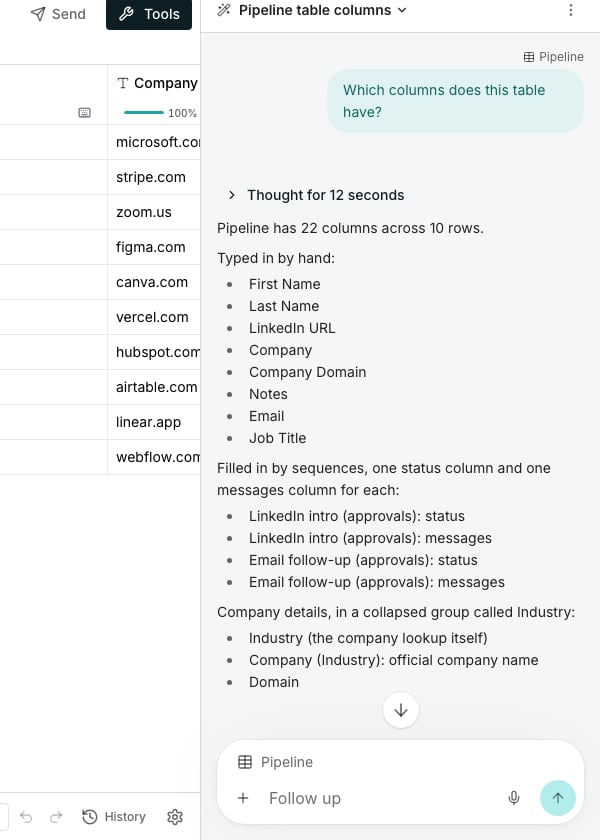
The AI Assistant answering about the open table.
Open it on a table
Open a table from Tables and the panel is already on the right of the grid. If you hid it, click the one button on the strip it folded into, at the edge of the page.Ask a question about the rows
Ask what is in the table and it reads the rows to answer. For example, which companies are missing a domain, or which are in SaaS or Fintech. Reading is free and changes nothing.Ask for a column
Describe the column you want, such as “flag invalid emails”. Adding it costs nothing, because a new column arrives empty. Filling it in is a run, and a run is what spends credits. Read the price on the card before you approve it.Approve what spends or removes
A change that spends credits or removes something waits for you on a card, with the most it can cost on its Approve button. A free one says Free beside the button, and the card says what a run was charged once it finishes. Approve runs it and Dismiss drops it. An edit changes only what you asked for. Its card shows each change as it is now and as it will be. Nothing runs until you click, and approving is what spends. Set the threshold, and what it may do without asking, in Settings under AI Assistant.Good to know
What can it change on a table?
What can it change on a table?
It adds columns and runs them, one at a time or several at once on the rows you picked. It adds rows above or below a row, makes a column wider, renames the table or its description, and moves the table to Trash.Before deleting a column, it can say what depends on it, and point what used it at another column. Chat lists the column settings it can change too.Deleting a column cannot be undone, and neither that nor a move to Trash can ever be allowed without asking. A table in Trash can be restored. See Trash.
Can it explain what is in a cell?
Can it explain what is in a cell?
Yes. Ask why a cell says what it says, and it reads that cell’s run: the prompt the AI saw, how it ended, and what its credits paid for. Explaining is free and runs nothing again.
Can it export the table?
Can it export the table?
It reads a table out as CSV in the conversation, filtered and sorted, or only the rows you picked. To save a file, or to get Excel, export from the table or from the Tables list. See Export a file.
Does it suggest columns on its own?
Does it suggest columns on its own?
No. It answers what you ask for, so describe the column you want and it works out the kind.It can add a plain column, an AI column, an enrichment such as a work email, or a calculated column. It does not create dropdown, list or object columns.
Can I take back a column it added?
Can I take back a column it added?
Yes, the way you would take back one of your own: delete it from the column’s header menu. It is an ordinary column otherwise.Credits already spent stay on your usage, so approve a priced card only when you want the work.
What if I open a column a card is waiting to run?
What if I open a column a card is waiting to run?
While the card waits, Save & run in that column’s editor approves the card. The column runs once, at the price the card names.
Can it change a filter or a view?
Can it change a filter or a view?
Yes. It saves a view with a filter, copies a view, or moves one among the views. Ask it to add or remove one condition, or to hide or show columns, and the rest of the view stays as it is.Filter in the toolbar still changes what you see yourself. See Views.
What happens while it works?
What happens while it works?
Each step appears the moment it finishes, with what it found, and the steps fold into one line when the reply lands.Stop ends a reply that is still working. The reply then reads “Stopped by you”, and what was already written is kept.
What does it know about my table?
What does it know about my table?
The table you have open, its columns, and the rows it reads while answering you. It works from the names you use.A name that fits two columns gets one question rather than a guess.
Which conversation opens beside a table?
Which conversation opens beside a table?
A new one each time you open the panel, unless a reply is still being written or a card is waiting for Approve. When the AI Assistant builds a table and takes you to it, the conversation that built it stays beside it. After you close the panel, or on your next visit, that table opens a new one, and the old one is in the history.
Where do I find an older conversation?
Where do I find an older conversation?
There is one history for the whole product, on your account and private to you. New conversation starts a fresh one. On a new conversation, click AI Assistant at the top of the panel to switch to a recent one.See all conversations opens Chat with the list showing, where you can search conversations and pin, rename or delete them.
Next steps
Add a column
Add a column yourself, without describing it first.
Run columns
How a run is priced, held and confirmed before it starts.
AI Assistant
Set the approval threshold and what it may do without asking.
Chat
The same AI Assistant on every page, and every conversation in one list.