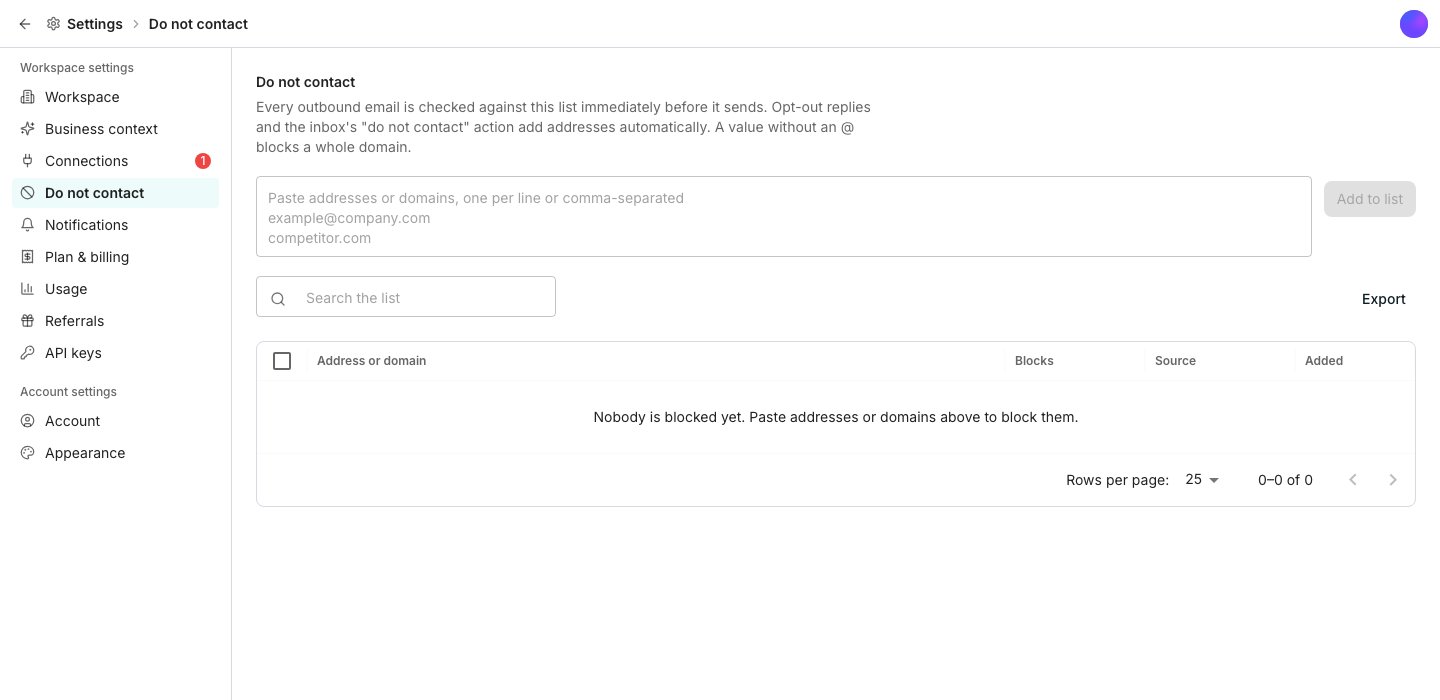
The do-not-contact list, in Settings.
Add and remove people yourself
Open Do not contact and paste addresses or domains, one per line or separated by commas. Click Add to list. A value with no @ sign blocks a whole domain. To undo it, select the rows and click Remove. That lets Oneprofile contact them again, and it never happens on its own. Each row shows the Address or domain, what it Blocks, its Source, and when it was Added.Let entries reach the list automatically
An opt-out reply or a click on a sequence’s unsubscribe link adds the address automatically, and stops every sequence it was enrolled in. A hard bounce blocks email to that address workspace wide, since it proves the address does not exist, and LinkedIn steps still run. The inbox’s Do not contact action on a thread does the same.Export the list
Click Export to download the whole list as plain text, one value per line, ready to paste into another tool.Good to know
Will removing someone add them back to a sequence?
Will removing someone add them back to a sequence?
Only for an entry you or a teammate added, and only where it stopped them before anything reached them. Those contacts start the sequence from step one, as new contacts would.A contact the list stopped part-way through stays stopped. So does anyone an unsubscribe, a bounce or Do not contact in the inbox put on the list.
Can I see what a removal or an add will affect?
Can I see what a removal or an add will affect?
Not from the inbox. Ask the AI Assistant which sequences marking someone do not contact would stop: it names them and changes nothing. Do not contact in the inbox takes one click, and Undo in the toast cancels it while the toast is open.The Settings list does not show which sequences an entry stopped.
Does a domain block every address at that company?
Does a domain block every address at that company?
Yes. Adding a value with no @ sign blocks every address on that domain, not just the one you had in mind.
Does an entry stop LinkedIn steps too?
Does an entry stop LinkedIn steps too?
Yes. An address or a domain stops emails and LinkedIn steps to that person, so blocking someone stops every channel a sequence would reach them on. The one exception is a hard bounce, which only blocks email.
Next steps
Inbox
Read replies and apply the do-not-contact action from a thread.
Build a sequence
Add an opt-out footer while you build a sequence.