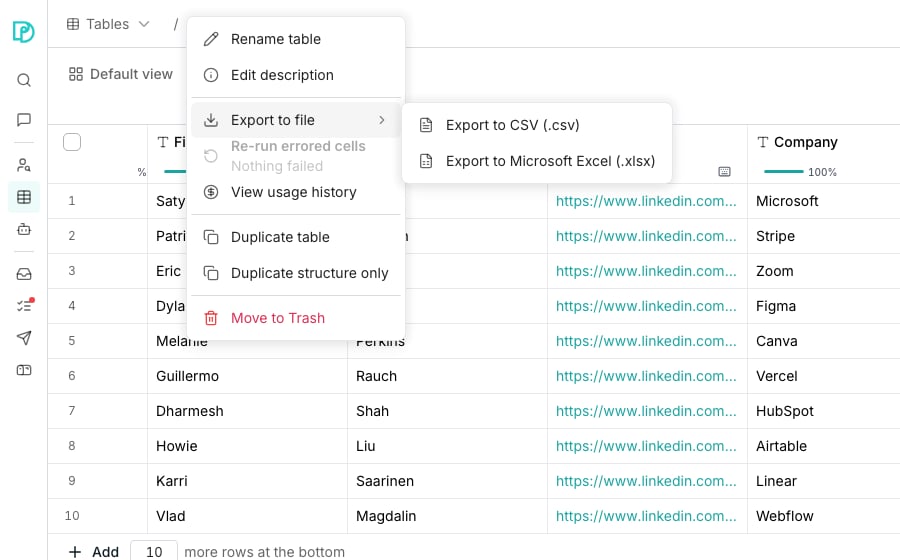
The table's own menu, open on the export formats.
Download a table
1
Open the export menu
On your table, click its name at the top of the page, then Export to file. The Tools panel offers the same row under Import & export.
2
Pick the file
Choose Export to CSV (.csv) or Export to Microsoft Excel (.xlsx).
3
Confirm the download
The dialog names what it is about to download. Click Download.
Choose a format
Both files hold the same rows. They differ in what survives the trip.- CSV writes everything as text. Dates come out in ISO 8601 and lists and objects as JSON, so the file imports back cleanly.
- Excel keeps types. Numbers stay summable, dates sort as dates, and checkboxes stay true or false.
Good to know
What is in the file name?
What is in the file name?
The table’s name, whether you exported the view or a selection, and the moment you did it.A file found weeks later traces back to what produced it. The table’s activity history records the same name.
Why does a cell starting with = look different in each file?
Why does a cell starting with = look different in each file?
A spreadsheet reads a leading
= as a formula, so a CSV protects you by writing a quote in front of that cell.An Excel export needs no quote, because Oneprofile writes those cells as text that Excel never evaluates. The text you see is exactly what was in the table.What happens with a very large table?
What happens with a very large table?
Oneprofile exports up to a ceiling and adds a final row saying it stopped. Narrow the view with a filter and export again.A CSV starts downloading immediately. An Excel workbook is built in full first, so a big one takes a moment before the download begins.
Next steps
Import a file
Bring a CSV or Excel file in as a new table.
Export to a tool
Push rows to a connected system instead of a file.
Filter, sort and search
Narrow the grid before you export it.