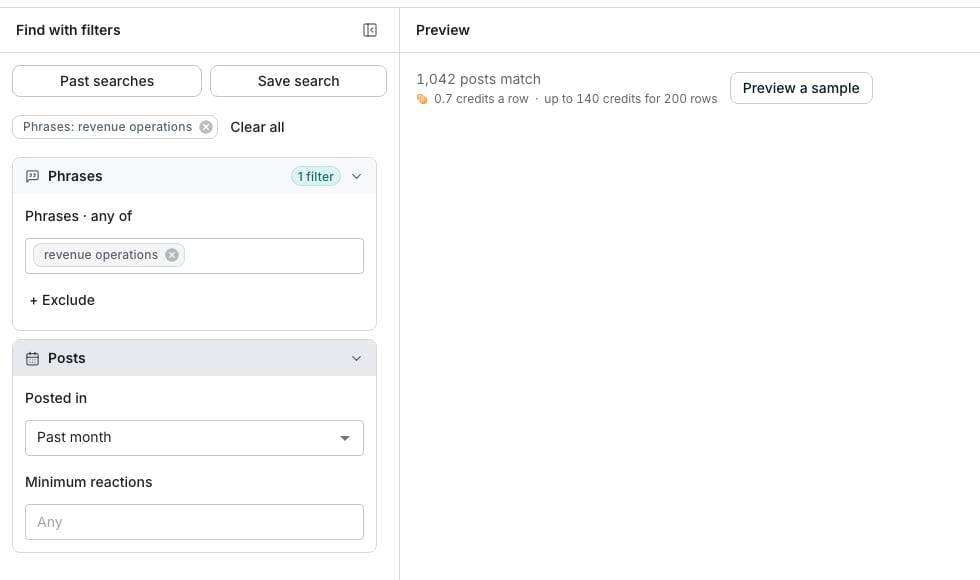
Find people posting about a topic, with one phrase typed and the posts counted.
Build a search
Open Find people posting about a topic and type a phrase a post should carry, such as revenue operations. Add more phrases as alternatives, since a post with any one of them counts. Add phrases to exclude, and a post carrying any of them is left out. To skip quiet posts, set the fewest reactions a post needs. Posted in reads posts from the past month by default. Pick the past week, quarter or year, or any time. The count is of matching posts, not people. One person can write several, so the table has fewer rows than the count.Preview and save the people
Click Preview a sample to see a few of the authors, each with their post and its date. Click Continue, then choose Save to a new table or Save to an existing table. The panel on the next step shows the price before anything is added. Each row carries the person’s name and LinkedIn URL. Beside them sits their newest matching post, with its text, link, date, reactions and comments. A Headline column is added only when an author wrote one, which few do. Matching posts counts their posts that matched, with up to 25 links under Matching post URLs. Posts on LinkedIn is the post count LinkedIn shows for them.Good to know
How are phrases matched?
How are phrases matched?
Each phrase is matched whole and in order, in what the person wrote. Revenue operations finds a post about revenue operations and not one about operations revenue.Punctuation between the words does not break a match. Add up to 20 phrases to include and 20 to exclude.
Why does the table have fewer rows than the count?
Why does the table have fewer rows than the count?
The count is posts. A person with three matching posts is one row, with the newest post on it and all three links under Matching post URLs.
Why does the past week find so few posts?
Why does the past week find so few posts?
Posts reach this search about a week after they go up. For recent writing, keep Posted in at the past month or longer.
Does a saved search keep reading new posts?
Does a saved search keep reading new posts?
Yes. Posted in counts back from the day the search runs, never from a fixed date. A saved or scheduled search reads the latest posts each time.
What happens when the search runs again into the same table?
What happens when the search runs again into the same table?
It reads only the posts that reached this search since the last finished run began, and adds the people who wrote them. After you change the search or ask for more people, the next run reads the whole Posted in window again.A person already in the table is updated with their newest matching posts rather than added twice. Run it again by hand or on a schedule. See Saved searches.
Why is there no Headline column?
Why is there no Headline column?
It holds what an author wrote under their name when the post was read. Few write one, so the column is added only when a row has one. Tick Read LinkedIn profile to fill in their job title and employer.
Can I enrich the people?
Can I enrich the people?
Yes, and it is optional. Find phone number and Read LinkedIn profile work on these rows, because they start from the LinkedIn URL. Find work email and Enrich company are not offered, since they need a company and a post does not give one. See Choose what to enrich.
Does it find people who reacted to or commented on a post?
Does it find people who reacted to or commented on a post?
No. It reads what people wrote in their own posts, never what they liked or commented on. For people commenting under other posts, use the LinkedIn comments by a person signal under More ways to find leads.
What do I pay for?
What do I pay for?
Only the people added to the table, at the price the panel shows before you create it. The count and the preview are free. Each enrichment you tick has its own price.
Can the AI Assistant run this search?
Can the AI Assistant run this search?
Yes, and so can AI apps. Ask for the people posting about a phrase. Counting is free, and the card names the price before any rows are added.
Next steps
Choose what to enrich
Pick the details to fill in before the rows are added.
Saved searches
Save the search, or run it again on a schedule.