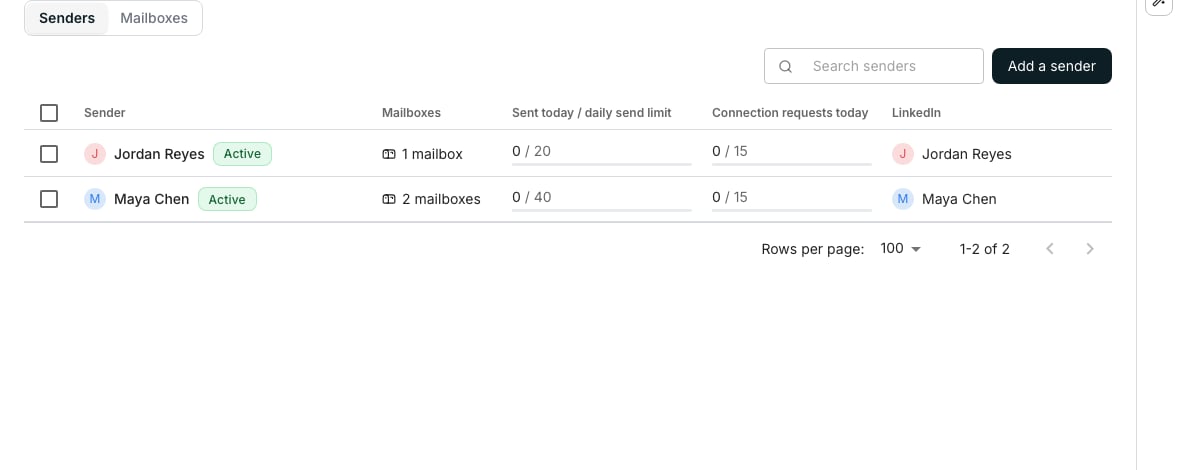
The Senders tab.
Add a sender
Open the Senders tab
Click Add a sender
Fill in the Settings tab
Add mailboxes to a sender
Click the sender’s row on the Senders tab, then open its Mailboxes tab. Click Add from this workspace, tick the ones this sender sends from, then click Save. Connect mailbox adds an account nobody in the workspace has connected yet.Decide what sends without you
Send mode, on the sender’s Settings tab, settles it for this sender alone:- Send when confident sends what the agent is confident in and holds the rest in Tasks. New senders start here. A sequence’s AI writing tab shows which messages would wait.
- Always ask holds every message and every reply from this sender for a person.
- Always send sends everything the agent writes, including replies. Only a workspace admin can choose it, after confirming a warning.
Set the sender’s timezone
Timezone, on the same tab, sets the sender’s clock. Their daily limits reset at its midnight, and sequences send in its hours unless they fix one zone. Oneprofile detects it once, and after that only a person changes it.See what went out as the sender
Click the sender’s row on the Senders tab, then open its Activity tab. Click a row to read what went out and how it went.Act on several senders at once
Tick senders on the Senders tab and a bar appears above the table. Set signature writes one signature to every ticked sender; use sender variables so it signs as each person. Delete removes them, leaving their mailboxes connected.Good to know
What does a sender with no mailbox offer?
What does a sender with no mailbox offer?
What waits for a person whatever the mode?
What waits for a person whatever the mode?
- a placeholder that did not fill
- a claim the agent could not ground
- too little known about the contact to write anything worth sending
Can a sequence ask for approval the sender's mode does not?
Can a sequence ask for approval the sender's mode does not?
Can Oneprofile change a sender's mode by itself?
Can Oneprofile change a sender's mode by itself?
What does the agent do without a booking link?
What does the agent do without a booking link?
Where does a sender's timezone come from?
Where does a sender's timezone come from?
When do a sender's daily limits reset?
When do a sender's daily limits reset?
How are emails spread across a sender's mailboxes?
How are emails spread across a sender's mailboxes?
Does a sender's timezone change when they travel?
Does a sender's timezone change when they travel?
What does the Activity tab list?
What does the Activity tab list?
- Emails a sequence sent as the sender, and replies sent from the Inbox since October 5, 2026. Forwards, test emails and emails that failed to send are not listed.
- LinkedIn steps that reach someone, such as a profile view, a connection request or a message, including ones that failed.
- Tasks someone rejected in Tasks. Discarding a draft in the Inbox is not a rejection.
What does a row show when I open it?
What does a row show when I open it?
How does Activity say who let a message go?
How does Activity say who let a message go?
- Approved: a person or an API key approved it first. Opening the row says why it waited, such as “Held because this sender always asks”.
- Automatic: no person decided. The sender’s and the sequence’s rules let it go.
- Rejected: a person refused it in Tasks, so it never went.
- Sent by a person: someone wrote it and sent it from the Inbox.
- Not recorded: a LinkedIn step from before Activity, whose approval a later step replaced.
What does each outcome mean?
What does each outcome mean?
- Sent: the mail provider accepted the email.
- Done: the LinkedIn step did its job.
- Failed: it did not go through. Open the row to read why.
- Skipped: the step no longer applied, such as a request to someone already connected.
- Already pending: a connection request to this person was already pending when the step ran. It waits for the answer like one Oneprofile sent.
- Stopped: it was stopped while a browser was running it.
- Not sent: a person rejected it in Tasks.
Where did the LinkedIn tab's History go?
Where did the LinkedIn tab's History go?
Why are the checks of my own inbox not in Activity?
Why are the checks of my own inbox not in Activity?
Can I ask the AI Assistant what a sender sent?
Can I ask the AI Assistant what a sender sent?
What happens to contacts when I delete or move a mailbox?
What happens to contacts when I delete or move a mailbox?