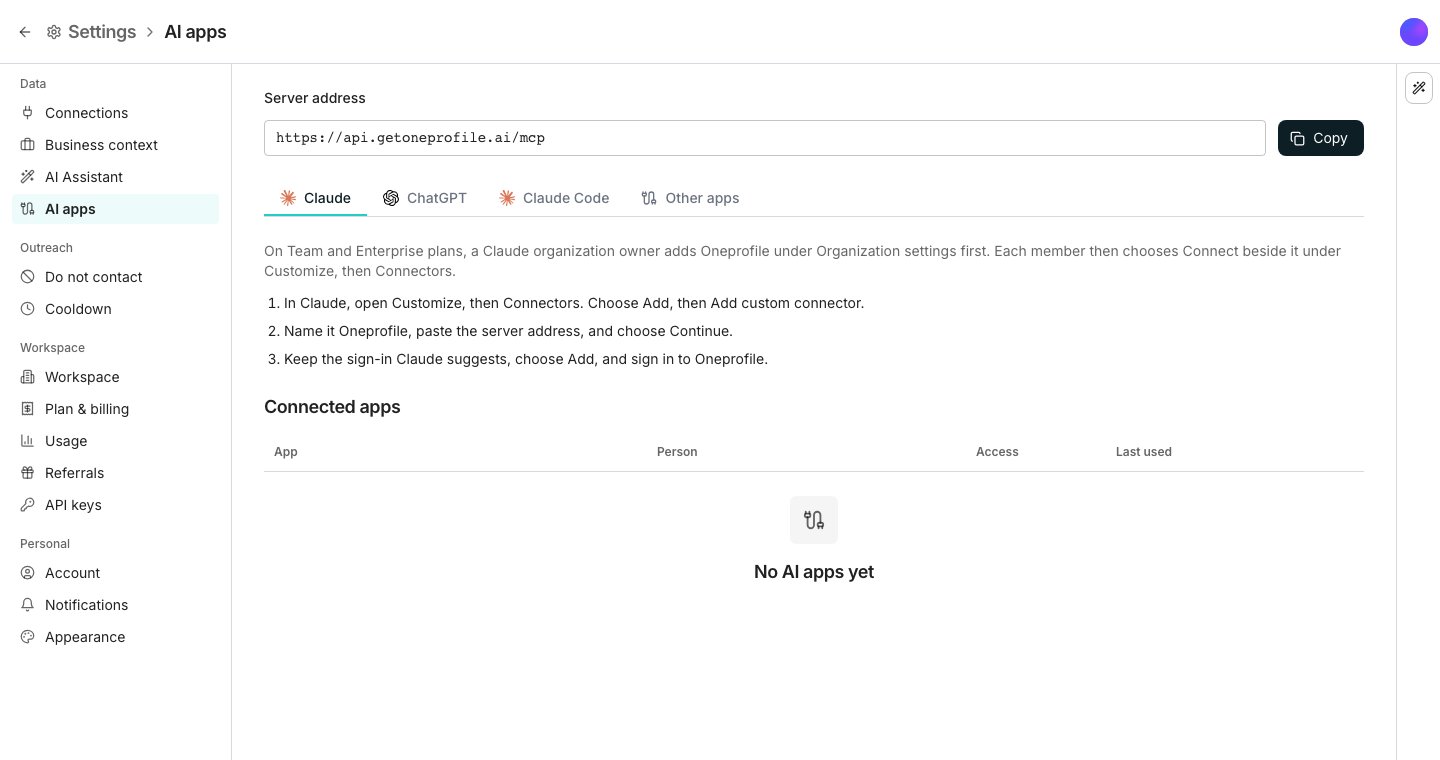
The AI apps page in Settings.
Connect an app
Every app uses one server address,https://api.getoneprofile.ai/mcp. Click Copy beside it on AI apps to copy it.
- Claude
- ChatGPT
- Claude Code
- Other apps
On Team and Enterprise plans, a Claude organization owner adds Oneprofile under Organization settings, and each member chooses Connect beside it under Customize, then Connectors.
1
Add a custom connector
In Claude, open Customize, then Connectors. Choose Add, then Add custom connector.
2
Paste the address
Name it Oneprofile, paste the server address, and choose Continue.
3
Sign in to Oneprofile
Keep the sign-in Claude suggests and choose Add. Sign in, then pick a workspace and what the app may do. The connector works in Claude on the web, desktop and mobile.
Choose a workspace and access
The app opens a Oneprofile page to sign in. Pick the workspace the app works in, choose Read and write or Read only, and click Allow. You return to the app, connected.Work from the app
The app works as you, in the workspace you picked, with the tools the AI Assistant has. Before a change, the app asks you to allow the tool, and that prompt is your approval. When a change costs credits, the app’s answer starts with what it was priced at.Disconnect an app
Connected apps on AI apps lists every app in the workspace, who connected it and when it was last used. Click Disconnect on a row to sign that app out. You can disconnect your own apps, and a workspace admin can disconnect anyone’s.Good to know
Can one connection work in two workspaces?
Can one connection work in two workspaces?
No. A connection works in the one workspace you picked when you signed in. To work in another, connect the app again and pick that workspace.
What can a Read only connection do?
What can a Read only connection do?
Look things up, never change them. The app sees only the tools that read, and any change is refused. To make changes, connect again and choose Read and write.
Why can't I choose Read and write?
Why can't I choose Read and write?
Making changes from an AI app needs a paid plan, so on a free workspace an app can only read. If a workspace leaves its paid plan, its apps can only read from then on. See Credits and billing.
Why don't I get an approval card for an app's changes?
Why don't I get an approval card for an app's changes?
The app’s own prompt to allow a tool is the approval, so Oneprofile shows no cards to an AI app. Your AI Assistant settings apply only to the AI Assistant.Reads, changes, and sends or removals reach Oneprofile through separate tools. So you can let the app always look things up and still be asked before anything sends or is removed.
Whose changes are an app's changes?
Whose changes are an app's changes?
Yours. An app works as you, so what it changes counts as your change, and a table or column it makes carries the AI Assistant’s mark, as one the AI Assistant made would.
Why does the sign-in page say the app is unverified?
Why does the sign-in page say the app is unverified?
Oneprofile could not confirm which app is asking. Only Claude and ChatGPT on the web are confirmed, by the address they return to. An app on your computer, Claude Code included, is always shown as unverified, because any program on the same computer could ask in its name. Allow it only if you just started the sign-in yourself.
Why does the app ask me to sign in again?
Why does the app ask me to sign in again?
A connection left unused for 30 days signs out. It also signs out when someone disconnects it, or when you leave the workspace.
Can I connect with an API key?
Can I connect with an API key?
No. AI apps connect only with sign-in. API keys still work for the REST API. See API keys.
Does an MCP client in a browser tab work?
Does an MCP client in a browser tab work?
No. A client that calls the server straight from a web page, such as MCP Inspector in a browser, cannot connect. Claude and ChatGPT on the web work, because they connect from their own servers.
How is this different from MCP servers?
How is this different from MCP servers?
It is the other direction. Here an AI app uses Oneprofile, while MCP servers are tool servers your agents use.
Next steps
Chat
Ask the AI Assistant inside Oneprofile, where changes arrive as cards.
API keys
Connect another system to the REST API with a key.