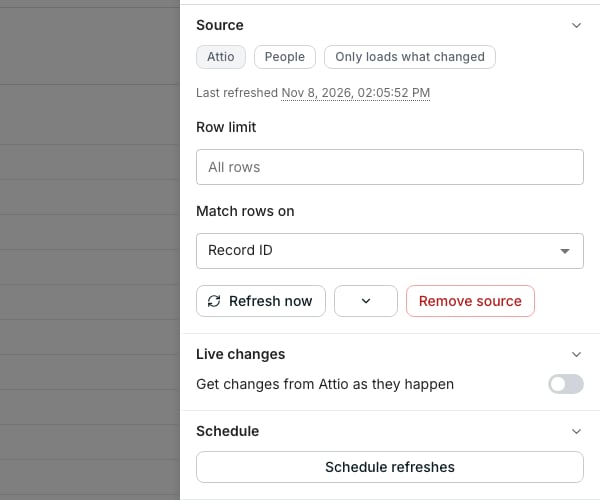
The Source panel of a table imported from Attio, with Live changes off.
Turn on live changes
1
Open the Source panel
Open a table you imported from a tool, and click Source at the foot of the grid.
2
Turn on the switch
Under Live changes, turn on Get changes from HubSpot as they happen. The switch names the tool the table comes from.
Know how each tool sends its changes
- HubSpot, Shopify, and Intercom send through Oneprofile’s own app. The switch is all there is, with no URL to paste.
- Pipedrive, Attio, Calendly, Mailchimp, Typeform, and Google Sheets get a webhook Oneprofile registers through the import’s connection. A notice shows while it does.
- Salesforce needs the URL pasted in. The section shows the webhook URL and the steps.
- Facebook Lead Ads takes both. You paste the URL in your Meta app and save its Signing secret and Verify token below the switch.
Match rows on ID first
The switch is greyed out, with “Match rows on ID first”, when the table matches rows on another field. Every change names its record by the tool’s ID. Set Match rows on in the same panel to the tool’s ID, then turn the switch on.Turn live changes off
Turn off the switch. Where you pasted a URL into the tool, confirm with Turn off, and that URL stops working. Rows stay, and the table goes on refreshing as before.Good to know
Why is there no Live changes section?
Why is there no Live changes section?
The tool sends no changes for that kind of record, so there is nothing to turn on. HubSpot, Shopify, and Intercom also need the tool connected through Oneprofile’s app, not a private token.
What do the notices under the switch mean?
What do the notices under the switch mean?
- “Registering live changes with Pipedrive…” shows while Oneprofile sets them up.
- “refused the connection” means the connection lacks permission to manage webhooks. Reconnect the tool with that permission, then turn live changes off and on.
- “turned live changes off” or “didn’t answer” means changes stopped. Turn them off and on to register them again.
- “connection was deleted, so live changes stopped” means the connection the table was imported through is gone.
What does turning on live changes do for Google Sheets?
What does turning on live changes do for Google Sheets?
A change to the sheet starts a refresh of the table. That is also why a Google Sheets table can match rows on any field.
How do I set up Salesforce once live changes are on?
How do I set up Salesforce once live changes are on?
Copy the URL from the section, or click Reveal first when it is hidden. In Salesforce, make an outbound message on the table’s object with that URL, and a flow that sends it when a record changes. Get rows from a webhook has the steps in full.
Do I get a new URL when I turn live changes on again?
Do I get a new URL when I turn live changes on again?
Yes, where you paste one. Turning them off stops the old URL, and turning them on makes a new one to paste into the tool. A tool Oneprofile registers with needs nothing from you.
Do live changes replace scheduled refreshes?
Do live changes replace scheduled refreshes?
No. They add each change as it happens, and the table still refreshes on its schedule or when you click Refresh now. Removing the source stops both.
Can the AI Assistant turn live changes on?
Can the AI Assistant turn live changes on?
Yes. Ask it to check, turn on, or turn off live changes for a table. Where a URL must be pasted, it links you to the Source panel, because it never sees the URL.
Next steps
Import from a tool
Bring rows in from a tool you already use.
Get rows from a webhook
Make a table an app adds rows to as things happen.
Schedule a re-run
Refresh rows from a connected tool on a schedule.
Create a table
Every way to start a table.