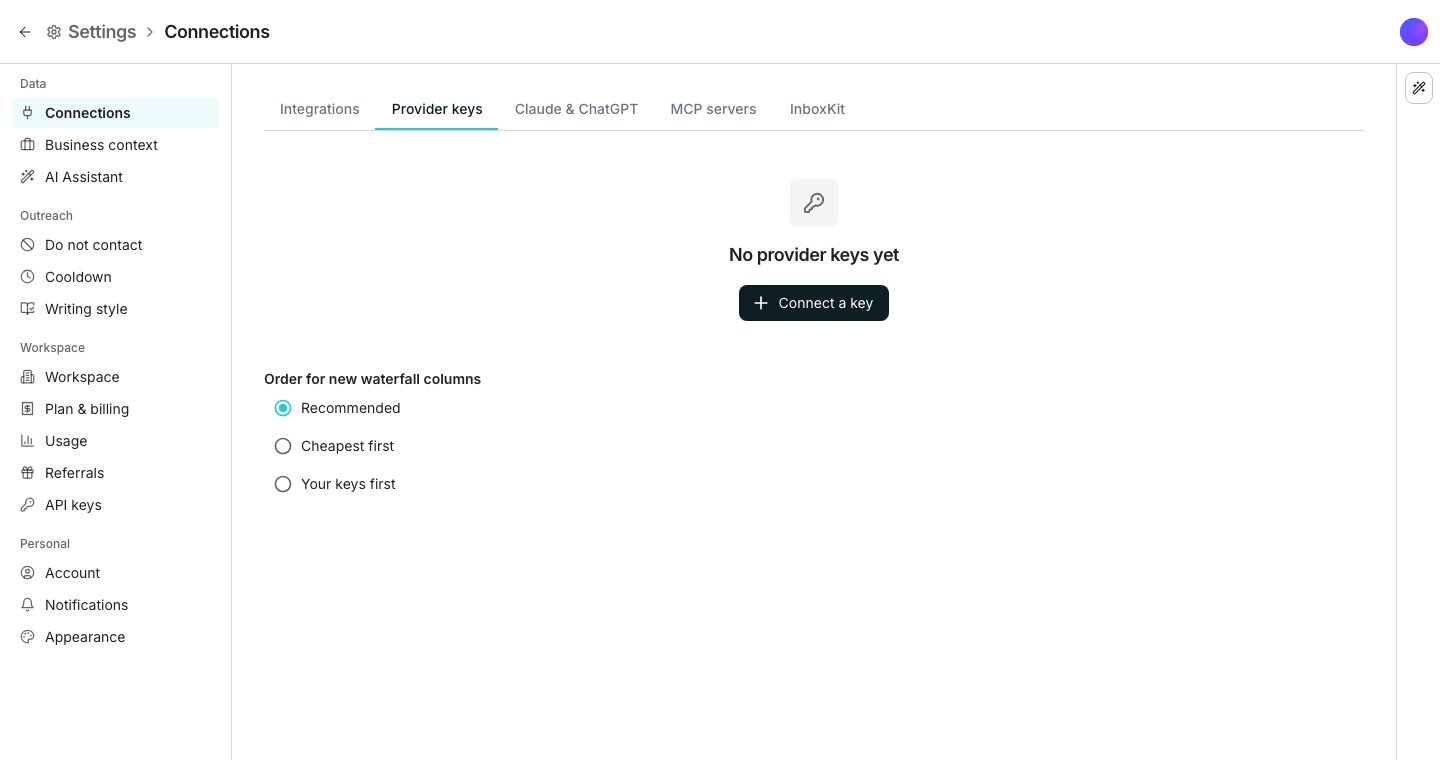
The Provider keys tab in Connections.
Add a key
1
Open Provider keys
Open Connections and click the Provider keys tab, then Connect a key.
2
Pick the provider
Choose the provider from the list. Its form says where to find the key in that provider’s own settings.
3
Paste the key and test it
Paste the key and click Test and connect. The key is checked with the provider before it is saved.
The key’s row reads Working, with when it was last checked and, where the provider reports it, how many of its credits are left.
Keep a key working
A key that stops working shows Not working or Out of credits in its Health column. The tab says what that means for your rows. Rows that skipped the provider can be run again with Run failed rows once the key works. The ⋯ at the end of a key’s row holds three actions. Check again after you have fixed the key with the provider, Replace key to paste a new one, and Remove to take it away. Everyone in the workspace gets an email when a key stops working, runs out of credits, or runs low, even one saved that way. Each person can switch these off under Provider key stopped working and Provider key running low in Notifications. A Slack rule there posts them to a channel.Choose the order new columns start with
Order for new waterfall columns sets the order a new waterfall column starts with, and a column you already made keeps its own. On a free plan, new columns start on Recommended. See Choose providers to change one column.Good to know
What does a row on my key cost?
What does a row on my key cost?
The fee shown in the connect form, charged only when your key answers the row. The lookup itself is billed by the provider to your account.
What happens when I remove a key?
What happens when I remove a key?
A Custom column that pays that provider with the key keeps its order, and its rows skip the provider until a key is added again. A column on Your keys first asks that provider with credits instead.
Who can add or remove a key?
Who can add or remove a key?
Anyone in the workspace. Every change is recorded with who made it.
Can the AI Assistant add a key for me?
Can the AI Assistant add a key for me?
No. A key works like a password, so only you add or replace one, on this tab. The AI Assistant can list your keys, check one again, remove one when you approve it, set the order new columns start with, and set a column’s providers.
Why is Connect a key greyed out?
Why is Connect a key greyed out?
Provider keys come with paid plans. On a free plan, the tab offers Upgrade instead.
Is my key shown again after I save it?
Is my key shown again after I save it?
No. It is stored encrypted and sent only to its provider. The tab shows its last few characters so you can tell keys apart.
Next steps
Choose providers
Pick which providers a column asks, in what order, and who pays.
Connect a tool
Connect a CRM or another tool to the workspace.