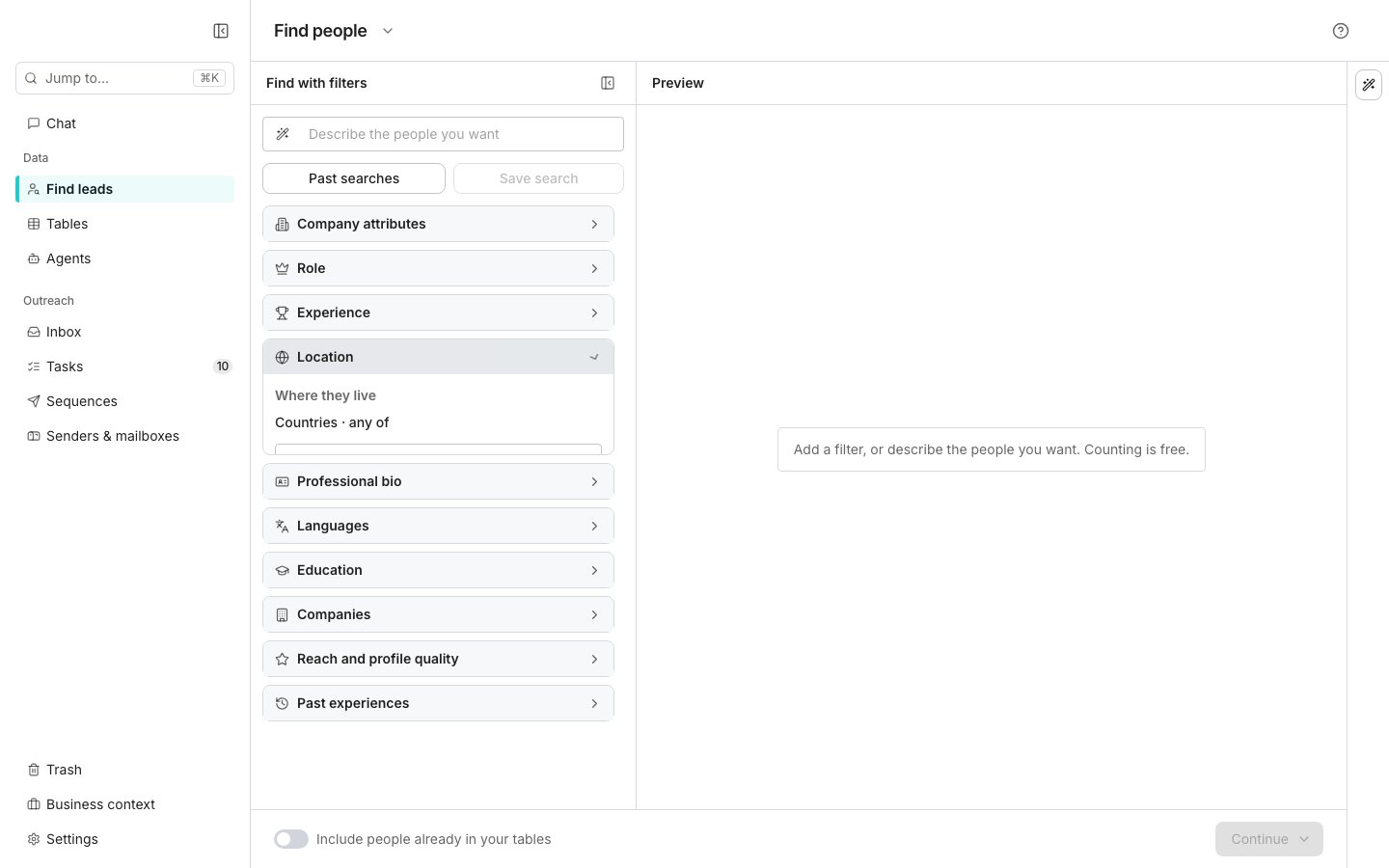
The Find people search, with filters and preview.
Build a search
Open Find people and add filters in the Find with filters pane. The match count updates as you go, and counting costs nothing. Click the arrow next to the page title to switch to Find companies. Filters you already set carry over. Click Preview a sample to see a few rows. The sample shows each row’s name, job title and company; every other column stays hidden until you add the rows to a table.Save the matches to a table
Click Continue, then choose Save to a new table or Save to an existing table. Save to an existing table opens a list of your tables. Pick one and click Continue to land on the same enrich step, with that table named above the button.Pick what to fill in
Save to a new table opens the enrich step with a suggested Table name you can change. Its panel lists what Oneprofile can fill in, such as an email address or a phone number, each with what a row usually costs. You only pay for rows Oneprofile actually fills in, so the total is the most it can cost. See Choose what to enrich. Click Create table. The button shows the most it can cost, and People to add says how many rows it adds. Oneprofile creates the table and starts filling in what you picked.Good to know
How do I switch between people and companies?
How do I switch between people and companies?
The arrow next to the page title lists every search. It runs from Find people and Find companies to Find companies hiring, Find people posting about a topic and Find subdomains. More ways to find leads at the bottom opens the signals.Filters you already set carry over when you switch between Find people and Find companies.
What are the other searches on the Find leads page?
What are the other searches on the Find leads page?
Under Start a new search, the Find leads page shows Find people and Find companies. Click More ways to find leads for every other search and signal, grouped by where it finds leads. The section stays open or closed the way you last left it in this browser.
- Google: Google results adds the results Google shows for searches you write, and Local businesses finds businesses near a place. See Google results.
- LinkedIn: Companies hiring finds employers with an open role matching a job title you name. People posting about a topic finds the people whose own posts carry a phrase you type. Work milestones, the one LinkedIn signal, sits beside them. See Companies hiring and People posting about a topic.
- Social media: the X and YouTube signals, such as YouTube videos by a company.
- The web: Similar companies finds companies like up to ten domains you name, and Sites linking to a domain lists the sites linking to one. Subdomains lists the web addresses under a company’s domain. The Reddit, GitHub, Hacker News and Product Hunt signals sit beside them, such as Reddit mentions and Product Hunt launch. See Backlinks and Subdomains.
Which filters can I search on?
Which filters can I search on?
Find people groups its filters into Company attributes, Role, Experience, Location, Professional bio, Languages, Education, Companies, Reach and profile quality and Past experiences. Each section is one question about the people you want.Company attributes holds Industries and the employer’s size, age, growth and funding. Role holds Seniority, Departments and Job titles, and Experience holds Years of experience.Location runs from Countries and Regions down to Cities, then adds where they work and Employer countries, each with an exclude. Professional bio holds names, Keyword and Skills. Keyword searches the whole profile rather than only the bio.Find companies uses the same section names where they apply: Company attributes, Location and Companies. It also has sections of its own, including Technology, Offices and Product and web presence. Most sections also carry an exclude field, so you can leave people or companies out of a search.
How do I find companies that use a tool?
How do I find companies that use a tool?
Open Find companies and use the Technology section. Technologies takes the product name, such as HubSpot or Shopify, and Exclude technologies leaves a product out.Two date fields under Advanced narrow it further. Still using it since drops companies that ran the product once and stopped. First started using it since finds recent adopters rather than long-standing users.The section reaches companies whose website has been read, which is about one in six, so expect a smaller result than other filters give. The preview says so once you add a technology.
Can I describe the search instead of building it?
Can I describe the search instead of building it?
Yes. Type who you want into the box on the Find leads page and press Enter. The AI Assistant opens on the right, runs the search itself, and says how many match.On this screen, type into Describe the people you want above the filters and press Enter. The docked AI Assistant answers while you keep building filters by hand. See AI Assistant for what it searches and what a table costs.
Why is one of my tables missing from the list?
Why is one of my tables missing from the list?
A table that already has a search of its own is not offered, because a table keeps one search. Start a new table instead, or open that table and edit its search.On the enrich step the button reads Add to table, under the name of the table it fills. That table’s columns decide what runs on the new rows.
Does a people search add people already in my tables?
Does a people search add people already in my tables?
Not unless you ask. A new people search leaves out anyone already in one of your tables and keeps looking for new people instead. Switch on Include people already in your tables, beside Continue, to add them anyway.Once the rows are in, the message says how many it passed over, such as “Skipped 12 people already in your tables”. When everyone it found is already in your tables, it says so and adds nothing.Before you continue, the line under the switch says how many of the previewed people are already in your tables.
Can I paste a list of job titles?
Can I paste a list of job titles?
Yes. Paste them into Job titles, one per line or separated by commas. Every title is kept, including one that matches none of the suggestions.
Why does my people table have no company size or revenue?
Why does my people table have no company size or revenue?
A people table has no column for company size or revenue, even when you searched on them. The filters still decide who is found. To see those figures, add Enrich company from domain to the table. When the AI Assistant searches on them, it says so too.
What if my balance is too low for every row?
What if my balance is too low for every row?
The enrich step says so before you create the table. You still get every row, and filling in the extra columns stops once your credits run out.
Why does my table open before every row is in?
Why does my table open before every row is in?
A large search keeps adding rows after the table opens. A banner at the top of the table shows how many are in so far, and it closes once every row has arrived. You can keep working in the table while it fills.Your plan sets how many rows a table can hold, and that is the most one search adds. A search that would add more says so under People to add before you create the table.
Can I make a preview column wider?
Can I make a preview column wider?
Yes. Drag a column’s header edge in the preview, or double-click that edge to fit the column to what it holds. Pressing Escape during a drag puts the column back.The widths belong to the preview. The table you create sizes its columns afresh.
Why does nothing match my filters?
Why does nothing match my filters?
The preview says “No results found. Try removing or loosening a filter.” Nothing is charged for a search that matches nothing, because the free count runs before the paid sample.
How do I buy more credits?
How do I buy more credits?
Click the credit balance in the top bar. View usage always shows.A paid workspace also gets Manage plan and Buy credits. A free workspace gets Upgrade instead.
Next steps
AI Assistant
Describe who you want, and it searches and builds the table.
Choose what to enrich
Pick the details to fill in before the rows are added.
Saved searches
Save a search, reopen one, or put it on a schedule.
Subdomains
Get the web addresses underneath a company’s domain.