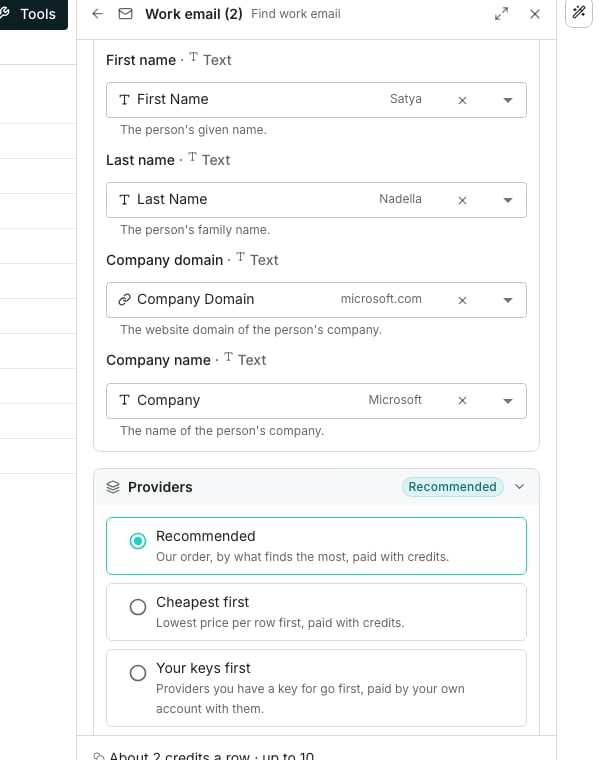
The Providers section of a Find work email column.
Pick an order
Open a waterfall column’s editor, such as Find work email, and find its Providers section. Pick one of four orders:- Recommended puts the providers that find the most first. It is paid with credits.
- Cheapest first asks the lowest price per row first. It is paid with credits.
- Your keys first asks providers you hold a key for first, on that key.
- Custom lets you set every provider yourself.
Build a custom order
Choose Custom, then for each provider:- Turn it on or off, and move it up or down.
- Pay with credits or with Your key, under Pay with. A provider with no key yet offers to connect one.
- Under Keep, untick a field to leave it for the next provider.
Good to know
Why can't I choose an order?
Why can't I choose an order?
Choosing providers comes with paid plans. On a free plan the section shows the Recommended order, read-only, and the column runs it. A column that had an order before a downgrade keeps it, and uses it again on a paid plan.
What happens when my key is not working?
What happens when my key is not working?
The row skips that provider and says why, then asks the next one. Fix the key on Provider keys, click Check again, and run the failed rows.
Does Cheapest first use my keys?
Does Cheapest first use my keys?
No. It orders by price on credits. Use Your keys first or Custom to pay with a key.
How do I see which provider answered a row?
How do I see which provider answered a row?
Open the cell. Its trail names each provider asked, and marks the ones answered on your key.
Next steps
Provider keys
Add your own key with a provider.
Where the data comes from
How a waterfall asks its providers and what a row costs.