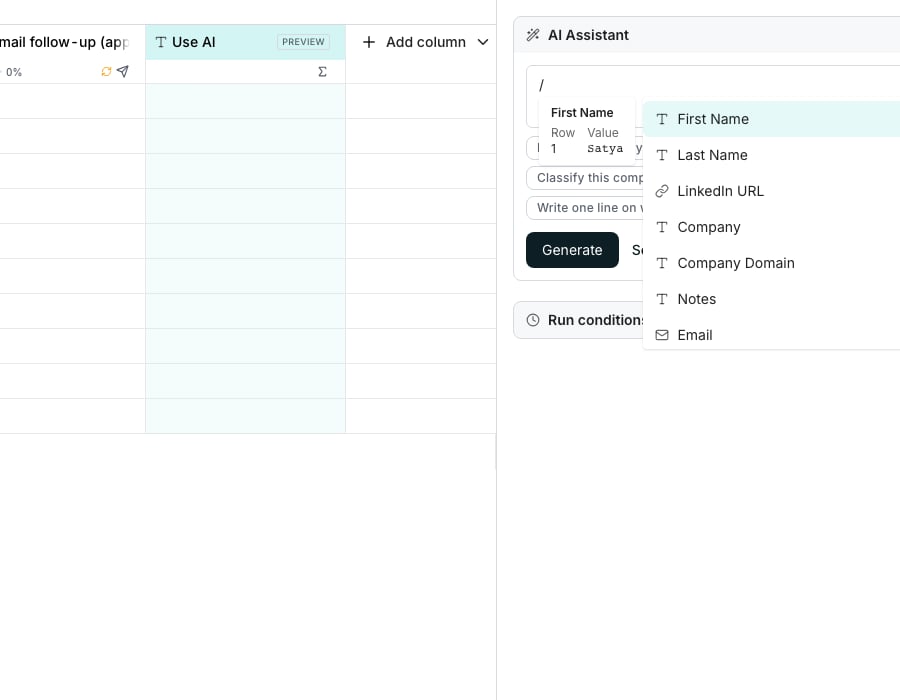
The column mention picker, open inside a prompt.
Insert a column’s value
Type a forward slash where you want the value, then choose a column from the list. In an AI Assistant prompt box, a card beside the list shows a real row and value, so you recognize the column by its data.Give a run its row context
Name every column a run needs with a forward slash in its prompt. An agent column maps a table column to each of its inputs instead. When you add one of your own agents whose prompt asks for no specific fields, you can choose Use the whole row.See what depends on a column
From a column’s menu, open More and choose Show inputs and uses… to see what reads it and what it reads from. Deleting asks you to redirect any dependents to another column first, so nothing quietly breaks.Good to know
Can I reference a field inside a column's payload, not just the whole value?
Can I reference a field inside a column's payload, not just the whole value?
Yes. A multi-field enrichment or a list column offers a drill-down in the mention list. Pick one of its declared fields or list items instead of the whole value.
Where did Row context and Entire row go?
Where did Row context and Entire row go?
A new column no longer offers them. An AI column already set up with Row context keeps it, and still shows Entire row if that was chosen. Picking a column there replaces Entire row, and it cannot be chosen again.
Why does deleting a column ask me to pick a replacement?
Why does deleting a column ask me to pick a replacement?
Something else reads from it: a formula, an enrichment prompt, or an export. Naming a replacement repoints every one of those at it before the delete, instead of leaving them broken.
Which columns does Show inputs and uses list?
Which columns does Show inputs and uses list?
Two lists. Used by names every column that reads this one, such as formulas, AI columns and exports. Reads from lists the columns it reads itself. The menu item is greyed out when a column has neither.
Next steps
Column outputs and groups
See how a multi-field answer becomes several columns.
Function columns
Compute a value for every row from other columns.