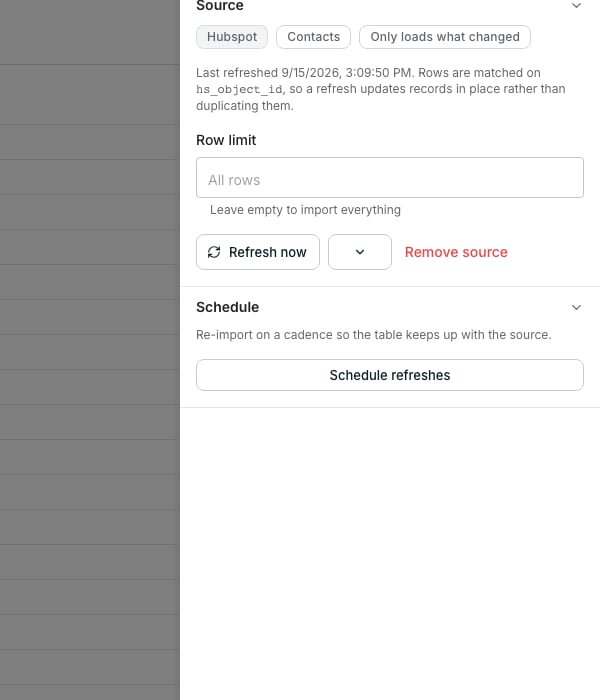
The Source panel on an imported table.
See where the values come from
An imported column is marked Pulled in from a connected tool, so its cells fill from that tool rather than from typing. You cannot correct one by hand here; fix it at the source instead.Keep it up to date
Click Source at the bottom of the grid for both options. Refresh now pulls the latest records right away. Schedule refreshes re-imports on a cadence, so the table stays current without you remembering.See the whole imported record
An imported cell shows a chip; open it to see every field the source returned, even ones without a column yet. Hover a field and click Add as a column to give it one.Good to know
Why can't I change an imported column's type?
Why can't I change an imported column's type?
Its type belongs to the import that writes it. Renaming and repositioning stay open, but the type is fixed, since changing it would blank the very data the import keeps filling in.
What happens to rows the source no longer has?
What happens to rows the source no longer has?
Nothing, until you ask. A plain refresh only adds and updates rows. Choose Re-fetch and delete rows removed from the tool from the refresh menu to also remove rows the source has dropped.
Why does a refresh sometimes read every record again?
Why does a refresh sometimes read every record again?
Some connected tools report only what changed since last time; others resend everything on every refresh. Deleting removed rows always needs a full read, since a partial one cannot tell a deleted record from one it never checked.
Can I limit how many rows a refresh imports?
Can I limit how many rows a refresh imports?
Yes. Set a Row limit under Source, and leave it empty to import everything. A limit also blocks deleting removed rows, since a capped run cannot tell the difference.
Next steps
Import a file
Add rows from a spreadsheet you upload.
Import from a tool
Connect a tool and bring its records into a table.