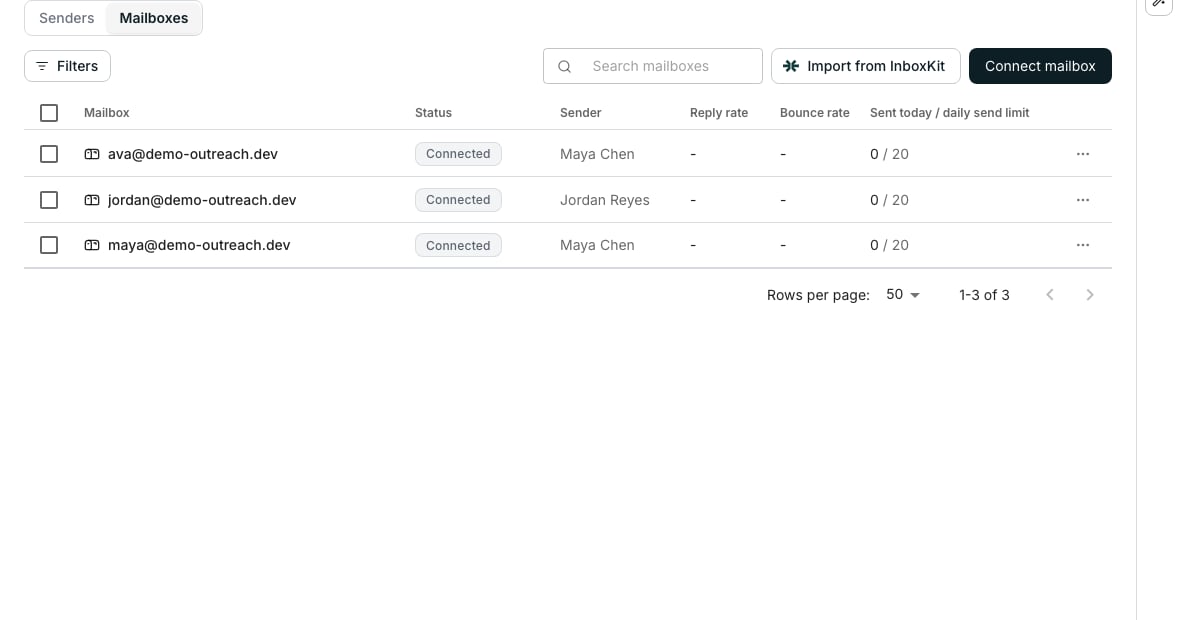
The Mailboxes tab, with its filters and health columns.
Scan every mailbox at once
The filters above the grid narrow it by status, provider and activity, so Disconnected or Sent today is one pick away. Each row carries a Status chip, a Reply rate and a Bounce rate, and how much of today’s daily send limit it has used. A Disconnected mailbox offers Reconnect in its row menu. Tick rows to refresh their status, edit their daily limits together, or remove them. Tick one or more rows and click Refresh status in the bar that appears. It re-checks their connections right now, instead of waiting for the hourly check.Check one mailbox’s health
Click a mailbox’s row on the Mailboxes tab to open its own page. The chart there switches between 7, 30, 90 days or all time, showing sends, replies and received mail over time. Below it, top recipient domains and a list of bounces, each marked hard or soft, show where mail failed. Verify connection checks the mailbox’s access right now and refreshes it if needed. It sends nothing, and a pass marks the mailbox Verified. A disconnected mailbox shows Reconnect alongside it.Good to know
What do Verified, Connected and Disconnected mean?
What do Verified, Connected and Disconnected mean?
- Verified: connected, and its latest connection check passed. The check runs every hour.
- Connected: connected but not verified. It has not passed a check yet, or its latest check got an error back.
- Disconnected: it sends nothing until it is reconnected.
Why does Refresh status leave an InboxKit mailbox disconnected?
Why does Refresh status leave an InboxKit mailbox disconnected?
Oneprofile disconnected it on purpose when it left InboxKit or when Remove everything ran, so Refresh status and the hourly check skip it. One that left InboxKit reconnects on its own once it is active there again. After Remove everything, connect InboxKit again and import it.
What counts as a hard bounce versus a soft one?
What counts as a hard bounce versus a soft one?
The mailbox page’s bounce list marks each one hard or soft. The Bounce rate column shows the share of its mail that bounced.
Why does a mailbox show no reply rate or bounce rate?
Why does a mailbox show no reply rate or bounce rate?
A mailbox that has never sent shows a dash instead of a rate. No sends is not the same as a perfect rate.
Why are some columns missing?
Why are some columns missing?
The list is too narrow for all of them, such as beside the AI Assistant. Connected via gives way first, then the rates, today’s sends and the sender. The mailbox, its Status and its row menu always show, and a wider window brings the rest back. A sender’s own Mailboxes tab works the same way.
What happens to sequences when a mailbox disconnects?
What happens to sequences when a mailbox disconnects?
Its contacts wait for it, and a sequence pauses only when none of its mailboxes or LinkedIn accounts can send. Reconnect the mailbox from its row menu and they carry on from it.
Next steps
Connect a mailbox
Add the mailbox you want to check health on.
Buy domains and mailboxes
Add fresh sending capacity when a mailbox runs out.