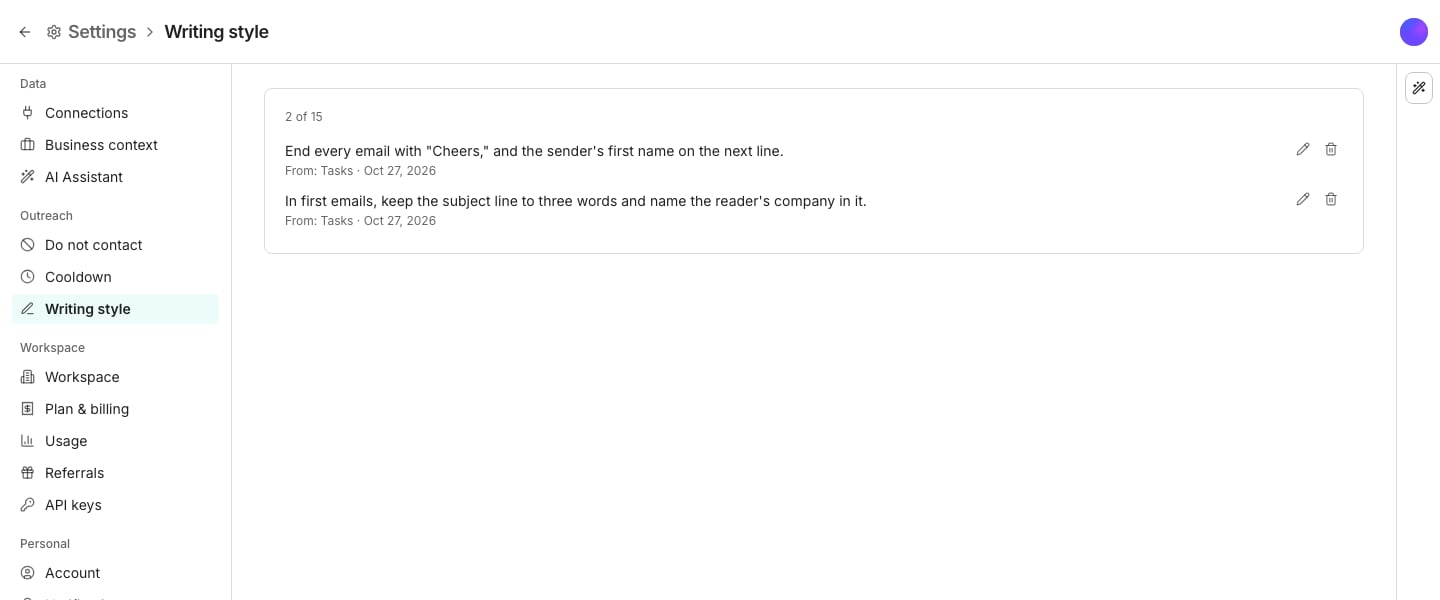
Writing style, in Settings.
Add a learning for all sequences
There is no Add button. Learnings come from Needs work on a message a sequence’s agent wrote, in Tasks, in the Inbox, or on a sequence’s AI writing tab.1
Say what's wrong
Click the thumbs down on the message and answer What’s wrong?.
2
Pick All sequences
On the Will learn card, set Applies to to All sequences.
3
Save it
Click Save, or approve the new message.
Reword, move, or delete one
Open Writing style. Click Edit to reword a learning, then press Enter to keep it. Click Delete to remove one, with Undo in the message that follows. To make a learning apply to one sequence only, click Move to a sequence… beside it and pick the sequence. It leaves this page, with Undo in the message that follows. One learning moves at a time. Every sequence’s agent follows the change from its next message. Messages still waiting in Tasks that the learning is about are written again.Good to know
What if a sequence's learning disagrees with one here?
What if a sequence's learning disagrees with one here?
The sequence’s own learning wins for that sequence. Every other sequence follows the one here.
How do I make a learning apply to one sequence only?
How do I make a learning apply to one sequence only?
Click Move to a sequence… beside it on this page and pick the sequence. Or open that sequence’s AI writing tab, find it under Learnings, marked All sequences, and click Move to This sequence.
Where did a learning come from?
Where did a learning come from?
A sequence’s Learnings shows where each one came from and when. Click that line to read the note you gave and the message it was given on.
Next steps
Learnings
How Needs work proposes a learning, and how to save or undo it.
The outbound agent
Set up how a sequence’s agent writes, and see its own learnings.