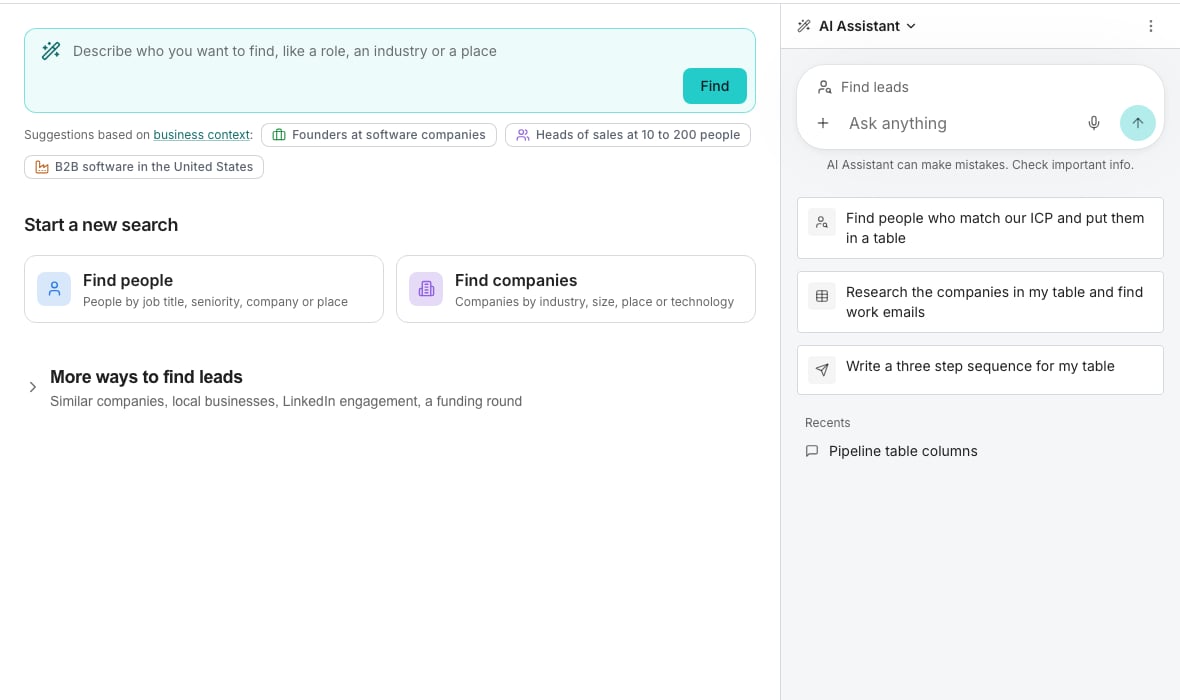
The AI Assistant docked beside Find leads.
Start from the box on Find leads
On Find leads, type who you want into the box at the top, then press Enter or click Find. The AI Assistant opens on the right and answers there, and the box clears.Ask for a search
Ask in your own words, from this screen or any other. It searches for people or companies and tells you how many match. Counting the matches is free, and nothing is added to a table until you ask for it.Turn a search into a table
Ask for a table and a card arrives with the most it can cost on its Approve button. Approve creates the table and adds the rows. The page then opens that table, with the conversation still docked beside it. It fills in what you name, like work emails or company details. Name nothing and it picks work emails when the list is for outreach, or else the cheapest detail that fits.Hide it and bring it back
Open AI Assistant actions, the three dots in the panel header, and choose Hide. The panel folds into a strip at the edge of the page, whose one button brings it back on a new conversation. While a reply is still being written or a card is waiting for Approve, it comes back on that conversation instead.Good to know
Does it fill in the filters for me?
Does it fill in the filters for me?
No. It runs the search itself and tells you how many match, rather than typing into Find with filters on your behalf.Ask it to save the search under a name instead. Opening that saved search loads those filters into the builder, where you can keep working by hand. See Saved searches.
Can it run a saved search again?
Can it run a saved search again?
Yes, a saved search or one from the search history, with the filters exactly as they were kept. Counting it again is free. Adding its rows to a new table asks first, with the price on the card.It can also read out the filters a saved search carries, and say what the workspace has already searched for.
When does the AI Assistant ask a question?
When does the AI Assistant ask a question?
When your request could mean two things and your business context does not settle it, such as Apple the employer against Apple as a keyword.It asks one question, with answers to tap above the box. You can type your own answer instead.
What if nobody matches?
What if nobody matches?
Nothing is spent, because counting is free. Say which part to loosen, such as the location or the company size, and it searches again.
Does it add people already in my tables?
Does it add people already in my tables?
Not unless you ask. A new table of people leaves out anyone already in your tables and keeps looking for new people. The reply says how many, such as “I skipped 12 people already in your tables.” Ask it to include them and it adds them too.A people table has no company size or revenue column, even when those were filters, and it tells you so once the table is made.
What if my request needs a different search?
What if my request needs a different search?
It holds people and companies. Ask for another kind and it loads that search, like people posting about a topic, companies with an open role or similar companies.It also loads local businesses, sites that link to a domain, subdomains and buying signals. Any filter the Find leads page offers for that search, it can set too.Those searches also have their own cards on the Find leads page, under More ways to find leads. See People posting about a topic, Companies hiring and Subdomains.
Does the AI Assistant cost credits?
Does the AI Assistant cost credits?
Searching, counting and saving a search cost nothing. Credits are spent when rows are added to a table, and the card names the price before you approve it.On a buying signal search, the price leaves out anything the signal already brings back.Set the threshold, and what it may do without asking, in Settings under AI Assistant.
Where do the suggestions under the box come from?
Where do the suggestions under the box come from?
They are written from your business context. With nothing written yet, the row reads Quick start and offers three standard ideas.Clicking one opens that search with its filters already set, so you can skip the typing. While your website is still being read after signup, the line under them says so.
Can I pick up a previous conversation?
Can I pick up a previous conversation?
Yes. There is one history for the whole product, on your account and private to you, so it follows you to any device.New conversation, under AI Assistant actions in the panel header, starts a fresh one. Click the name at the top of the panel, AI Assistant on a new conversation, to switch to a recent one. See all conversations opens Chat, where you can search, pin, rename or delete them.
Can I stop a reply that is still working?
Can I stop a reply that is still working?
Yes. Click Stop. The work and any spend end within a moment, the reply reads “Stopped by you”, and what was already written is kept.A stopped reply does not count against the daily allowance.
What if a reply fails or I reach today's limit?
What if a reply fails or I reach today's limit?
A failed reply says what went wrong in the conversation, and nothing is sent again unless you ask. A refresh or a dropped connection keeps your message, and the reply appears when it is ready.A free workspace shares a daily allowance of AI Assistant messages. When it runs out, a line under the box says so and nothing is sent until it resets.
Next steps
People and companies
Build or refine a search by hand.
Saved searches
Save a search you will want again, or reopen one from history.
Business context
Write the company profile the suggestions and the AI Assistant draw on.
Chat
Ask the AI Assistant anywhere, and find every conversation in one list.