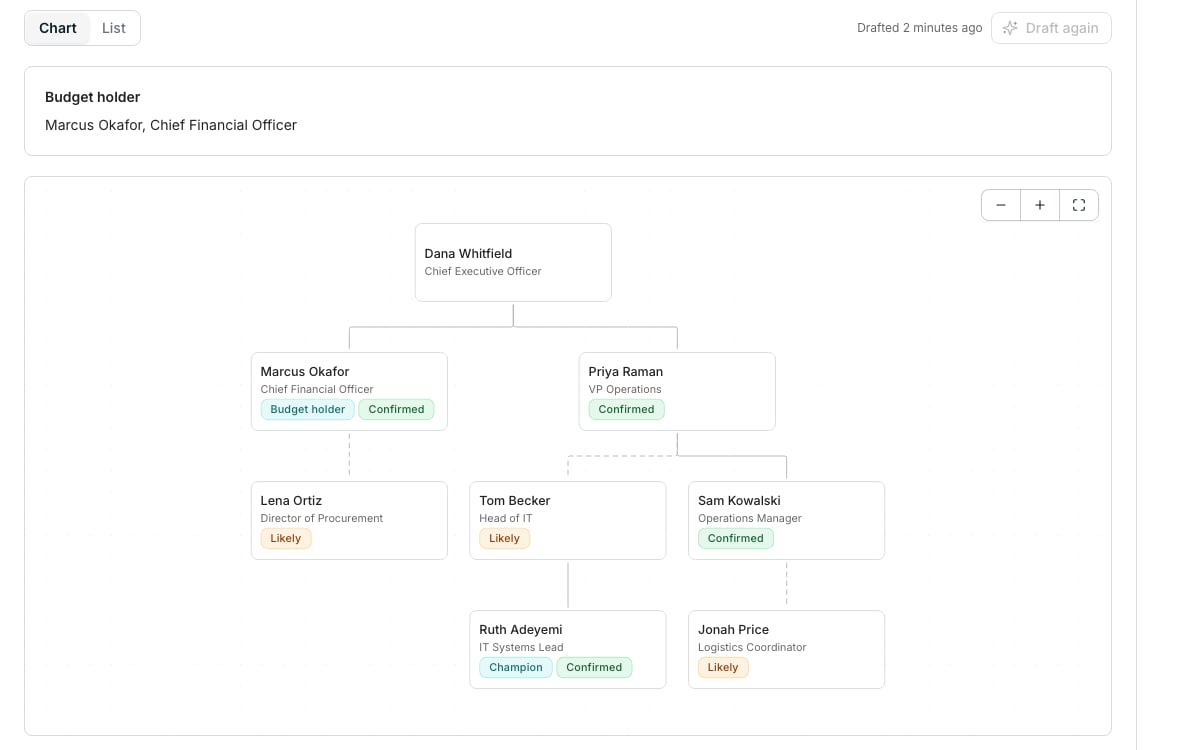
An org chart with its budget holder, Confirmed lines, and the draft's Likely guesses.
Read the chart
Each line says how sure it is.- Confirmed lines are solid, stated by a source: a table’s manager column, a CRM’s reports-to, the Person researcher, or someone in your workspace.
- Likely lines are dashed: the AI draft’s guess from job titles.
Find your way round a big chart
The chart opens on the top person and the two levels under them. A card with people under it shows how many, such as 12. Click the count to show them, and again to fold them away. Type a name or a title in Find a person to jump to someone. The chart opens the way down to their card.Draft the missing lines
Click Draft reporting lines to have AI guess the lines no source gives. Each guess is marked Likely. The draft also shortlists who most likely holds the budget: click Mark as budget holder beside the one who does.Check the draft’s guesses
The guesses open after each draft, grouped by the manager the draft picked. To come back to them later, click Check 3 likely lines above the chart. Click Confirm to make a line yours, or Wrong to stop the chart drawing it. Click Confirm all 4 under Priya Raman for a manager’s whole branch, or Confirm all 12 for every guess.Edit a person
1
Open the person
Click a person on the chart, then Edit in their panel. Their edit page opens.
2
Change what is wrong
Set Reports to, choose a Role such as Budget holder, or turn on Hide from the chart. Type in Reports to to find someone by name, title, or email.
3
Save
Click Save to go back to the chart, or to their panel when you opened the edit there. Your edit stays when a table or the draft says otherwise.
Good to know
Can I edit someone from the list?
Can I edit someone from the list?
Yes. On List, click Edit beside them, and their edit page opens.
Which group does the chart show first?
Which group does the chart show first?
The biggest group comes first. Its head reads Top of the account unless a source places them or someone outside is as senior.
How do I see who changed the chart?
How do I see who changed the chart?
A line or a role someone in your workspace set says who set it and when, such as Set by Alex Kim, 2 days ago. Hover the chip on a chart card to see it.Changes lists every edit made by hand, newest first: who made it, what changed, and when.
What happens to a guess I call wrong?
What happens to a guess I call wrong?
A later draft never draws it again, and Changes says who called it wrong. Clicked Wrong by mistake? Click Undo on the message.After a new draft, a new or moved line is marked New.
How do I hide someone from the chart?
How do I hide someone from the chart?
On their edit page, turn on Hide from the chart and pick Why: Left the company, Not this person, or Not relevant.While anyone is hidden, a view at the top such as Hidden · 2 lists them with that reason. Click Show on chart to bring one back.Hiding someone keeps the draft up to date, unless it put people under them.
How does a very big account fit on the chart?
How does a very big account fit on the chart?
People with no reporting line wait in rows under the chart, 30 at first. The button under the chart shows 60 more at a time.On a very big account, the chart draws the first teams and says how many more there are. Find a person reaches anyone in them. When you open a person and go back, the chart is where you left it.
Why does no line come from my table?
Why does no line come from my table?
Pick the table’s manager column. When a table has a column named Manager or Reports to, the chart asks first. Click Draw from Manager to use it, or Not now.Or open Sources on the Accounts list and choose the table’s Manager column. It lists the columns that could name a person.It leaves out the column that links the table to its account. It also leaves out the person’s own name, profile, and company, any website, and facts such as Industry.
Why can I not draft again?
Why can I not draft again?
Draft again waits until the people at the account change, because the draft already covers them. Click it once they do.The draft is free, with an allowance per workspace in any 24 hours. Each draft first says how many people it will guess for and how many free drafts are left.When it runs out, the greyed button says No free drafts left and when the next one frees up. Lines from your tables and your edits keep working.
Does the AI pick the budget holder?
Does the AI pick the budget holder?
No. It suggests up to three people. You choose: click Mark as budget holder beside one, or set a person’s Role to Budget holder.Several people can hold the budget, and the card lists each.
What is a person's role for?
What is a person's role for?
A role says what a person does in the deal, so you know who to win over. The roles are Champion, Budget holder, Decision maker, Influencer, User, and Blocker. A role shows as a chip on the person’s card.
What happens when a person I placed leaves the account?
What happens when a person I placed leaves the account?
A note at the top of the chart says so, and why. Their row may be deleted, or now name someone else or another company, which the note links. Their table may be off Accounts or in the Trash.Your choice is kept, and the note says when it comes back with them. When a manager you set leaves, their people’s lines come from the tables and the draft until you set them again.Click Forget on a note to drop the choice and any line drawn to that person for good.
What happens when two lines loop?
What happens when two lines loop?
Say a table has Lane Ito reporting to Cam Ruiz, and Cam reporting to Lane. A note at the top of the chart names both lines, and the chart leaves one out. Click Keep Lane Ito → Cam Ruiz, or the other one, to pick the right one.Your pick beats the table, so the other line gives way. The edit page says the same for each person in the loop. When people here set every line, Keep hands the loop’s other lines back to the tables.
Can I set someone's manager to a person who reports to them?
Can I set someone's manager to a person who reports to them?
Yes, when a table’s or the researcher’s line is on the way up to them. Reports to says so beside their name, and that line gives way to yours. An AI draft’s guess always gives way too.When people here set every line on the way up, the name is greyed out with the reason.
Next steps
Accounts
Find an account and choose which tables feed it.
Built-in agents
The Person researcher can read who a person reports to.