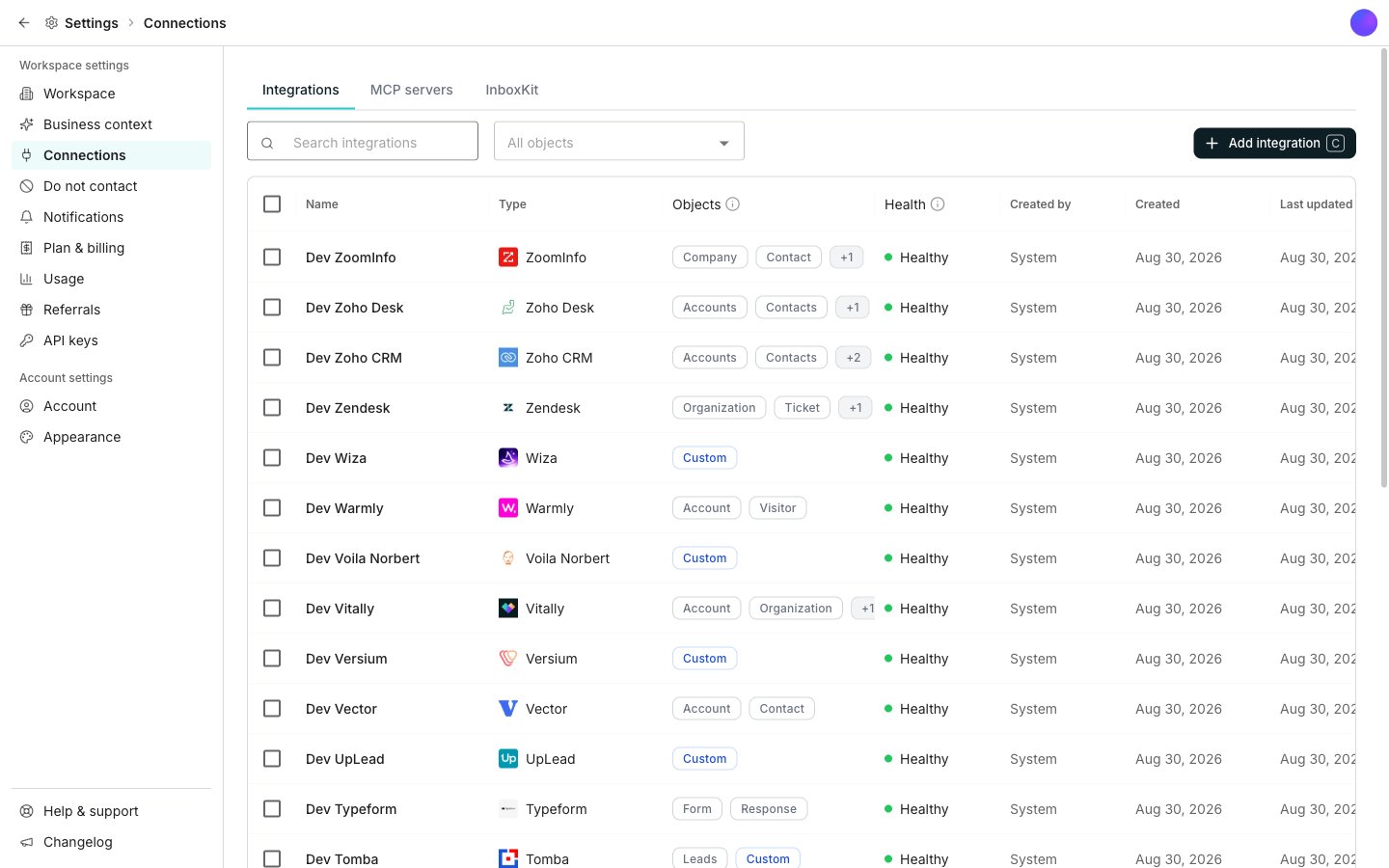
The Connections pane in Settings, on the Integrations tab.
Browse the integration directory
In Settings, open Connections, then click Add integration. Search by name in the Search integrations box, or pick a category from the list on the left. Click any card to open that tool’s page, which says what it does before you connect anything.Connect a tool
1
Open the tool's page
Click the tool you want in the directory. Its page opens with an overview and a button carrying the tool’s name, such as Connect HubSpot.
2
Choose how to connect
Click that button. If the tool supports both methods, a dialog offers Connect with one click, marked Recommended, and Connect with an API key.
3
Finish authorizing
One click sends you to sign in with that tool and brings you back. An API key asks you to paste a key into a short form.
The connection now shows on the Integrations tab under Connections.
Fix a broken connection
A connection that fails on sign-in or permissions shows Error on its row. Open the row menu and click Reconnect to authorize it again. You keep the connection and everything already set up on it.Find your connections in Settings
Connections has three tabs: Integrations, MCP servers, and InboxKit. The Integrations tab lists every tool you have connected, with the Objects it syncs, its Health, who created it, and when it was last updated. Click a row to open its settings, or use the row menu for Settings, Reconnect, or Delete.Good to know
One click or an API key?
One click or an API key?
Connect with one click signs you in to the tool the way its own site does. Access stays current on its own, so there is no key to manage. Connect with an API key asks for a key from your account with that tool instead.The chooser only appears when a tool supports both. Otherwise you go straight to the one method it supports.
What the health status means
What the health status means
Each connection reads Healthy, Warning, Error, or Not checked. An Error row offers Reconnect only when signing in again is the fix. A rate limit or a network problem is not, so those rows offer no Reconnect.
What the MCP servers tab is
What the MCP servers tab is
A separate library of tool servers that AI agents can call. You set a server up once for the workspace here. Which servers a given agent uses is chosen in that agent’s own editor, not on this tab.
What the InboxKit tab is
What the InboxKit tab is
The standing connection to your inbox supplier. Managing it lives here, and importing the mailboxes lives on Senders & mailboxes. See Connect a mailbox.
The tool you want is not there
The tool you want is not there
A tool marked Coming soon has a Notify me button on its page. If nothing matches your search at all, click Request an integration and tell us what you need.
Deleting a connection
Deleting a connection
The row menu’s Delete asks you to confirm first. Tables syncing from that tool stop updating, and it cannot be undone.
Next steps
Import from a tool
Add rows from a connected tool into a table.
Credits and billing
See what spends credits and how to buy more.