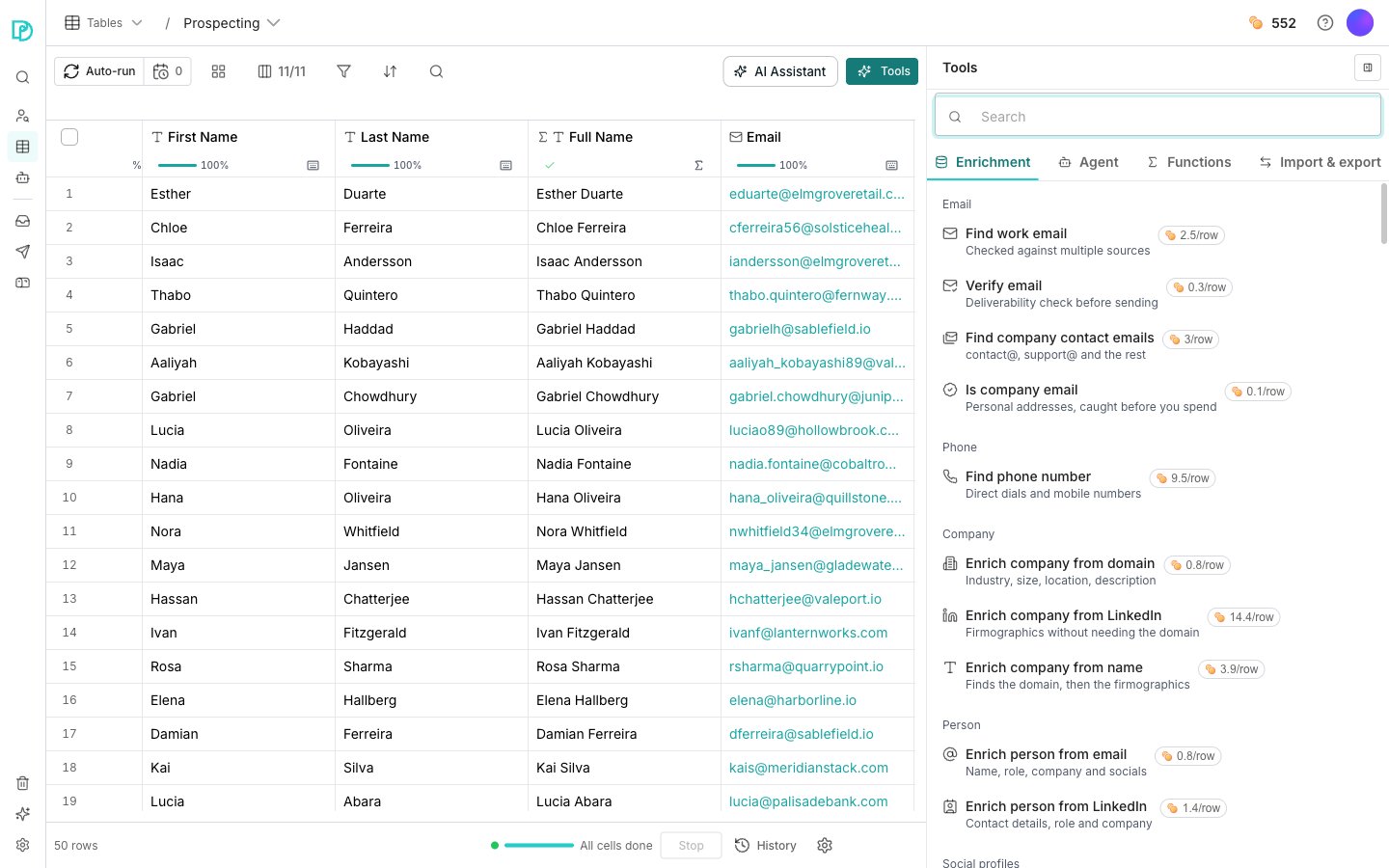
The Tools panel, open on the Enrichment tab.
Find an enrichment
Click Tools in the toolbar. The catalog opens beside the grid on its Enrichment tab. Its other tabs are Agent, Functions and Import & export. The Enrichment tab groups its rows into shelves by what they find: Email, Phone, Company, Person, Social profiles and Relationships. Scroll to the shelf you need, or type in Search at the top to look across every tab at once. Every row shows its price in credits per row, so you can compare a few before you pick.Add the column
1
Pick an enrichment
Click a row on the Enrichment tab. It opens in the column editor.
2
Map its inputs
The Inputs card lists what the enrichment needs, such as an email address or a company domain. For each one, pick the column that holds that value.
3
Create the column
Click Create & run 10 rows to add the column and fill in a first batch. The arrow beside it offers Create & run 50 rows and Create and don’t run.
4
Run it later, if you skipped that
Open the column’s header menu and choose Run column.
What it costs
Each enrichment’s price shows on its catalog row, and again in the editor once you pick one. Oneprofile checks several sources in order until one finds the answer. Every row that gets an answer costs the same shown price, whichever source answered it.Good to know
Required inputs, and the rows that get skipped
Required inputs, and the rows that get skipped
An input marked required has to have a value for its row to run. Rows missing it are skipped, not charged.
Why some columns are dimmed in the input dropdown
Why some columns are dimmed in the input dropdown
The dropdown ranks your columns by fit: exact type matches first, then other single values. A column that holds a whole record rather than one value is dimmed and cannot be picked. Sending a whole value where one fact belongs produces a wrong answer.
Add column is a different control
Add column is a different control
Add column at the end of the header row is a separate, smaller control. It opens a short list of column types: Enrichment, Use AI, Agent, Functions, Import & export, and the plain types like text and number. Enrichment opens an empty column editor, while Agent and Import & export open the Tools panel on that tab.
The run batches fit your table
The run batches fit your table
The batch sizes clamp to the rows you have. A table of 30 rows offers a run over 10 rows and a run over 30, rather than two identical options.
Not enough credits
Not enough credits
A run stops when your workspace runs out, and the remaining rows never run. Buy credits and run the column again.
Next steps
Run columns
Control what runs, when, and over which rows.
AI agent columns
Add a column an agent fills in with its own reasoning.
Credits and billing
See where credits go and how to buy more.