> ## Documentation Index
> Fetch the complete documentation index at: https://docs.getoneprofile.ai/llms.txt
> Use this file to discover all available pages before exploring further.
# Trash
> Find a table you deleted, put it back, or remove it for good.
Deleting a table from Oneprofile sends it to Trash first, columns, rows and all. Nothing is gone for good until you say so.
 ## Find a deleted table
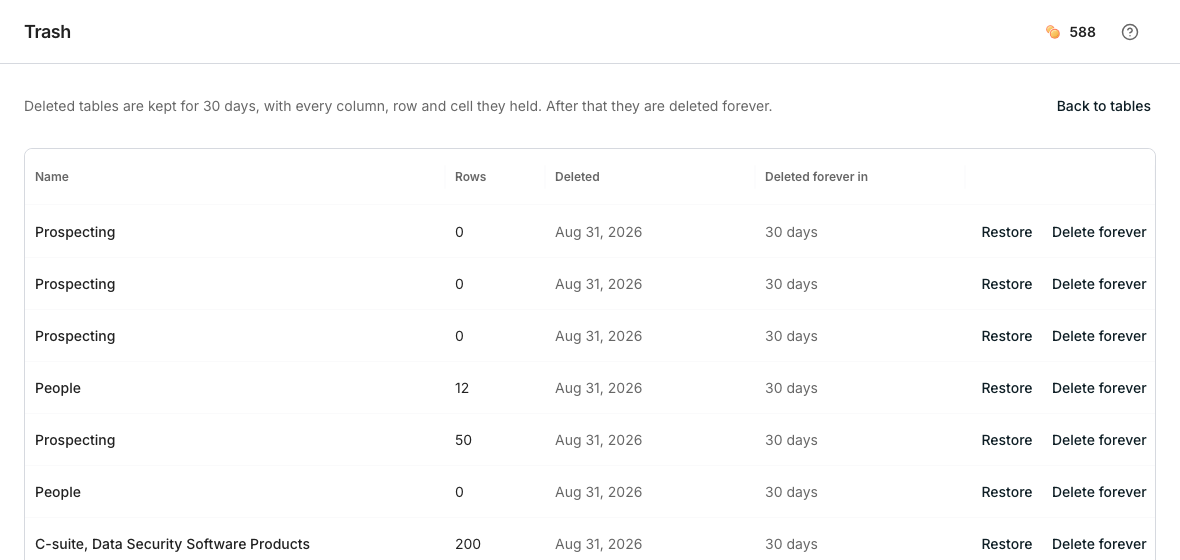
Click **Trash** in the sidebar. Each row names the table, its row count, when it was deleted, and how many days remain before it is gone for good.
## Restore or remove it
Click **Restore** on the table's row to return it to your table list, with every column, row and cell it had.
Click **Delete forever**. A confirmation names the table and warns that this cannot be undone.
## Good to know
Deleted tables are kept for 30 days, with every column, row and cell they held. After that they are deleted forever.
You can sort it by name. There is no search box, so scan the list for the table you want.
No. **Restore** and **Delete forever** each act on one row at a time.
Moving a table to Trash also shows an Undo option for a few seconds right after. Past that, Trash is where you find it.
## Next steps
Start a new one while an old one sits in Trash.
Delete a table from its own settings panel.
## Find a deleted table
Click **Trash** in the sidebar. Each row names the table, its row count, when it was deleted, and how many days remain before it is gone for good.
## Restore or remove it
Click **Restore** on the table's row to return it to your table list, with every column, row and cell it had.
Click **Delete forever**. A confirmation names the table and warns that this cannot be undone.
## Good to know
Deleted tables are kept for 30 days, with every column, row and cell they held. After that they are deleted forever.
You can sort it by name. There is no search box, so scan the list for the table you want.
No. **Restore** and **Delete forever** each act on one row at a time.
Moving a table to Trash also shows an Undo option for a few seconds right after. Past that, Trash is where you find it.
## Next steps
Start a new one while an old one sits in Trash.
Delete a table from its own settings panel.