> ## Documentation Index
> Fetch the complete documentation index at: https://docs.getoneprofile.ai/llms.txt
> Use this file to discover all available pages before exploring further.
# The table assistant
> Describe the column you want in plain language, then accept or dismiss what the assistant suggests.
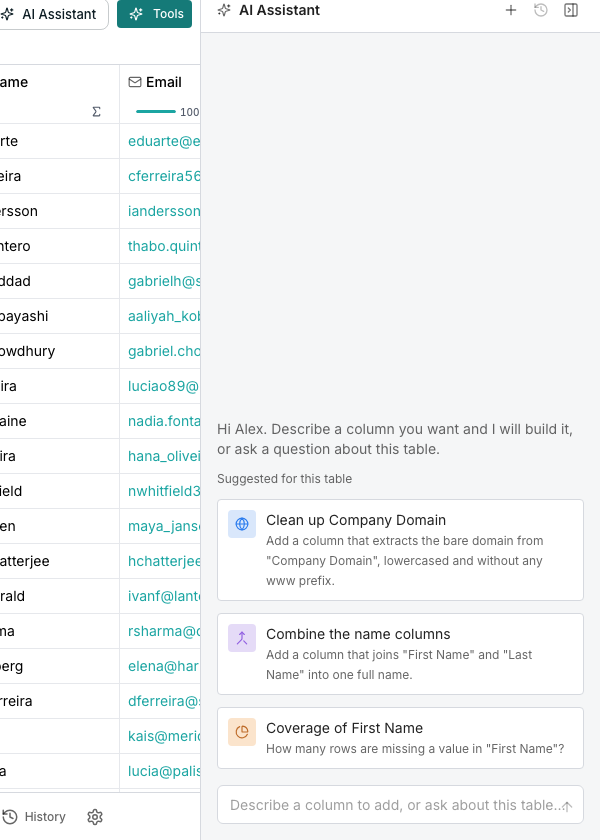
The table assistant reads your table and answers in a side panel, suggesting columns you can accept or dismiss. Describe what you want in plain language, or ask a question about what's already there.
 ## Open the assistant
Click **AI Assistant** in the toolbar to open its panel beside the grid.
Type into the box, for example "flag invalid emails", or ask a question about the table instead.
## Start from a suggestion
A few starters sit above an empty conversation, worded for this table's own columns. One might read **Summarize this table**, or **Coverage of** a column that is often empty. Click one to send it as your first message.
## Accept or dismiss what it suggests
Each suggestion names its cost in credits per row before you touch it.
Click **Add column** to create it empty, or **Add and run 10 rows** to fill in a first batch too.
Click **Dismiss suggestion** to drop it without adding anything.
## Keep more than one conversation
Click **New conversation** to start fresh without losing the last one. **Previous conversations** lists every conversation on this table by name, so you can pick up any of them again.
## Good to know
A plain column, a formula, an enrichment or agent column, an export column, or one reading from a connected tool. It looks at your existing columns for gaps worth filling.
Not today. The assistant suggests columns and answers questions about the table. Changing what you see is still done from **Filter**.
A failed reply shows what went wrong right in the conversation, and a **Thinking…** indicator shows while it is still working.
## Next steps
Add a column yourself, without describing it first.
Narrow the rows a suggestion is looking at.
## Open the assistant
Click **AI Assistant** in the toolbar to open its panel beside the grid.
Type into the box, for example "flag invalid emails", or ask a question about the table instead.
## Start from a suggestion
A few starters sit above an empty conversation, worded for this table's own columns. One might read **Summarize this table**, or **Coverage of** a column that is often empty. Click one to send it as your first message.
## Accept or dismiss what it suggests
Each suggestion names its cost in credits per row before you touch it.
Click **Add column** to create it empty, or **Add and run 10 rows** to fill in a first batch too.
Click **Dismiss suggestion** to drop it without adding anything.
## Keep more than one conversation
Click **New conversation** to start fresh without losing the last one. **Previous conversations** lists every conversation on this table by name, so you can pick up any of them again.
## Good to know
A plain column, a formula, an enrichment or agent column, an export column, or one reading from a connected tool. It looks at your existing columns for gaps worth filling.
Not today. The assistant suggests columns and answers questions about the table. Changing what you see is still done from **Filter**.
A failed reply shows what went wrong right in the conversation, and a **Thinking…** indicator shows while it is still working.
## Next steps
Add a column yourself, without describing it first.
Narrow the rows a suggestion is looking at.