> ## Documentation Index
> Fetch the complete documentation index at: https://docs.getoneprofile.ai/llms.txt
> Use this file to discover all available pages before exploring further.
# Schedule a re-run
> Keep a column fresh on a schedule, and refresh rows that came from a connected tool.
A column can refresh itself on a schedule, and a table built from a connected tool or a saved search can refresh its rows too. Each works a little differently, so pick the one that matches what needs to stay current.
 ## Keep a column fresh
Open the column's editor and expand **Run conditions**.
Set **Refresh** to **On a schedule** instead of **Only when triggered**, then set **Re-run every (hours)**.
It runs until you turn it off, and the editor projects the monthly credit cost before you save.
## Refresh a table from its source
In **Table settings**, a table built from a connected tool carries its own source section.
Turn on **Schedule refreshes**, choose a **Frequency** of **Daily**, **Weekly**, **Monthly**, **Quarterly** or **Custom**, and set a time under **At**.
A manual **Refresh now** sits above the schedule, offering **Re-fetch everything** or **Re-fetch and delete removed records**. Either way, a refresh updates rows already in the table rather than duplicating them.
## Re-run a saved search
From the search that built the table, open **Run this search**.
Choose **On a schedule** instead of **Manually**, then set a **Frequency**, a **Starting from** date, and a time.
A scheduled search only adds new matches. It never changes a row already in the table.
## Good to know
Refreshing a connected tool updates rows already in the table. Re-running a saved search only appends new matches and leaves existing rows alone.
Yes. Turn on **Delete rows removed from the source** so a row that disappeared upstream is removed here too.
Yes. **Paused** stops a source's refreshes from firing while keeping its frequency and time in place.
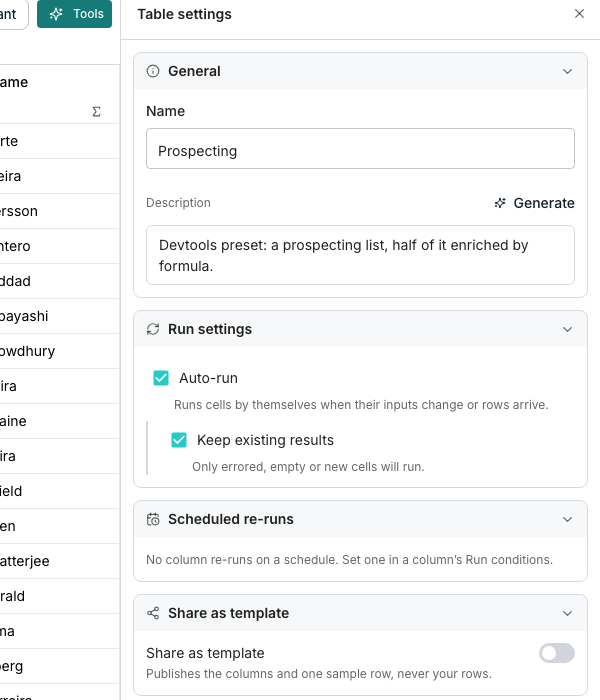
**Table settings** lists them under **Scheduled re-runs**, though you can only change one from the column's own **Run conditions**.
## Next steps
Limit a schedule to the rows that actually qualify.
See every schedule on a table in one place.
## Keep a column fresh
Open the column's editor and expand **Run conditions**.
Set **Refresh** to **On a schedule** instead of **Only when triggered**, then set **Re-run every (hours)**.
It runs until you turn it off, and the editor projects the monthly credit cost before you save.
## Refresh a table from its source
In **Table settings**, a table built from a connected tool carries its own source section.
Turn on **Schedule refreshes**, choose a **Frequency** of **Daily**, **Weekly**, **Monthly**, **Quarterly** or **Custom**, and set a time under **At**.
A manual **Refresh now** sits above the schedule, offering **Re-fetch everything** or **Re-fetch and delete removed records**. Either way, a refresh updates rows already in the table rather than duplicating them.
## Re-run a saved search
From the search that built the table, open **Run this search**.
Choose **On a schedule** instead of **Manually**, then set a **Frequency**, a **Starting from** date, and a time.
A scheduled search only adds new matches. It never changes a row already in the table.
## Good to know
Refreshing a connected tool updates rows already in the table. Re-running a saved search only appends new matches and leaves existing rows alone.
Yes. Turn on **Delete rows removed from the source** so a row that disappeared upstream is removed here too.
Yes. **Paused** stops a source's refreshes from firing while keeping its frequency and time in place.
**Table settings** lists them under **Scheduled re-runs**, though you can only change one from the column's own **Run conditions**.
## Next steps
Limit a schedule to the rows that actually qualify.
See every schedule on a table in one place.