> ## Documentation Index
> Fetch the complete documentation index at: https://docs.getoneprofile.ai/llms.txt
> Use this file to discover all available pages before exploring further.
# Rows and cells
> Edit a cell, add rows, open a row in full, and act on several rows at once. The grid every other Tables page builds on.
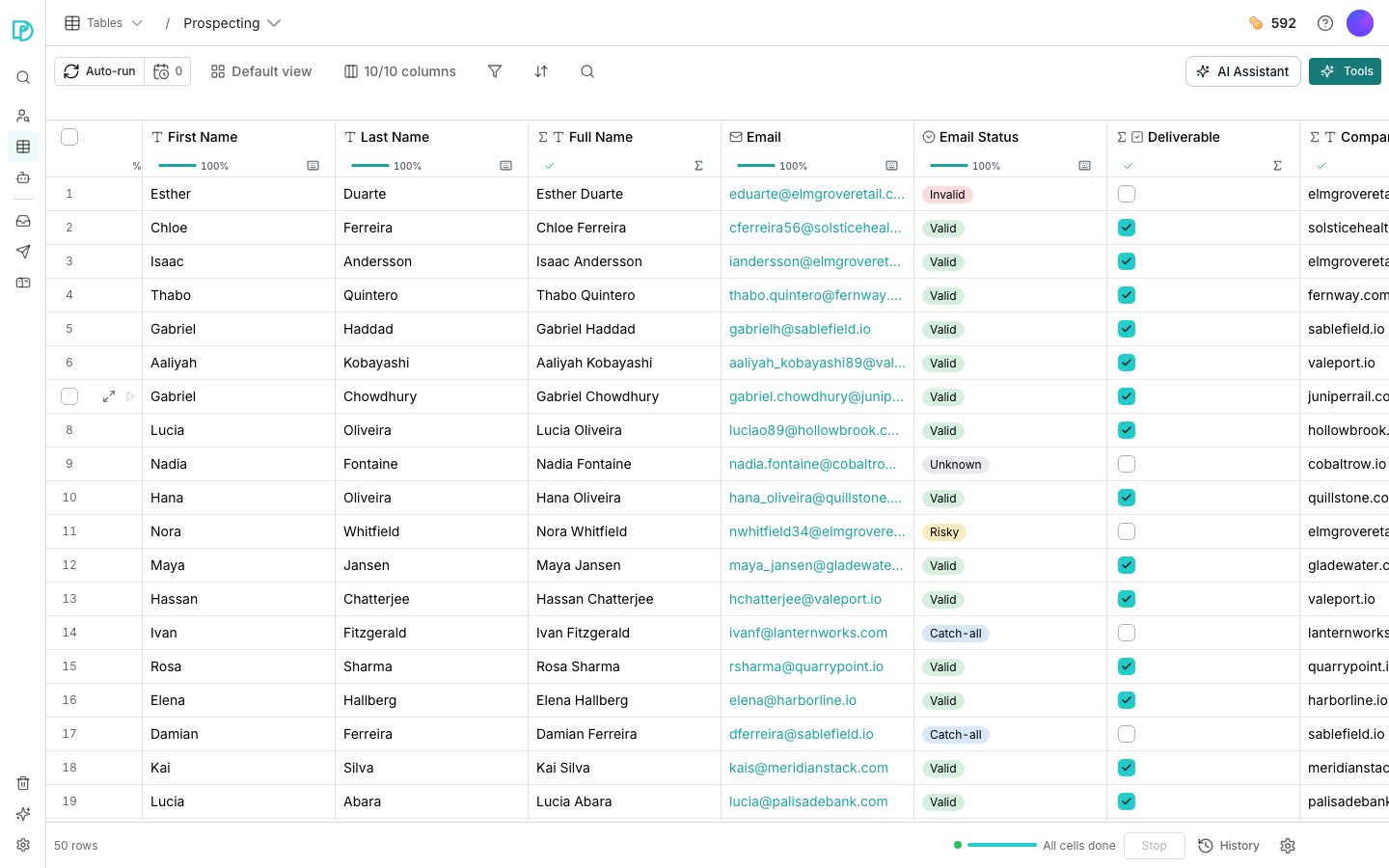
A table holds your rows and the columns that describe them. This page covers the grid itself, which every other page in Tables assumes you already know.
 ## Work with rows and cells
Click **Tables** in the sidebar, then click a table to open its grid.
Click a cell to select it, then type to replace what is there. Double-click to edit the existing value instead.
At the bottom of the grid, set a count and click **Add**. The rows land empty at the end.
Hover a row's gutter and click the expand icon. The panel lists every visible column as a labelled field, which is easier than scrolling sideways.
Columns are their own subject. Start at [Add a column](/tables/columns/add-a-column), which covers every kind and how to tell which one you need.
## Act on several rows at once
Tick a row's checkbox in the gutter, or the header checkbox for the whole page, then click **Actions**.
The **Actions** menu can run every enrichment column over the rows you ticked, which spends credits. The cost shows before you confirm.
## Good to know
A delete shows an undo for a few seconds. After that the rows are gone for good.
Clearing empties the value and leaves the row in place. A computed column will fill it again on its next run.
Values that cannot be read as the new type are cleared, so switching a text column to **Number** loses anything that was not a number.
A table always shows at least one column, so the last one cannot be hidden or deleted.
Double-click a header to rename it in place, or open its menu for **Rename column**. Drag a header to reorder it.
The columns control in the toolbar shows a count, like "10/10 columns". Open it to hide a column or drag it to a new position.
A selected cell has a drag handle at its corner that fills its value down the column. Pasting more rows than the table holds adds the extra rows.
A cell holding a whole record shows as a single value in the grid. Open the row panel and it unpacks into its fields, each of which you can give its own column.
## Next steps
Add a column that fills itself in from outside data.
Compute a column from the data you already have, for free.
Change what you are looking at without touching the data.
Decide when a computed column fills its cells.
## Work with rows and cells
Click **Tables** in the sidebar, then click a table to open its grid.
Click a cell to select it, then type to replace what is there. Double-click to edit the existing value instead.
At the bottom of the grid, set a count and click **Add**. The rows land empty at the end.
Hover a row's gutter and click the expand icon. The panel lists every visible column as a labelled field, which is easier than scrolling sideways.
Columns are their own subject. Start at [Add a column](/tables/columns/add-a-column), which covers every kind and how to tell which one you need.
## Act on several rows at once
Tick a row's checkbox in the gutter, or the header checkbox for the whole page, then click **Actions**.
The **Actions** menu can run every enrichment column over the rows you ticked, which spends credits. The cost shows before you confirm.
## Good to know
A delete shows an undo for a few seconds. After that the rows are gone for good.
Clearing empties the value and leaves the row in place. A computed column will fill it again on its next run.
Values that cannot be read as the new type are cleared, so switching a text column to **Number** loses anything that was not a number.
A table always shows at least one column, so the last one cannot be hidden or deleted.
Double-click a header to rename it in place, or open its menu for **Rename column**. Drag a header to reorder it.
The columns control in the toolbar shows a count, like "10/10 columns". Open it to hide a column or drag it to a new position.
A selected cell has a drag handle at its corner that fills its value down the column. Pasting more rows than the table holds adds the extra rows.
A cell holding a whole record shows as a single value in the grid. Open the row panel and it unpacks into its fields, each of which you can give its own column.
## Next steps
Add a column that fills itself in from outside data.
Compute a column from the data you already have, for free.
Change what you are looking at without touching the data.
Decide when a computed column fills its cells.