> ## Documentation Index
> Fetch the complete documentation index at: https://docs.getoneprofile.ai/llms.txt
> Use this file to discover all available pages before exploring further.
# Import a file
> Bring a CSV or Excel file in as a new table, checking the column names and types Oneprofile guessed before the rows are added.
Oneprofile builds a new table straight from a CSV or Excel file. Upload it, check the columns Oneprofile matched, fix anything that looks wrong, then add the rows.
 ## Import your file
On [Tables](https://app.getoneprofile.ai/tables), choose the **Import from file** card. You can also click **New** and pick **Import from file**.
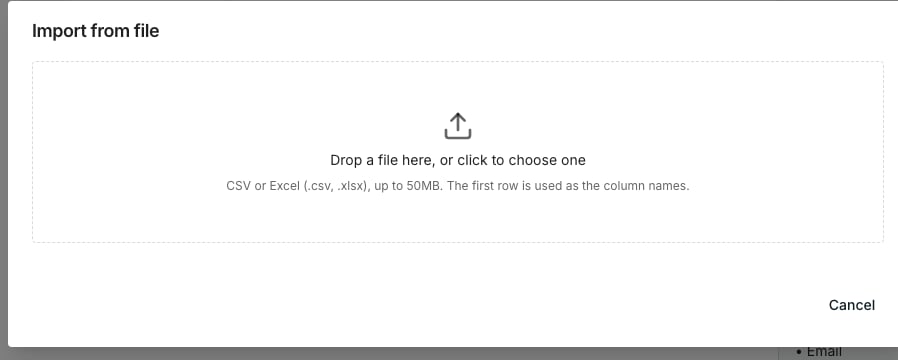
Drag a file onto the dialog, or click to choose one. Oneprofile reads `.csv` and `.xlsx`, the first row becomes the column names, and files must be under 50MB.
Fix anything Oneprofile guessed wrong, then click **Create table**.
Oneprofile lists every column under **Column name**, **Type** and **Sample values**, with a type already guessed, such as **Text**, **Number**, **Date** or **Email**.
* Edit a name in its box, change a wrong **Type**, or untick a column to leave it out.
* The mapping shows only the start of a few values. Click the expand icon on a column to read all of them.
* **Table name** starts as the file's name. **Rows to import** starts at as many of the file's rows as your table can hold, so lower it to add fewer.
Oneprofile takes you straight to the new table. Adding the rows is a run, so you can start working before it finishes.
## Choose a sheet
A workbook can hold several sheets, so a **Sheet** dropdown appears above the mapping when yours does. Pick the sheet holding your data.
Each sheet has its own columns, so switching starts the mapping again. Set the sheet first, then edit names and types.
## Good to know
CSV files and Excel workbooks saved as `.xlsx`.
Older `.xls` workbooks are refused, and Oneprofile says so. Open one in Excel, save it as `.xlsx`, and import that.
Oneprofile reads the file itself rather than trusting its name, so a workbook saved with the wrong extension still imports.
While it reads, the drop area says **Reading the file…**. A large file takes a moment. That message means it is working rather than stuck.
Two reasons, and Oneprofile names both above the mapping.
Cells holding an Excel error such as `#N/A` come in blank, so one broken formula does not turn a whole column into text.
Formulas your file has never calculated also come in blank, because the workbook carries no result for them. Open the file in Excel, save it, and import again.
The expand icon on a column is labelled **See all sample values**. It opens a dialog titled **Sample values for "…"**, with the column's name in place of the ellipsis.
The dialog lists every sampled value with its row number, and names how many rows of the file it is showing. Click **Close** when you are done.
A column can look empty in the mapping table just because its first values are blank. Open its sample values before you trust the type Oneprofile guessed.
Oneprofile names the file's size and how many rows your plan holds per table, then adds only the rows up to that limit.
An **Upgrade** chip sits next to the message and takes you to raise the limit.
It stays disabled until the mapping is valid, and the dialog names what is wrong. You will see "Include at least one column." or "Every included column needs a name." A column name used twice is called out by name.
**Table name** cannot be blank either. Clearing it puts "The table needs a name." under the field.
## Next steps
Take a table back out as a CSV or Excel file.
Add rows from a tool you already use.
Add work emails, phone numbers and company facts from outside sources.
Every other way to start a table.
## Import your file
On [Tables](https://app.getoneprofile.ai/tables), choose the **Import from file** card. You can also click **New** and pick **Import from file**.
Drag a file onto the dialog, or click to choose one. Oneprofile reads `.csv` and `.xlsx`, the first row becomes the column names, and files must be under 50MB.
Fix anything Oneprofile guessed wrong, then click **Create table**.
Oneprofile lists every column under **Column name**, **Type** and **Sample values**, with a type already guessed, such as **Text**, **Number**, **Date** or **Email**.
* Edit a name in its box, change a wrong **Type**, or untick a column to leave it out.
* The mapping shows only the start of a few values. Click the expand icon on a column to read all of them.
* **Table name** starts as the file's name. **Rows to import** starts at as many of the file's rows as your table can hold, so lower it to add fewer.
Oneprofile takes you straight to the new table. Adding the rows is a run, so you can start working before it finishes.
## Choose a sheet
A workbook can hold several sheets, so a **Sheet** dropdown appears above the mapping when yours does. Pick the sheet holding your data.
Each sheet has its own columns, so switching starts the mapping again. Set the sheet first, then edit names and types.
## Good to know
CSV files and Excel workbooks saved as `.xlsx`.
Older `.xls` workbooks are refused, and Oneprofile says so. Open one in Excel, save it as `.xlsx`, and import that.
Oneprofile reads the file itself rather than trusting its name, so a workbook saved with the wrong extension still imports.
While it reads, the drop area says **Reading the file…**. A large file takes a moment. That message means it is working rather than stuck.
Two reasons, and Oneprofile names both above the mapping.
Cells holding an Excel error such as `#N/A` come in blank, so one broken formula does not turn a whole column into text.
Formulas your file has never calculated also come in blank, because the workbook carries no result for them. Open the file in Excel, save it, and import again.
The expand icon on a column is labelled **See all sample values**. It opens a dialog titled **Sample values for "…"**, with the column's name in place of the ellipsis.
The dialog lists every sampled value with its row number, and names how many rows of the file it is showing. Click **Close** when you are done.
A column can look empty in the mapping table just because its first values are blank. Open its sample values before you trust the type Oneprofile guessed.
Oneprofile names the file's size and how many rows your plan holds per table, then adds only the rows up to that limit.
An **Upgrade** chip sits next to the message and takes you to raise the limit.
It stays disabled until the mapping is valid, and the dialog names what is wrong. You will see "Include at least one column." or "Every included column needs a name." A column name used twice is called out by name.
**Table name** cannot be blank either. Clearing it puts "The table needs a name." under the field.
## Next steps
Take a table back out as a CSV or Excel file.
Add rows from a tool you already use.
Add work emails, phone numbers and company facts from outside sources.
Every other way to start a table.