> ## Documentation Index
> Fetch the complete documentation index at: https://docs.getoneprofile.ai/llms.txt
> Use this file to discover all available pages before exploring further.
# Filter, sort and search
> Narrow a table to the rows you care about without changing the data underneath it.
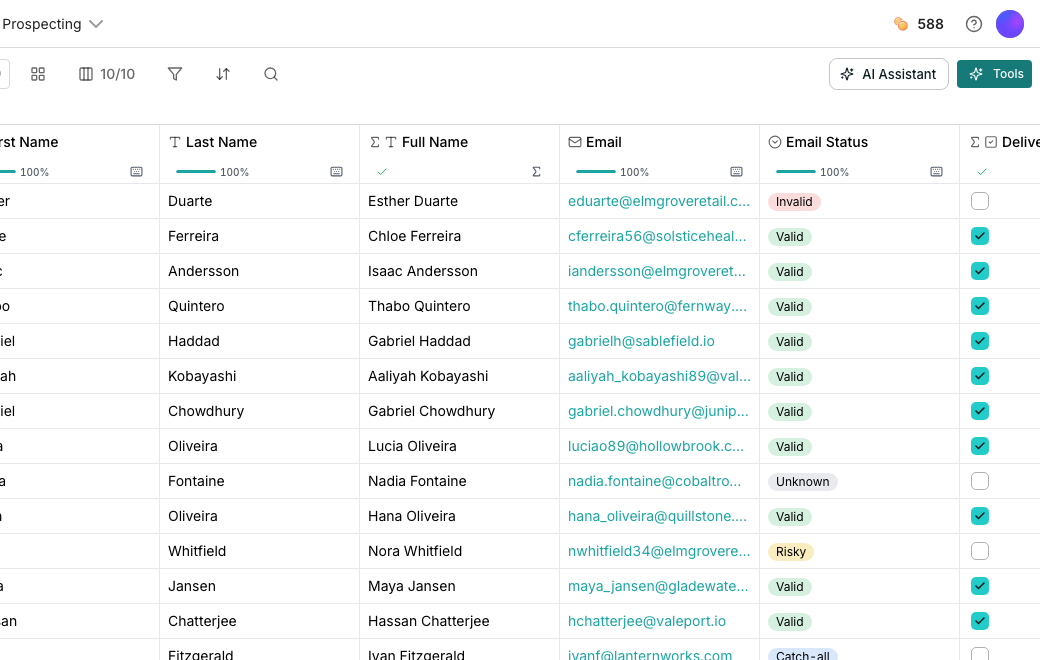
Filtering, sorting and searching change what the grid shows, never what it holds. Combine all three to work through a table, then decide separately what a run should cover.
 ## Filter to the rows you want
Click **Filter** in the toolbar, or choose **Filter on this column** from a column's header menu to start already on that column.
Click **Add filter** for a row, or **Add filter group** to nest one **and**/**or** block one level deep.
Operators follow the column's type. Text offers **contains**, **starts with** and **is empty**. Numbers, dates and computed columns add their own, like > and **has an error**.
## Sort by more than one column
Click **Sort** in the toolbar. The first row reads **Sort by**, and every row after it reads **then by**.
Click **Add sort** to stack another column, and drag a row to change which one wins first.
Direction reads in the column's own words: text sorts **A → Z**, numbers sort **smallest first**, dates sort **oldest first**.
## Search inside the table
Click **Search** in the toolbar, or press Cmd+F, to open a search box over the grid. Type to see how many rows match, and press Enter or Shift+Enter to step through them.
## Check what a run covers
A filter changes only what is on screen. A column's run menu still processes the rows it is set to cover, whether that is every row or a chosen few, filtered or not.
To run just what you are looking at, tick the filtered rows yourself and open **Actions**. See [Run columns](/tables/run-columns) for the full run menu.
## Good to know
A table allows eight conditions in total, however they are grouped. Remove one before adding another.
No. Groups go exactly one level deep, so a top-level **and**/**or** can hold one group with its own **and**/**or**, never a group inside a group.
It is dropped automatically, along with any group it would leave empty. A table never goes blank from a filter pointing at something that no longer exists.
Yes. Choose **contains any of** or **does not contain any of** and separate the values with commas.
Yes. Saving a view captures both together, and switching views swaps both at once. The built-in **All rows** view always starts from no filters.
## Next steps
Save a filter and sort together as a view you can switch back to.
Choose which rows a column actually runs over.
## Filter to the rows you want
Click **Filter** in the toolbar, or choose **Filter on this column** from a column's header menu to start already on that column.
Click **Add filter** for a row, or **Add filter group** to nest one **and**/**or** block one level deep.
Operators follow the column's type. Text offers **contains**, **starts with** and **is empty**. Numbers, dates and computed columns add their own, like > and **has an error**.
## Sort by more than one column
Click **Sort** in the toolbar. The first row reads **Sort by**, and every row after it reads **then by**.
Click **Add sort** to stack another column, and drag a row to change which one wins first.
Direction reads in the column's own words: text sorts **A → Z**, numbers sort **smallest first**, dates sort **oldest first**.
## Search inside the table
Click **Search** in the toolbar, or press Cmd+F, to open a search box over the grid. Type to see how many rows match, and press Enter or Shift+Enter to step through them.
## Check what a run covers
A filter changes only what is on screen. A column's run menu still processes the rows it is set to cover, whether that is every row or a chosen few, filtered or not.
To run just what you are looking at, tick the filtered rows yourself and open **Actions**. See [Run columns](/tables/run-columns) for the full run menu.
## Good to know
A table allows eight conditions in total, however they are grouped. Remove one before adding another.
No. Groups go exactly one level deep, so a top-level **and**/**or** can hold one group with its own **and**/**or**, never a group inside a group.
It is dropped automatically, along with any group it would leave empty. A table never goes blank from a filter pointing at something that no longer exists.
Yes. Choose **contains any of** or **does not contain any of** and separate the values with commas.
Yes. Saving a view captures both together, and switching views swaps both at once. The built-in **All rows** view always starts from no filters.
## Next steps
Save a filter and sort together as a view you can switch back to.
Choose which rows a column actually runs over.