> ## Documentation Index
> Fetch the complete documentation index at: https://docs.getoneprofile.ai/llms.txt
> Use this file to discover all available pages before exploring further.
# Export a file
> Download a table as a CSV or Excel file, matching what the grid is showing or just the rows you picked.
Take a table back out as a file. Oneprofile downloads what the grid is currently showing, or only the rows you ticked, as a CSV or an Excel workbook.
 ## Download a table
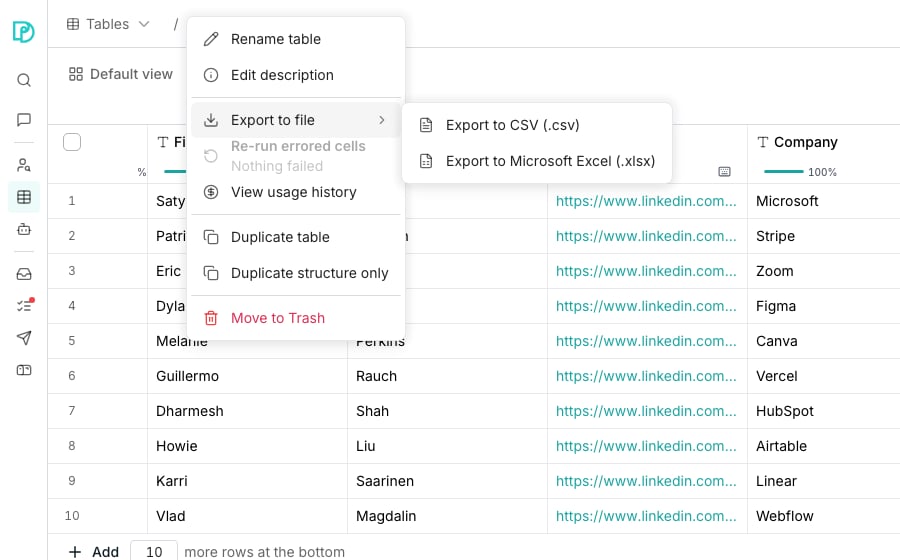
On your table, click its name at the top of the page, then **Export to file**. The Tools panel offers the same row under **Import & export**.
Choose **Export to CSV (.csv)** or **Export to Microsoft Excel (.xlsx)**.
The dialog names what it is about to download. Click **Download**.
The file matches the grid. Your current filter, sort and column order all carry across, and hidden columns stay out.
To export a selection instead, tick some rows, click **Actions**, and choose the export row there. It offers the same two files.
## Choose a format
Both files hold the same rows. They differ in what survives the trip.
* **CSV** writes everything as text. Dates come out in ISO 8601 and lists and objects as JSON, so the file imports back cleanly.
* **Excel** keeps types. Numbers stay summable, dates sort as dates, and checkboxes stay true or false.
Pick Excel to work in a spreadsheet, and CSV to feed another system.
## Good to know
The table's name, whether you exported the view or a selection, and the moment you did it.
A file found weeks later traces back to what produced it. The table's activity history records the same name.
A spreadsheet reads a leading `=` as a formula, so a CSV protects you by writing a quote in front of that cell.
An Excel export needs no quote, because Oneprofile writes those cells as text that Excel never evaluates. The text you see is exactly what was in the table.
Oneprofile exports up to a ceiling and adds a final row saying it stopped. Narrow the view with a filter and export again.
A CSV starts downloading immediately. An Excel workbook is built in full first, so a big one takes a moment before the download begins.
## Next steps
Bring a CSV or Excel file in as a new table.
Push rows to a connected system instead of a file.
Narrow the grid before you export it.
## Download a table
On your table, click its name at the top of the page, then **Export to file**. The Tools panel offers the same row under **Import & export**.
Choose **Export to CSV (.csv)** or **Export to Microsoft Excel (.xlsx)**.
The dialog names what it is about to download. Click **Download**.
The file matches the grid. Your current filter, sort and column order all carry across, and hidden columns stay out.
To export a selection instead, tick some rows, click **Actions**, and choose the export row there. It offers the same two files.
## Choose a format
Both files hold the same rows. They differ in what survives the trip.
* **CSV** writes everything as text. Dates come out in ISO 8601 and lists and objects as JSON, so the file imports back cleanly.
* **Excel** keeps types. Numbers stay summable, dates sort as dates, and checkboxes stay true or false.
Pick Excel to work in a spreadsheet, and CSV to feed another system.
## Good to know
The table's name, whether you exported the view or a selection, and the moment you did it.
A file found weeks later traces back to what produced it. The table's activity history records the same name.
A spreadsheet reads a leading `=` as a formula, so a CSV protects you by writing a quote in front of that cell.
An Excel export needs no quote, because Oneprofile writes those cells as text that Excel never evaluates. The text you see is exactly what was in the table.
Oneprofile exports up to a ceiling and adds a final row saying it stopped. Narrow the view with a filter and export again.
A CSV starts downloading immediately. An Excel workbook is built in full first, so a big one takes a moment before the download begins.
## Next steps
Bring a CSV or Excel file in as a new table.
Push rows to a connected system instead of a file.
Narrow the grid before you export it.