> ## Documentation Index
> Fetch the complete documentation index at: https://docs.getoneprofile.ai/llms.txt
> Use this file to discover all available pages before exploring further.
# Create a table
> Start a table from a search, a spreadsheet, a connected tool, or nothing at all, then find it again later.
A table starts from a search, a spreadsheet, a connected tool, or a blank grid. Pick a path from the Tables page and Oneprofile takes you straight in.
 ## Choose how to start it
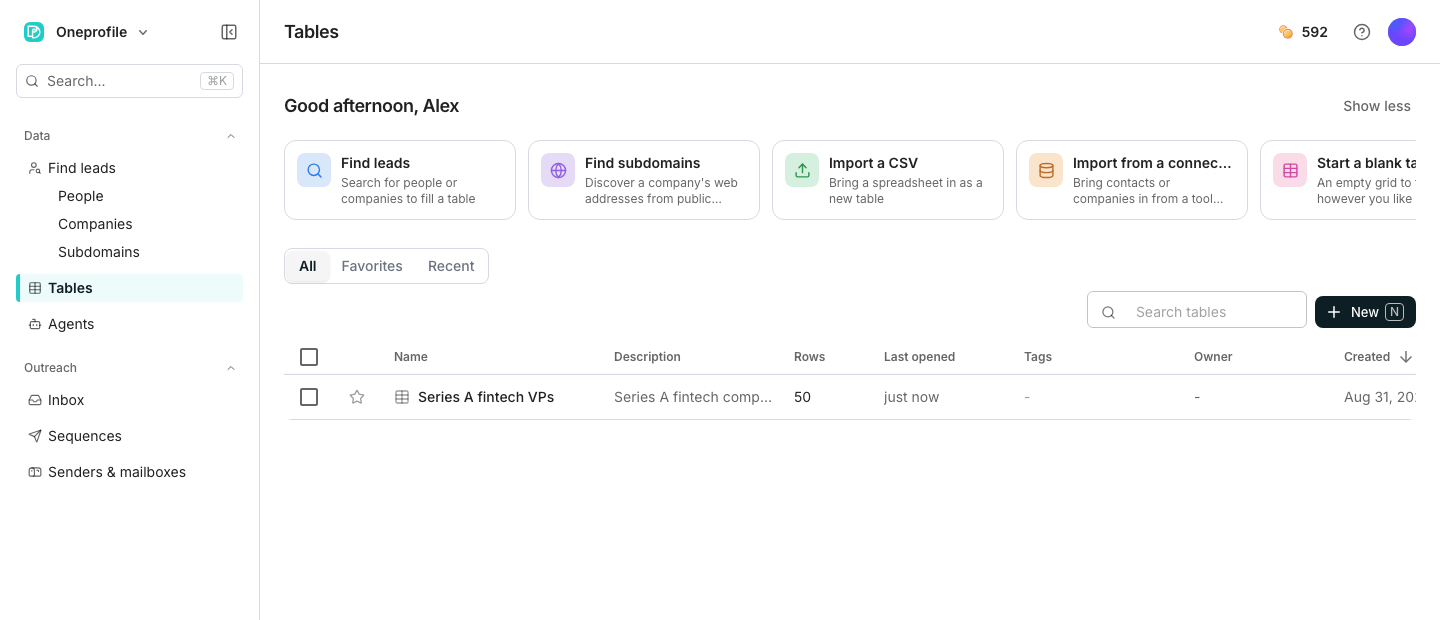
Five cards sit above your table list: **Find leads**, **Find subdomains**, **Import a CSV**, **Import from a connected tool** and **Start a blank table**.
Each card hands off to its own flow. The **New** button in the toolbar offers the same paths as a dropdown, except **Find subdomains**.
## Name it and find it again
A blank table opens straight into the grid, already named. Open its menu and choose **Rename table**, or **Add description** to say what it holds. Give it a tag from the **Tags** column so it is easy to find in a long list.
Every table you open counts toward **Recent**. Click **Add to favorites** on a row to keep it under **Favorites** instead, both sitting beside **All** at the top of the page. **Search tables** finds one by name across all three.
## Duplicate a table
**Duplicate table** copies its columns and rows into a new table. **Duplicate structure only** copies just the columns, for a clean start with the same setup.
## Good to know
Every path to a new table turns off once you reach your plan's table limit, Find leads included. Upgrade your plan, or delete a table you no longer need, to make room.
No. The search screen offers **Save to a new table** and **Save to an existing table**, and only the first counts toward your table limit.
**Show less** hides them so your table list starts higher on the page. **Show more** brings them back. The choice is remembered for you, not for the whole workspace.
Yes. Tags are shared across the workspace, so typing an existing one files the table under it instead of creating a near duplicate.
## Next steps
Add the first column to a blank table.
Rename, describe and manage a table after it exists.
## Choose how to start it
Five cards sit above your table list: **Find leads**, **Find subdomains**, **Import a CSV**, **Import from a connected tool** and **Start a blank table**.
Each card hands off to its own flow. The **New** button in the toolbar offers the same paths as a dropdown, except **Find subdomains**.
## Name it and find it again
A blank table opens straight into the grid, already named. Open its menu and choose **Rename table**, or **Add description** to say what it holds. Give it a tag from the **Tags** column so it is easy to find in a long list.
Every table you open counts toward **Recent**. Click **Add to favorites** on a row to keep it under **Favorites** instead, both sitting beside **All** at the top of the page. **Search tables** finds one by name across all three.
## Duplicate a table
**Duplicate table** copies its columns and rows into a new table. **Duplicate structure only** copies just the columns, for a clean start with the same setup.
## Good to know
Every path to a new table turns off once you reach your plan's table limit, Find leads included. Upgrade your plan, or delete a table you no longer need, to make room.
No. The search screen offers **Save to a new table** and **Save to an existing table**, and only the first counts toward your table limit.
**Show less** hides them so your table list starts higher on the page. **Show more** brings them back. The choice is remembered for you, not for the whole workspace.
Yes. Tags are shared across the workspace, so typing an existing one files the table under it instead of creating a near duplicate.
## Next steps
Add the first column to a blank table.
Rename, describe and manage a table after it exists.