> ## Documentation Index
> Fetch the complete documentation index at: https://docs.getoneprofile.ai/llms.txt
> Use this file to discover all available pages before exploring further.
# Save and reuse a column
> Copy a column's setup to another table, or save it as a template you can apply again.
Copy a column's whole setup to try a variation, move it to another table, or save it as a template. Pick whichever matches how far the column needs to travel.
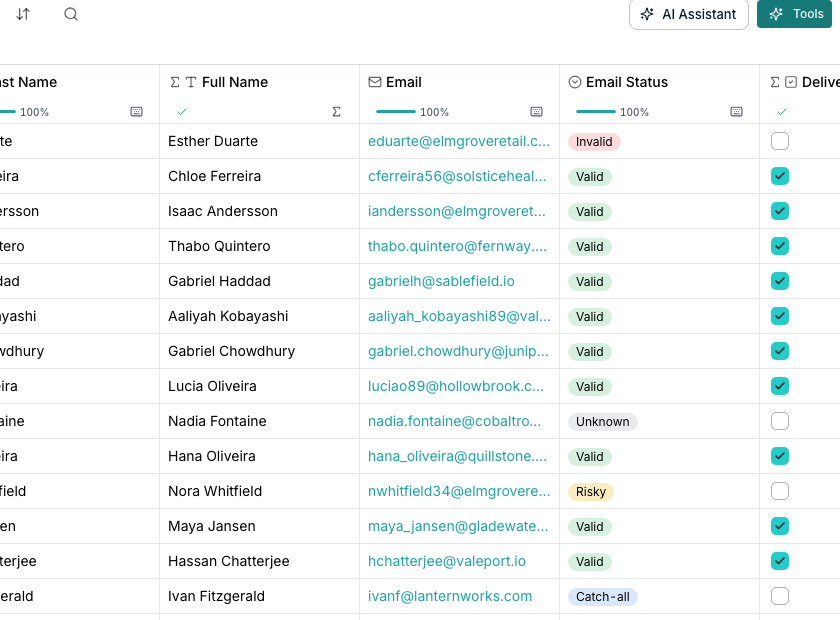 ## Copy within a table
Open the column's menu and choose **Duplicate**. The copy carries the whole setup and lands right beside the original.
Edit the copy freely. Delete it if it doesn't work out; the original was never touched.
## Move a column to another table
On the source table, open the column's menu and choose **Copy configuration**.
On the other table, open the add-column menu and choose **Paste configuration**. References to other columns remap by name, or show up broken if none matches.
## Save a column as a template
Open a computed column's menu and choose **Save as template…**.
Name the template and tick every column it should include. References between the columns you pick are kept.
On any table, click **Add column** and choose **Enrichment**. Switch that picker from **Actions** to **Templates** and pick it.
## Good to know
Duplicate makes a copy on the same table right away. Copy configuration puts the setup aside so you can paste it onto a different table instead.
Anything except a column you type into yourself. Formula, enrichment, agent, export, imported and sequence columns all carry a setup worth saving.
A reference to another column travels by name. If the target table has a column with a matching name, it reconnects. If not, it shows up broken so you can point it at the right column.
Anyone in your workspace. A template belongs to the whole organization, not just the table it came from.
## Next steps
See how a multi-field answer becomes several columns.
Add a column that fills itself in from outside data.
## Copy within a table
Open the column's menu and choose **Duplicate**. The copy carries the whole setup and lands right beside the original.
Edit the copy freely. Delete it if it doesn't work out; the original was never touched.
## Move a column to another table
On the source table, open the column's menu and choose **Copy configuration**.
On the other table, open the add-column menu and choose **Paste configuration**. References to other columns remap by name, or show up broken if none matches.
## Save a column as a template
Open a computed column's menu and choose **Save as template…**.
Name the template and tick every column it should include. References between the columns you pick are kept.
On any table, click **Add column** and choose **Enrichment**. Switch that picker from **Actions** to **Templates** and pick it.
## Good to know
Duplicate makes a copy on the same table right away. Copy configuration puts the setup aside so you can paste it onto a different table instead.
Anything except a column you type into yourself. Formula, enrichment, agent, export, imported and sequence columns all carry a setup worth saving.
A reference to another column travels by name. If the target table has a column with a matching name, it reconnects. If not, it shows up broken so you can point it at the right column.
Anyone in your workspace. A template belongs to the whole organization, not just the table it came from.
## Next steps
See how a multi-field answer becomes several columns.
Add a column that fills itself in from outside data.