> ## Documentation Index
> Fetch the complete documentation index at: https://docs.getoneprofile.ai/llms.txt
> Use this file to discover all available pages before exploring further.
# Add a column
> The one gesture that adds every kind of column, and how to tell which kind you need.
One button adds a column, whatever kind you need. What opens next depends on how far into the catalog you go.
 ## Open the menu
**Add column** sits at the end of every table's header row.
Choose **Text**, **Paragraph**, **Number**, **Currency**, **Date**, **URL**, **Email** or **Image from URL** for a value. Choose **Checkbox**, **Select**, **Multi-select** or **Assigned to** for a choice.
Choose **Enrichment**, **Use AI**, **Agent**, **Functions** or **Import & export** to open the right editor, or the full catalog.
## Browse the full catalog
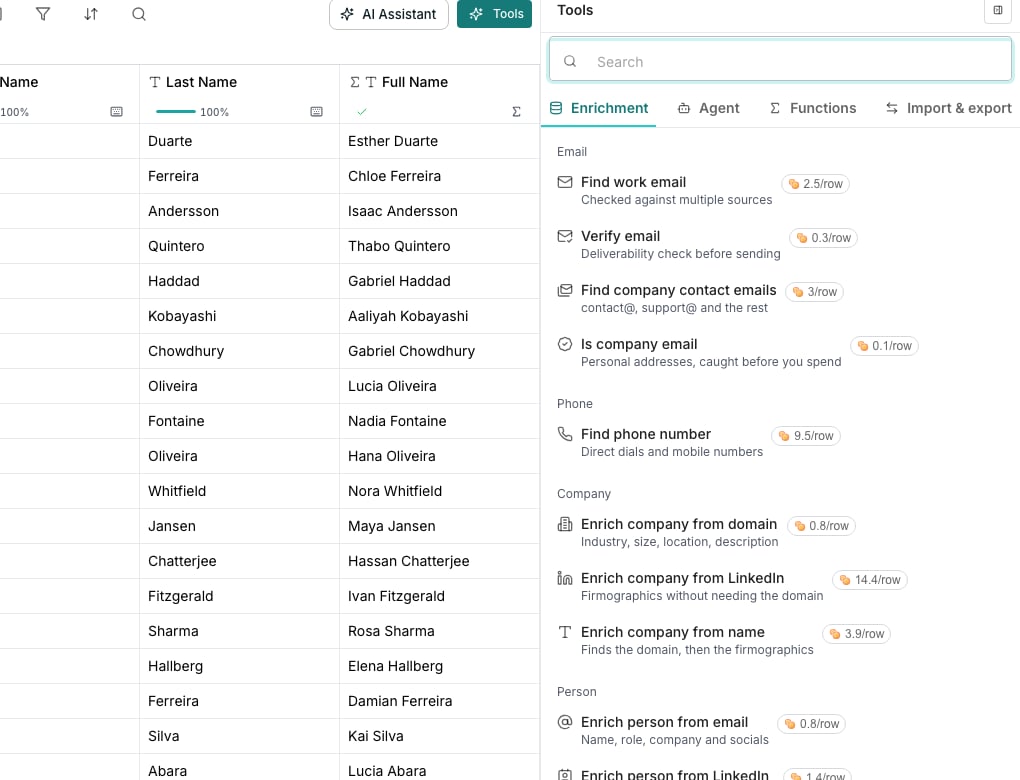
**Tools** in the toolbar opens the same catalog, on four tabs:
* **Enrichment**, filled in for you
* **Agent**, written by your own agents
* **Functions**, free formulas
* **Import & export**, for rows in and out
## Search, or ask for one
Type into **Search** to match what a row does, not just its name: "combine two columns" finds **Merge columns**. Keep typing and a **Create a column with AI for** row appears.
## See the cost first
Every row shows its cost in credits before you click it. A row still settling on a rate shows **Varies** instead.
## Compare the six kinds
Six kinds fill their cells six different ways.
| Kind | Fills from | Runs | Edit by hand |
| ------------------------------------------------ | --------------------------- | ---- | ------------ |
| [Typed in](/tables/columns/field-columns) | You type it | No | Yes |
| [Formula](/tables/columns/function-columns) | Computed from other columns | Yes | No |
| [Enrichment](/tables/columns/enrichment-columns) | An enrichment or agent | Yes | Yes |
| [Imported](/tables/columns/imported-columns) | Pulled from a tool | No | No |
| [Export](/tables/columns/export-to-a-tool) | Pushed to a tool | Yes | No |
| [Sequence](/outreach/build-a-sequence) | A running sequence | No | No |
## Good to know
No. **Use AI** on the **Agent** tab writes the same kind of column as the **Enrichment** tab, with a prompt in place of a vendor lookup.
An imported column arrives when you connect a tool or a CSV to the table. A sequence column arrives the moment you attach an outreach sequence. Neither is something you add by hand.
Yes. Copy one column's configuration and **Paste configuration** appears at the top of the **Add column** menu wherever the clipboard holds one.
An enrichment can be wrong the way a person can be wrong, so a value you know is bad is worth fixing by hand. A formula recomputes from its inputs, so a hand typed value would just be overwritten on the next run.
## Next steps
See how one enrichment can fan out into several columns.
Turn a column you built once into a starting point for next time.
## Open the menu
**Add column** sits at the end of every table's header row.
Choose **Text**, **Paragraph**, **Number**, **Currency**, **Date**, **URL**, **Email** or **Image from URL** for a value. Choose **Checkbox**, **Select**, **Multi-select** or **Assigned to** for a choice.
Choose **Enrichment**, **Use AI**, **Agent**, **Functions** or **Import & export** to open the right editor, or the full catalog.
## Browse the full catalog
**Tools** in the toolbar opens the same catalog, on four tabs:
* **Enrichment**, filled in for you
* **Agent**, written by your own agents
* **Functions**, free formulas
* **Import & export**, for rows in and out
## Search, or ask for one
Type into **Search** to match what a row does, not just its name: "combine two columns" finds **Merge columns**. Keep typing and a **Create a column with AI for** row appears.
## See the cost first
Every row shows its cost in credits before you click it. A row still settling on a rate shows **Varies** instead.
## Compare the six kinds
Six kinds fill their cells six different ways.
| Kind | Fills from | Runs | Edit by hand |
| ------------------------------------------------ | --------------------------- | ---- | ------------ |
| [Typed in](/tables/columns/field-columns) | You type it | No | Yes |
| [Formula](/tables/columns/function-columns) | Computed from other columns | Yes | No |
| [Enrichment](/tables/columns/enrichment-columns) | An enrichment or agent | Yes | Yes |
| [Imported](/tables/columns/imported-columns) | Pulled from a tool | No | No |
| [Export](/tables/columns/export-to-a-tool) | Pushed to a tool | Yes | No |
| [Sequence](/outreach/build-a-sequence) | A running sequence | No | No |
## Good to know
No. **Use AI** on the **Agent** tab writes the same kind of column as the **Enrichment** tab, with a prompt in place of a vendor lookup.
An imported column arrives when you connect a tool or a CSV to the table. A sequence column arrives the moment you attach an outreach sequence. Neither is something you add by hand.
Yes. Copy one column's configuration and **Paste configuration** appears at the top of the **Add column** menu wherever the clipboard holds one.
An enrichment can be wrong the way a person can be wrong, so a value you know is bad is worth fixing by hand. A formula recomputes from its inputs, so a hand typed value would just be overwritten on the next run.
## Next steps
See how one enrichment can fan out into several columns.
Turn a column you built once into a starting point for next time.