> ## Documentation Index
> Fetch the complete documentation index at: https://docs.getoneprofile.ai/llms.txt
> Use this file to discover all available pages before exploring further.
# Clean up your data
> Remove duplicate rows, split a column into parts, merge two columns, and give a nested field its own column.
A few structural edits fix the shape of a table rather than one cell at a time. Each works on the whole table, not just the rows a filter or view is showing.
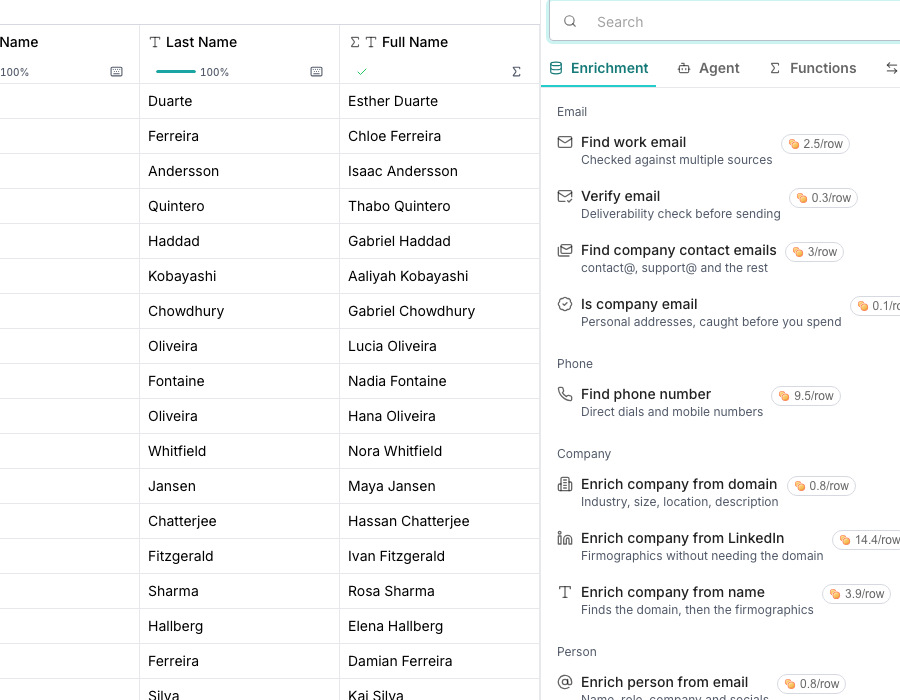 ## Remove duplicate rows
Open a column's header menu and choose **Dedupe**, or open **Table settings** and use the **Deduplication** section.
Choose the column under **Duplicate on**. Rows with the exact same value in that column count as duplicates, and blank cells never match each other.
The dialog names how many rows it will remove before you commit, keeping the first of each repeated group and deleting the rest.
## Split a column into parts
Open a column's header menu, choose **Text to columns**, and pick **Space**, **Comma**, **Semicolon**, **Tab**, or **Custom…** for your own character, under **Split on**.
Set **Columns** to how many parts you expect. The preview updates as you adjust it.
New columns are added beside the original, which is left untouched. They stay live, so they re-split if the source cell changes.
## Merge two columns
Add **Merge columns** from the catalog, choose the columns to combine under **Source columns**, and set a **Separator** to sit between their values. Turn on **Skip empty values** to avoid a dangling separator where one side is blank.
## Give a nested field its own column
An enrichment result that holds more than one field, like an address, can hand any one of them its own column. Open the field from a column's header menu or its cell drawer. Choose **Give a field its own column…**, or **Give this field its own column** from the drawer icon.
Choose **Create a new column** to add one linked to the parent. It recomputes when the parent does, and you can rename it like any other column. **Use an existing column** overwrites that column's values instead, and cannot be undone.
## Good to know
No, one column per run. Run it again on a second column to narrow further.
No. This is a one time cleanup you trigger yourself, not a standing rule that catches every row that arrives afterward.
A short window right after removal lets you undo it, the same as any row delete. Past that, the rows are gone for good.
A very large batch may need running twice. The dialog tells you if it only cleared part of the table, so you can run it again for the rest.
A column holding a list or a nested object has no single value to compare or split, so **Dedupe** and splitting are unavailable on it.
No. The new column reads a value the enrichment already fetched, so it has nothing new to compute.
## Next steps
See where a multi-field result like this comes from.
Build a formula column like the one behind a merge.
## Remove duplicate rows
Open a column's header menu and choose **Dedupe**, or open **Table settings** and use the **Deduplication** section.
Choose the column under **Duplicate on**. Rows with the exact same value in that column count as duplicates, and blank cells never match each other.
The dialog names how many rows it will remove before you commit, keeping the first of each repeated group and deleting the rest.
## Split a column into parts
Open a column's header menu, choose **Text to columns**, and pick **Space**, **Comma**, **Semicolon**, **Tab**, or **Custom…** for your own character, under **Split on**.
Set **Columns** to how many parts you expect. The preview updates as you adjust it.
New columns are added beside the original, which is left untouched. They stay live, so they re-split if the source cell changes.
## Merge two columns
Add **Merge columns** from the catalog, choose the columns to combine under **Source columns**, and set a **Separator** to sit between their values. Turn on **Skip empty values** to avoid a dangling separator where one side is blank.
## Give a nested field its own column
An enrichment result that holds more than one field, like an address, can hand any one of them its own column. Open the field from a column's header menu or its cell drawer. Choose **Give a field its own column…**, or **Give this field its own column** from the drawer icon.
Choose **Create a new column** to add one linked to the parent. It recomputes when the parent does, and you can rename it like any other column. **Use an existing column** overwrites that column's values instead, and cannot be undone.
## Good to know
No, one column per run. Run it again on a second column to narrow further.
No. This is a one time cleanup you trigger yourself, not a standing rule that catches every row that arrives afterward.
A short window right after removal lets you undo it, the same as any row delete. Past that, the rows are gone for good.
A very large batch may need running twice. The dialog tells you if it only cleared part of the table, so you can run it again for the rest.
A column holding a list or a nested object has no single value to compare or split, so **Dedupe** and splitting are unavailable on it.
No. The new column reads a value the enrichment already fetched, so it has nothing new to compute.
## Next steps
See where a multi-field result like this comes from.
Build a formula column like the one behind a merge.