> ## Documentation Index
> Fetch the complete documentation index at: https://docs.getoneprofile.ai/llms.txt
> Use this file to discover all available pages before exploring further.
# Workspace and team
> How Settings is laid out, and where to name the workspace, invite people, and set what you send and see.
Settings is where the workspace is configured, from its name to who your team can email. Open it from the bottom of the sidebar.
 ## Find your way around Settings
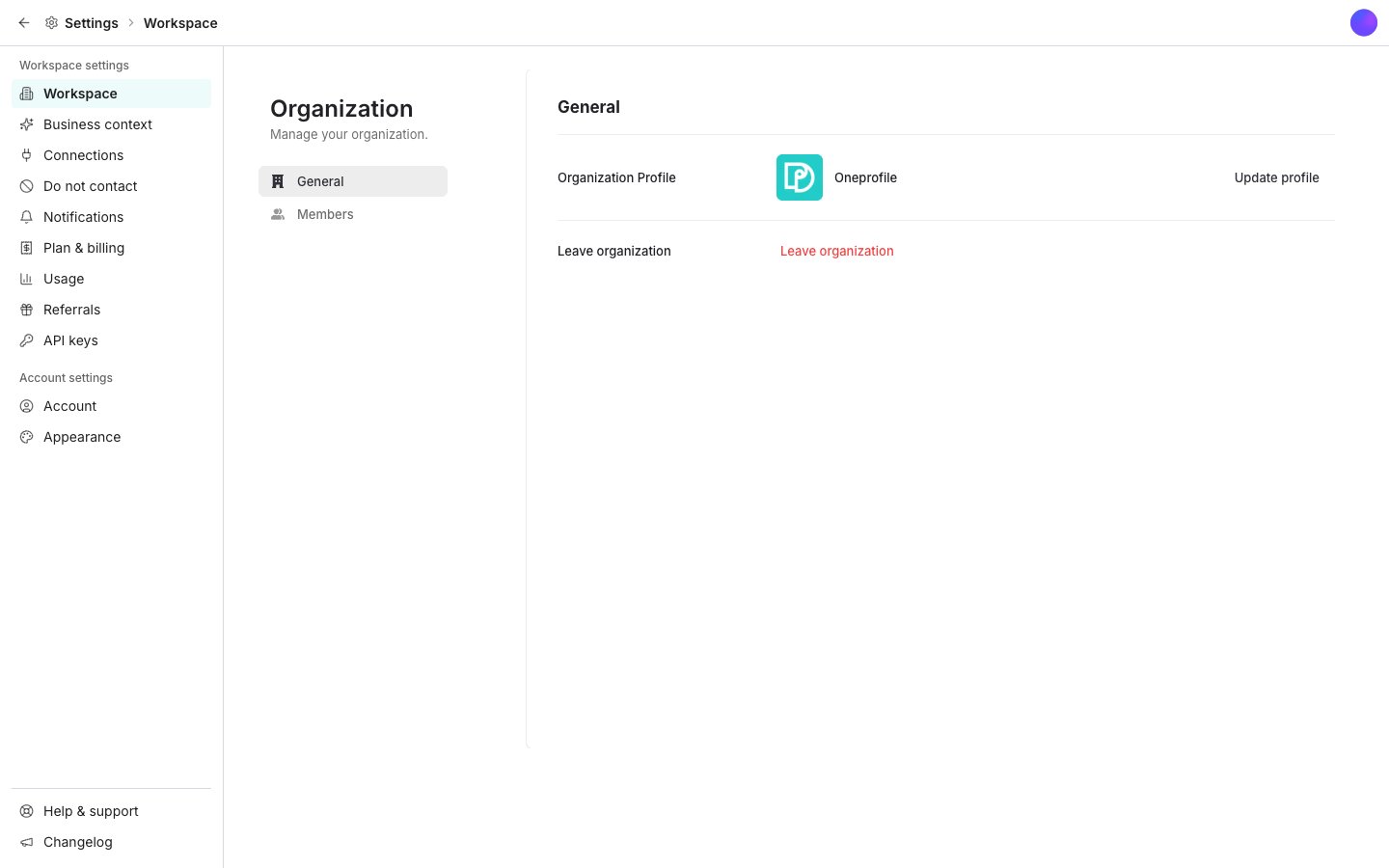
The rail on the left has two groups. **Workspace settings** holds what the whole team shares: **Workspace**, **Business context**, **Connections**, **Do not contact**, **Notifications**, **Plan & billing**, **Usage**, **Referrals** and **API keys**. **Account settings** holds **Account** and **Appearance**, which are yours alone.
**Workspace** and **Account** are drawn by the identity provider we use for sign-in, so they look different from the rest of the dashboard.
## Name the workspace and invite people
Open **Workspace**. Change the name and logo, invite people by email, and see who has joined and who still has an invitation open. You can also leave the workspace, or delete it.
## Set your business context
AI features across the product read your business context before they write anything.
Open it from **Workspace settings**, or from its own row at the bottom of the sidebar.
Type your domain into **AI Assistant** and click **Generate**. The research takes up to a minute.
Edit **Company description**, **Ideal customer profile**, **Ideal buyer personas** and **Interest signals**, then click **Save changes**.
## Block people you must not email
Every outbound email is checked against **Do not contact** immediately before it sends.
Find it under **Workspace settings**.
Paste addresses or domains into the box, one per line or comma separated, then click **Add to list**. A value without an @ blocks a whole domain.
Each row shows the **Address or domain**, whether it **Blocks** one address or a whole domain, its **Source**, and when it was **Added**.
Opt-out replies and the inbox's do not contact action add addresses on their own.
## Choose what you are told about
Open **Notifications**. Switch **Email** on or off for each notification, under **Inbox**, **Sender health** and **Credits**. In the **Slack** column beside it, pick a channel or leave it **Off**.
Email reaches only you, and Slack reaches the whole workspace once you click **Add to Slack**.
## Good to know
**Generate** rewrites the sections it has something new for and shows each one against what it replaced, under **Review the new business context**. Choose **Keep current** or **Use new** per section, then click **Apply**. The fields stay locked until you decide, and **Keep everything as it was** discards the whole draft.
Select the rows, click **Remove**, then confirm. Those addresses can be emailed again, and opt-out replies and the inbox action will not add them back on their own. **Export** downloads the whole list as plain text.
Under **When a reply is labeled**, a rule sends replies carrying one inbox label to one Slack channel. Pick a **Label** and a **Slack channel**, then click **Add rule**.
A label with no rule notifies nobody, which is how you keep out-of-office replies quiet. Rules keep their channels if you disconnect Slack, so reconnecting restores the routing.
**API keys** lets other tools reach your workspace. Click **Create API key**, give it a **Name** and an **Expires** date, and it appears in the grid. Each row can reveal or copy its key, and a key you no longer want can be deleted.
**Referrals** gives you a link to share, with a **Copy** button beside it. You and the person you invite both earn credits when they sign up, and more each when they start a paid plan. Those credits never expire.
The page shows **Friends joined**, **On a paid plan** and **Credits earned**, above the list of everyone who used your link. The reward amounts are shown on the page itself, because they change.
**Appearance** sets how the dashboard looks on this device. It is an account setting, not a workspace one, so it changes nothing for anybody else on your team.
Both sit under **Workspace settings**. **Plan & billing** holds your plan, your credit balance, your payment method and your invoices. **Usage** breaks credit spend down by table, tool and agent.
See [Credits and billing](/settings/credits-and-billing).
**Help & support** and **Changelog** are pinned below the rail, under a divider. **Help & support** opens a chat with us, and **Changelog** opens what shipped recently in a new tab.
## Next steps
See what spends credits and how to buy more.
Connect the tools your workspace already uses.
## Find your way around Settings
The rail on the left has two groups. **Workspace settings** holds what the whole team shares: **Workspace**, **Business context**, **Connections**, **Do not contact**, **Notifications**, **Plan & billing**, **Usage**, **Referrals** and **API keys**. **Account settings** holds **Account** and **Appearance**, which are yours alone.
**Workspace** and **Account** are drawn by the identity provider we use for sign-in, so they look different from the rest of the dashboard.
## Name the workspace and invite people
Open **Workspace**. Change the name and logo, invite people by email, and see who has joined and who still has an invitation open. You can also leave the workspace, or delete it.
## Set your business context
AI features across the product read your business context before they write anything.
Open it from **Workspace settings**, or from its own row at the bottom of the sidebar.
Type your domain into **AI Assistant** and click **Generate**. The research takes up to a minute.
Edit **Company description**, **Ideal customer profile**, **Ideal buyer personas** and **Interest signals**, then click **Save changes**.
## Block people you must not email
Every outbound email is checked against **Do not contact** immediately before it sends.
Find it under **Workspace settings**.
Paste addresses or domains into the box, one per line or comma separated, then click **Add to list**. A value without an @ blocks a whole domain.
Each row shows the **Address or domain**, whether it **Blocks** one address or a whole domain, its **Source**, and when it was **Added**.
Opt-out replies and the inbox's do not contact action add addresses on their own.
## Choose what you are told about
Open **Notifications**. Switch **Email** on or off for each notification, under **Inbox**, **Sender health** and **Credits**. In the **Slack** column beside it, pick a channel or leave it **Off**.
Email reaches only you, and Slack reaches the whole workspace once you click **Add to Slack**.
## Good to know
**Generate** rewrites the sections it has something new for and shows each one against what it replaced, under **Review the new business context**. Choose **Keep current** or **Use new** per section, then click **Apply**. The fields stay locked until you decide, and **Keep everything as it was** discards the whole draft.
Select the rows, click **Remove**, then confirm. Those addresses can be emailed again, and opt-out replies and the inbox action will not add them back on their own. **Export** downloads the whole list as plain text.
Under **When a reply is labeled**, a rule sends replies carrying one inbox label to one Slack channel. Pick a **Label** and a **Slack channel**, then click **Add rule**.
A label with no rule notifies nobody, which is how you keep out-of-office replies quiet. Rules keep their channels if you disconnect Slack, so reconnecting restores the routing.
**API keys** lets other tools reach your workspace. Click **Create API key**, give it a **Name** and an **Expires** date, and it appears in the grid. Each row can reveal or copy its key, and a key you no longer want can be deleted.
**Referrals** gives you a link to share, with a **Copy** button beside it. You and the person you invite both earn credits when they sign up, and more each when they start a paid plan. Those credits never expire.
The page shows **Friends joined**, **On a paid plan** and **Credits earned**, above the list of everyone who used your link. The reward amounts are shown on the page itself, because they change.
**Appearance** sets how the dashboard looks on this device. It is an account setting, not a workspace one, so it changes nothing for anybody else on your team.
Both sit under **Workspace settings**. **Plan & billing** holds your plan, your credit balance, your payment method and your invoices. **Usage** breaks credit spend down by table, tool and agent.
See [Credits and billing](/settings/credits-and-billing).
**Help & support** and **Changelog** are pinned below the rail, under a divider. **Help & support** opens a chat with us, and **Changelog** opens what shipped recently in a new tab.
## Next steps
See what spends credits and how to buy more.
Connect the tools your workspace already uses.