> ## Documentation Index
> Fetch the complete documentation index at: https://docs.getoneprofile.ai/llms.txt
> Use this file to discover all available pages before exploring further.
# Usage and reports
> See where your credits went, break spend down by table, column or agent, and export the detail.
Usage shows your credit balance over time and where every credit went. Break spend down by table, tool or agent, and export whichever view you need.
 ## Read the overview
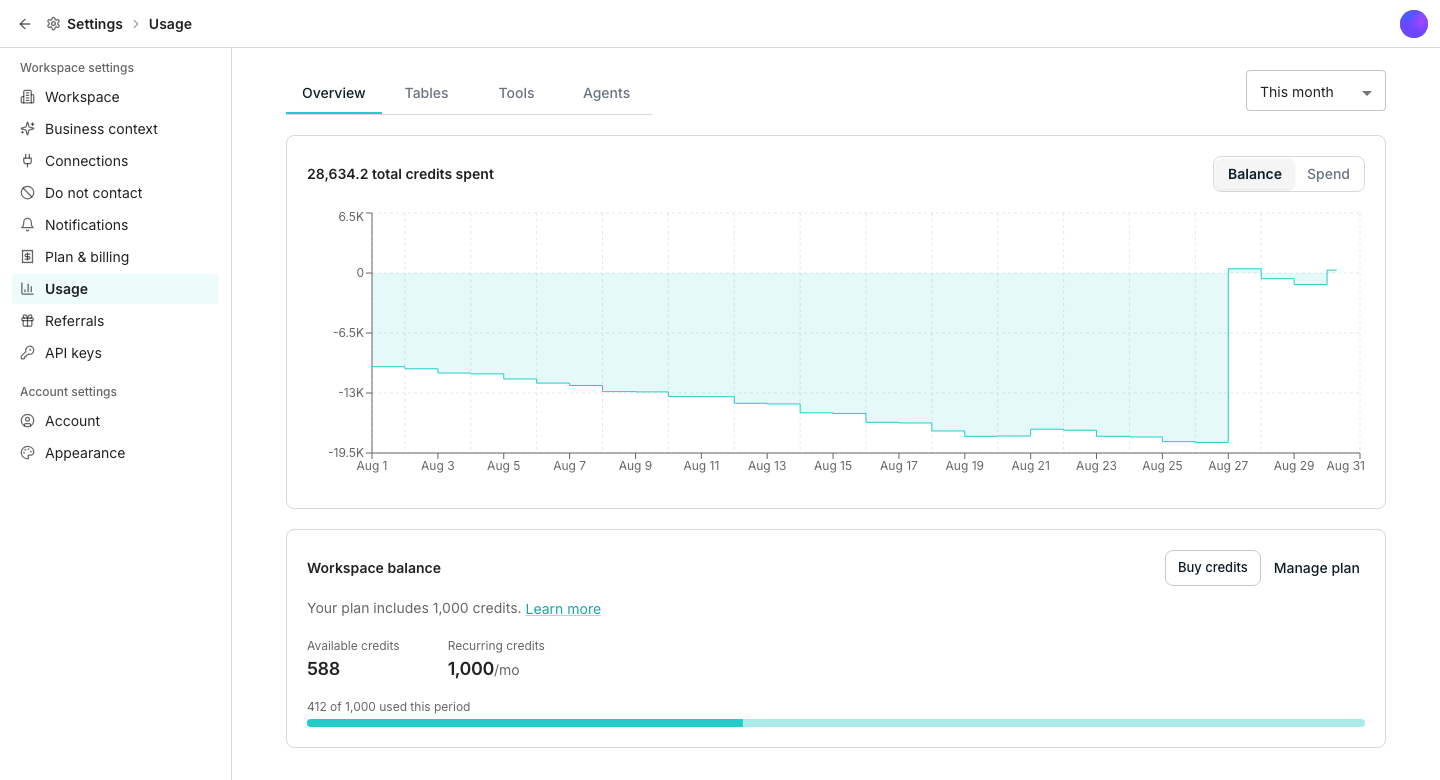
The **Overview** tab toggles between a **Balance** chart and a **Spend** chart, over a time range you choose. A **Workspace balance** card sits below with **Buy credits** and **Manage plan** buttons.
## Break spend down
Each tab groups the same spend by a different entity: a table, a connected tool, or an agent.
A table expands into its columns, and a tool expands into the account behind it.
It downloads the full report for your applied date range, not just the rows on screen.
## Good to know
No. The search box only filters what you see on screen. Export always covers the full report for the date range you applied.
An info icon on each tab states how far back Oneprofile has data, so you know when a widened range stops adding anything.
Tools groups spend by the connected tool or data source a run used. Agents groups the same spend by which agent triggered it.
## Next steps
Buy credits and manage your plan.
Understand what drives an agent's spend before you run one.
## Read the overview
The **Overview** tab toggles between a **Balance** chart and a **Spend** chart, over a time range you choose. A **Workspace balance** card sits below with **Buy credits** and **Manage plan** buttons.
## Break spend down
Each tab groups the same spend by a different entity: a table, a connected tool, or an agent.
A table expands into its columns, and a tool expands into the account behind it.
It downloads the full report for your applied date range, not just the rows on screen.
## Good to know
No. The search box only filters what you see on screen. Export always covers the full report for the date range you applied.
An info icon on each tab states how far back Oneprofile has data, so you know when a widened range stops adding anything.
Tools groups spend by the connected tool or data source a run used. Agents groups the same spend by which agent triggered it.
## Next steps
Buy credits and manage your plan.
Understand what drives an agent's spend before you run one.