> ## Documentation Index
> Fetch the complete documentation index at: https://docs.getoneprofile.ai/llms.txt
> Use this file to discover all available pages before exploring further.
# Credits and billing
> Where your credit balance lives, what spends credits, and the two ways to buy more.
Credits pay for the data Oneprofile looks up for you. Everything else you do on a table is free, however many rows it touches.
 ## What spends credits
Each freshly enriched cell costs credits based on what it looks up. Enrichment columns and AI agent columns spend them when they run. Formula columns, manual edits, and syncs are always free.
Run menus show the cost beside each item, so you see the price before you spend anything.
## Check your balance
Click the credit balance in the top bar. The popover shows the credits available out of your plan's total and the date they renew.
Its actions depend on your plan. **View usage** always shows. A paid workspace also gets **Manage plan** and **Buy credits**, and a free one gets **Upgrade** instead.
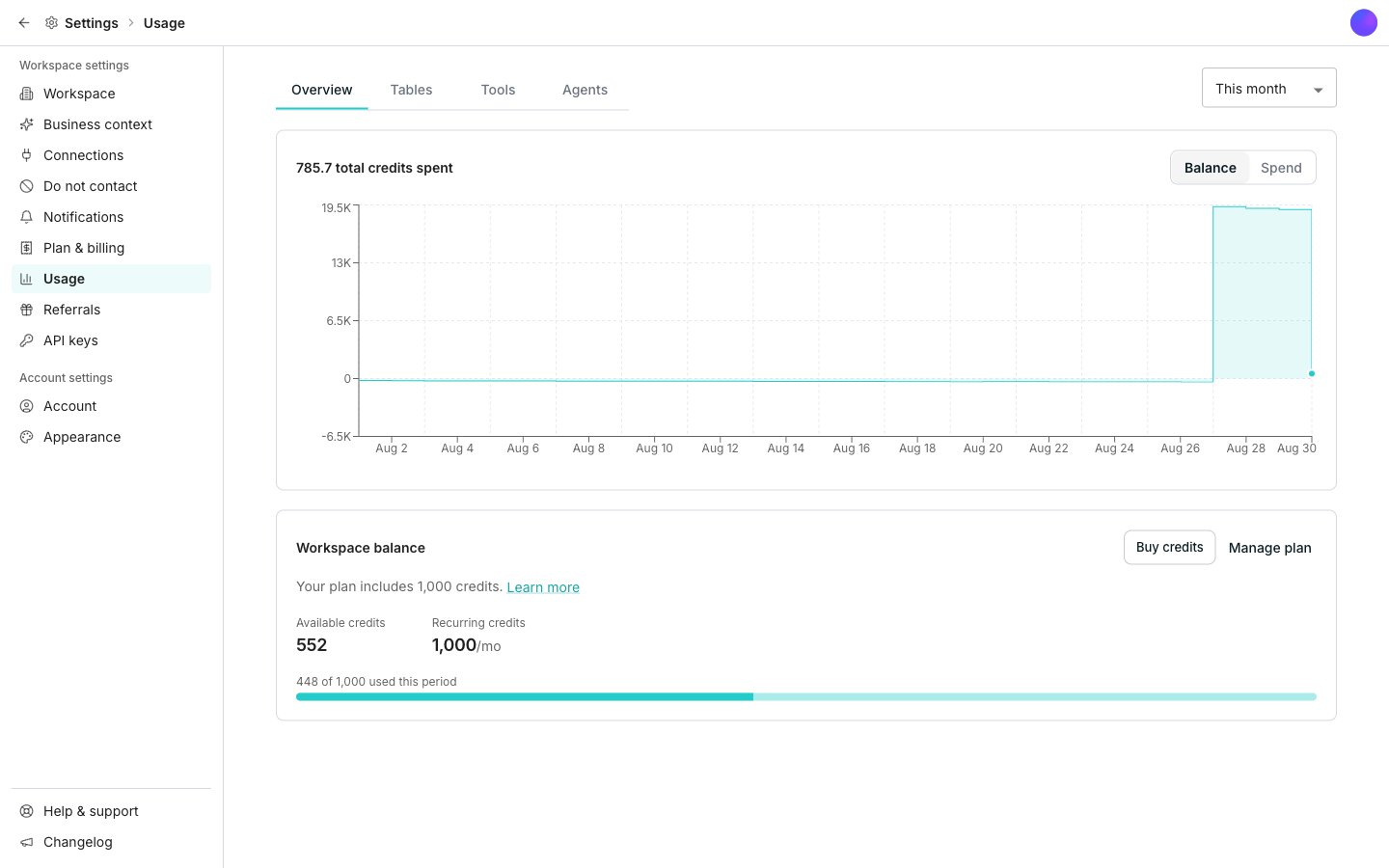
The same numbers show as **Workspace balance** on the **Plan & billing** and **Usage** panes in Settings, split into **Available credits** and **Recurring credits**.
## See where your credits went
In **Settings**, open **Usage**. **Overview** shows total credits spent for the date range you pick, with a **Balance** and **Spend** toggle over the chart. **Tables**, **Tools**, and **Agents** break the same spend down by table, by tool, or by agent.
## Buy credits
Click **Buy credits** in the balance popover, or on the **Workspace balance** card.
**Buy credits once** adds a one-off pack and leaves your plan alone. **Buy credits every month** raises the credits your plan grants each month.
For a one-off pack, click a preset or type your own number into **Credits**. The dialog shows the price and your balance after the purchase before you pay.
A one-off pack needs a paid plan. On a free workspace the dialog says so and offers **Upgrade plan**.
## Good to know
Unused credits roll forward month after month, so nothing is lost by not spending them right away. Credits you buy arrive as soon as your payment goes through and stay on the account until you spend them.
Credits you buy cost the same rate your plan charges for credits. Buying more never forces you onto a bigger plan, and **Buy credits once** leaves your plan and your recurring price untouched. **Buy credits every month** does change your recurring price, and Stripe shows the prorated amount before you confirm.
Enrichments go on hold until you have credits again. Formula columns, manual edits, and syncs keep running.
The balance in the top bar turns amber when credits are low and red once they are gone. The popover tells you what to do next.
Each row shows **Credits spent**, **Refunded**, **Units**, **Charges**, and **Avg cost per unit**, under a **Workspace** total. Expand a row to see the columns or accounts underneath it. **Apply filters** changes the date range, and **Export** downloads the report as a CSV.
Detailed usage history covers the last 12 months. Older activity is kept as monthly summaries.
In **Settings**, **Plan & billing** shows your current plan, its status, the credits it grants each month, and your renewal date. **Manage plan** changes tiers, and **Size your plan** estimates what a different plan would cost for the usage you already have. The dashboard is the only source of truth for prices and plan names, because both change.
**Plan & billing** lists **Credit activity** below the balance: the date, type and credit amount of every plan grant, purchase and reward. Your payment method and your invoices sit below that.
## Next steps
Add columns that fill themselves in from multiple sources.
Rename the workspace, invite people, and find every setting.
## What spends credits
Each freshly enriched cell costs credits based on what it looks up. Enrichment columns and AI agent columns spend them when they run. Formula columns, manual edits, and syncs are always free.
Run menus show the cost beside each item, so you see the price before you spend anything.
## Check your balance
Click the credit balance in the top bar. The popover shows the credits available out of your plan's total and the date they renew.
Its actions depend on your plan. **View usage** always shows. A paid workspace also gets **Manage plan** and **Buy credits**, and a free one gets **Upgrade** instead.
The same numbers show as **Workspace balance** on the **Plan & billing** and **Usage** panes in Settings, split into **Available credits** and **Recurring credits**.
## See where your credits went
In **Settings**, open **Usage**. **Overview** shows total credits spent for the date range you pick, with a **Balance** and **Spend** toggle over the chart. **Tables**, **Tools**, and **Agents** break the same spend down by table, by tool, or by agent.
## Buy credits
Click **Buy credits** in the balance popover, or on the **Workspace balance** card.
**Buy credits once** adds a one-off pack and leaves your plan alone. **Buy credits every month** raises the credits your plan grants each month.
For a one-off pack, click a preset or type your own number into **Credits**. The dialog shows the price and your balance after the purchase before you pay.
A one-off pack needs a paid plan. On a free workspace the dialog says so and offers **Upgrade plan**.
## Good to know
Unused credits roll forward month after month, so nothing is lost by not spending them right away. Credits you buy arrive as soon as your payment goes through and stay on the account until you spend them.
Credits you buy cost the same rate your plan charges for credits. Buying more never forces you onto a bigger plan, and **Buy credits once** leaves your plan and your recurring price untouched. **Buy credits every month** does change your recurring price, and Stripe shows the prorated amount before you confirm.
Enrichments go on hold until you have credits again. Formula columns, manual edits, and syncs keep running.
The balance in the top bar turns amber when credits are low and red once they are gone. The popover tells you what to do next.
Each row shows **Credits spent**, **Refunded**, **Units**, **Charges**, and **Avg cost per unit**, under a **Workspace** total. Expand a row to see the columns or accounts underneath it. **Apply filters** changes the date range, and **Export** downloads the report as a CSV.
Detailed usage history covers the last 12 months. Older activity is kept as monthly summaries.
In **Settings**, **Plan & billing** shows your current plan, its status, the credits it grants each month, and your renewal date. **Manage plan** changes tiers, and **Size your plan** estimates what a different plan would cost for the usage you already have. The dashboard is the only source of truth for prices and plan names, because both change.
**Plan & billing** lists **Credit activity** below the balance: the date, type and credit amount of every plan grant, purchase and reward. Your payment method and your invoices sit below that.
## Next steps
Add columns that fill themselves in from multiple sources.
Rename the workspace, invite people, and find every setting.