> ## Documentation Index
> Fetch the complete documentation index at: https://docs.getoneprofile.ai/llms.txt
> Use this file to discover all available pages before exploring further.
# API keys
> Create a key so another system can talk to your workspace, and revoke one you no longer trust.
An API key lets another system authenticate as your workspace. Create one, name it, and delete it the moment you no longer trust it.
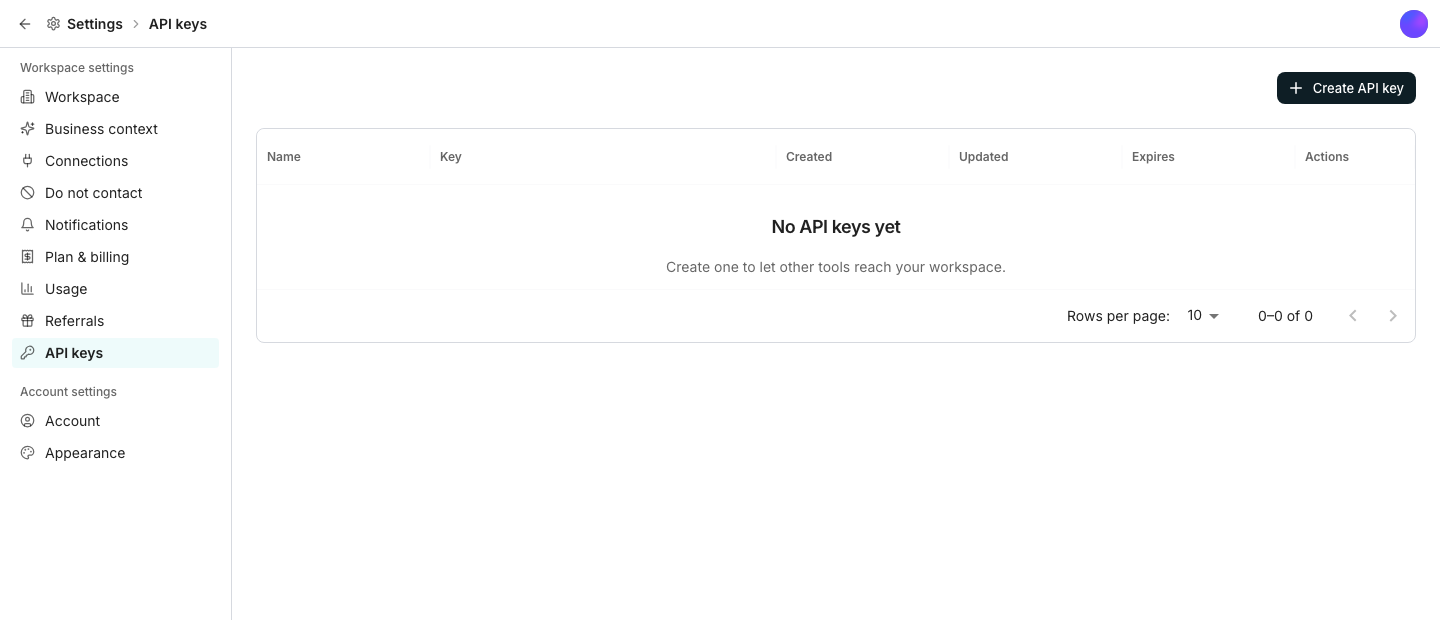 ## Create a key
Give it a name that says what will use it.
Leave **Expires** empty and the key never expires on its own.
Click the clipboard icon next to it. The key stays visible behind the eye icon whenever you need it again.
## Edit or delete a key
Click a key's name to rename it or change its expiry. **Delete** removes it immediately and cannot be undone, so whatever was using it stops working right away.
## Good to know
Yes. Click the eye icon next to any key at any time to reveal it, not only at creation.
No. Every key can do anything your workspace can do through the API, so treat each one like a password.
It stops working on its expiry date. Anything still using it needs a new key before then.
## Next steps
See what a key's own requests have spent.
Manage who in your workspace can create a key.
## Create a key
Give it a name that says what will use it.
Leave **Expires** empty and the key never expires on its own.
Click the clipboard icon next to it. The key stays visible behind the eye icon whenever you need it again.
## Edit or delete a key
Click a key's name to rename it or change its expiry. **Delete** removes it immediately and cannot be undone, so whatever was using it stops working right away.
## Good to know
Yes. Click the eye icon next to any key at any time to reveal it, not only at creation.
No. Every key can do anything your workspace can do through the API, so treat each one like a password.
It stops working on its expiry date. Anything still using it needs a new key before then.
## Next steps
See what a key's own requests have spent.
Manage who in your workspace can create a key.