> ## Documentation Index
> Fetch the complete documentation index at: https://docs.getoneprofile.ai/llms.txt
> Use this file to discover all available pages before exploring further.
# Senders
> Create the sender profile your sequences write as, add mailboxes to it, and invite a teammate to connect their own inbox.
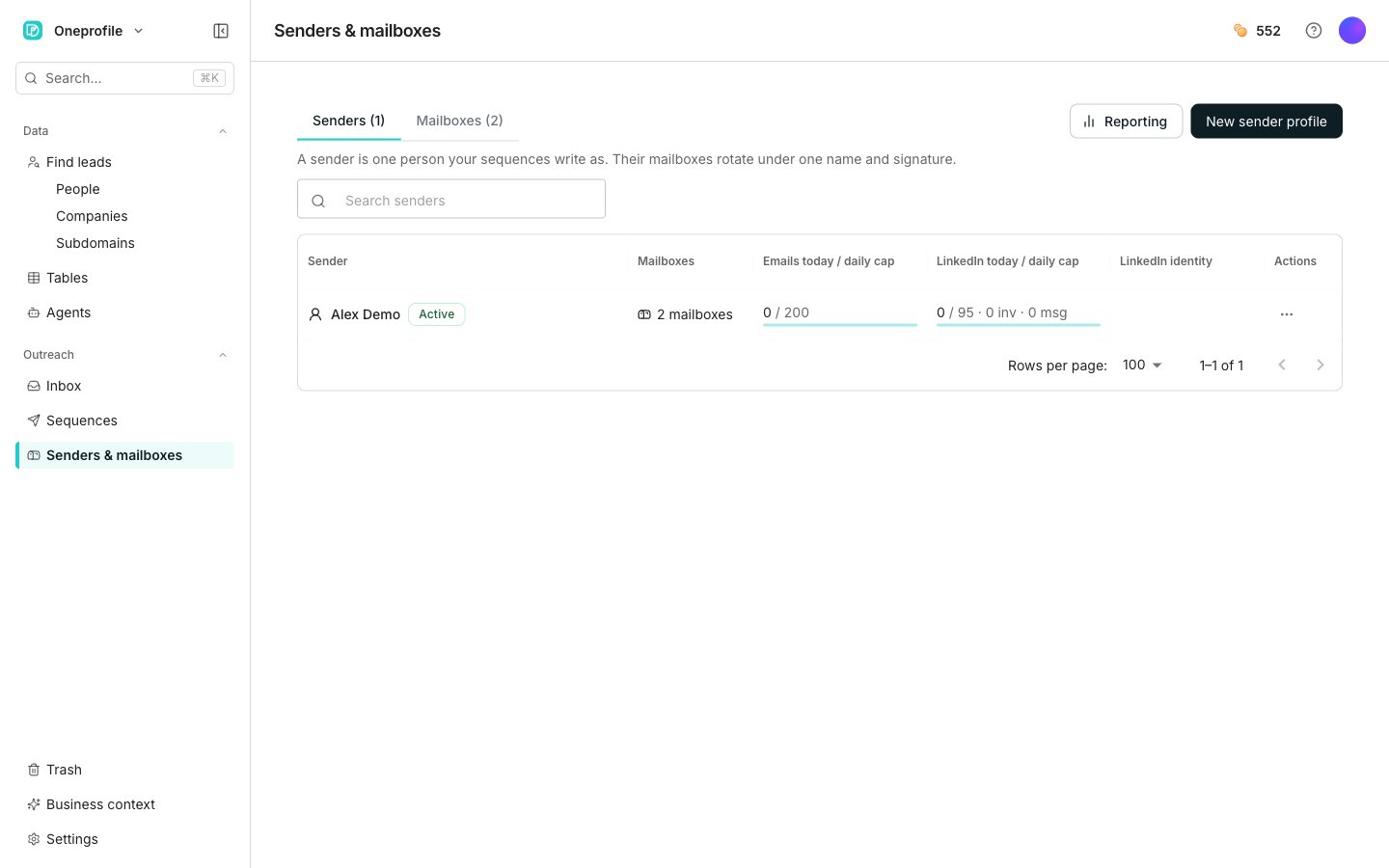
A sender profile is one person your sequences write as. Their connected mailboxes rotate underneath that single name and signature.
 ## Create a sender profile
Open **Senders & mailboxes** in the sidebar and stay on the **Senders** tab.
Enter the sender's full name, then click **Create**.
A sequence is assigned to a sender profile, never to a mailbox directly. A profile with no mailbox sends nothing, so the preflight check blocks launch until it has one.
## Add mailboxes to a sender
Click the sender's row on the **Senders** tab. The **Mailboxes** tab lists everything that sender sends from.
Tick every mailbox this sender sends from, then click **Save**.
Click **Connect mailbox** to add an account nobody in the workspace has connected yet.
Unticking a mailbox leaves it connected. It just sits unused until a sender takes it.
## Invite a teammate to connect their mailbox
Google only hands a mailbox grant to whoever is at the browser. You cannot connect a colleague's inbox for them, so send them a link instead.
On the **Senders** tab, open the sender's row menu and click **Invite them to connect a mailbox…**
Click **Create connect link**, then copy it.
They open the link and sign in with Google, and their mailbox attaches to that sender. They need no Oneprofile account of their own.
The link gives your teammate nothing else in your workspace.
## Good to know
The dialog shows the date the link stops working. Creating another link later does not disable the old one, so both keep working until they expire.
Click **Revoke all links** in the invite dialog. Every link already sent for that sender stops working at once, so anyone part-way through connecting has to start again with a new one.
Revoking cannot be undone. Create a fresh link afterwards when you are ready to invite again.
## Next steps
Connect the email accounts a sender rotates through.
Assign a sender and send your outreach.
## Create a sender profile
Open **Senders & mailboxes** in the sidebar and stay on the **Senders** tab.
Enter the sender's full name, then click **Create**.
A sequence is assigned to a sender profile, never to a mailbox directly. A profile with no mailbox sends nothing, so the preflight check blocks launch until it has one.
## Add mailboxes to a sender
Click the sender's row on the **Senders** tab. The **Mailboxes** tab lists everything that sender sends from.
Tick every mailbox this sender sends from, then click **Save**.
Click **Connect mailbox** to add an account nobody in the workspace has connected yet.
Unticking a mailbox leaves it connected. It just sits unused until a sender takes it.
## Invite a teammate to connect their mailbox
Google only hands a mailbox grant to whoever is at the browser. You cannot connect a colleague's inbox for them, so send them a link instead.
On the **Senders** tab, open the sender's row menu and click **Invite them to connect a mailbox…**
Click **Create connect link**, then copy it.
They open the link and sign in with Google, and their mailbox attaches to that sender. They need no Oneprofile account of their own.
The link gives your teammate nothing else in your workspace.
## Good to know
The dialog shows the date the link stops working. Creating another link later does not disable the old one, so both keep working until they expire.
Click **Revoke all links** in the invite dialog. Every link already sent for that sender stops working at once, so anyone part-way through connecting has to start again with a new one.
Revoking cannot be undone. Create a fresh link afterwards when you are ready to invite again.
## Next steps
Connect the email accounts a sender rotates through.
Assign a sender and send your outreach.