> ## Documentation Index
> Fetch the complete documentation index at: https://docs.getoneprofile.ai/llms.txt
> Use this file to discover all available pages before exploring further.
# Mailbox health and capacity
> Check how much a mailbox can send today, watch its bounce and reply rates, and act on what the app flags.
Every connected mailbox carries its own health: a status, a daily limit, and rates that show whether it lands in inboxes or bounces. Scan the whole fleet on the Mailboxes tab, or open one mailbox for its own chart and history.
 ## Scan every mailbox at once
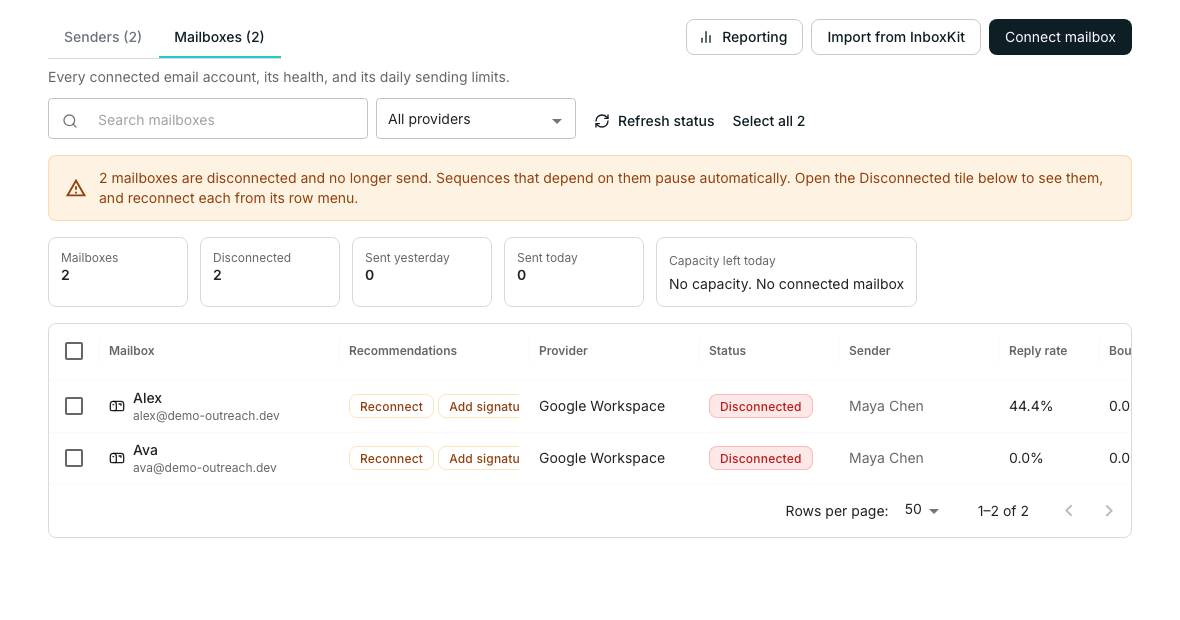
The tiles above the grid, **Mailboxes**, **Disconnected**, **Sent yesterday** and **Sent today**, filter the grid when clicked. **Capacity left today** beside them just totals what every connected mailbox can still send.
Each row carries a **Status** chip, a **Reply rate** and a **Bounce rate**, and how much of today's cap it has used. The **Recommendations** column turns a problem into a fix: click **Reconnect**, **Add a sender**, **High bounces** or **Add signature** and it opens the right dialog.
**Refresh status** re-checks every mailbox's connection right now, instead of waiting for the next scheduled check.
## Check one mailbox's health
Click its row on the Mailboxes tab to see its own page.
Switch the range between 7, 30, 90 days or all time to see sends, replies and received mail over time.
Top recipient domains and a list of bounces, each marked hard or soft, show where mail failed.
**Verify connection** sends a real test email to the mailbox itself and confirms delivery. A disconnected mailbox shows **Reconnect** alongside it.
## Good to know
The mailbox page's bounce list marks each one hard or soft, and a high bounce rate is what triggers the **High bounces** recommendation chip.
A mailbox that has never sent shows a dash instead of a rate. No sends is not the same as a perfect rate.
Every connected mailbox's remaining allowance for today, added up. A mailbox still warming up counts only its smaller, ramped-up limit.
Sequences that depend on it pause automatically. Reconnect the mailbox from its row menu to pick them back up.
## Next steps
Add the mailbox you want to check health on.
Add fresh sending capacity when a mailbox runs out.
## Scan every mailbox at once
The tiles above the grid, **Mailboxes**, **Disconnected**, **Sent yesterday** and **Sent today**, filter the grid when clicked. **Capacity left today** beside them just totals what every connected mailbox can still send.
Each row carries a **Status** chip, a **Reply rate** and a **Bounce rate**, and how much of today's cap it has used. The **Recommendations** column turns a problem into a fix: click **Reconnect**, **Add a sender**, **High bounces** or **Add signature** and it opens the right dialog.
**Refresh status** re-checks every mailbox's connection right now, instead of waiting for the next scheduled check.
## Check one mailbox's health
Click its row on the Mailboxes tab to see its own page.
Switch the range between 7, 30, 90 days or all time to see sends, replies and received mail over time.
Top recipient domains and a list of bounces, each marked hard or soft, show where mail failed.
**Verify connection** sends a real test email to the mailbox itself and confirms delivery. A disconnected mailbox shows **Reconnect** alongside it.
## Good to know
The mailbox page's bounce list marks each one hard or soft, and a high bounce rate is what triggers the **High bounces** recommendation chip.
A mailbox that has never sent shows a dash instead of a rate. No sends is not the same as a perfect rate.
Every connected mailbox's remaining allowance for today, added up. A mailbox still warming up counts only its smaller, ramped-up limit.
Sequences that depend on it pause automatically. Reconnect the mailbox from its row menu to pick them back up.
## Next steps
Add the mailbox you want to check health on.
Add fresh sending capacity when a mailbox runs out.